Inviting coaches and staff
How to invite coaches, team managers and a safeguarding lead, and what each role can do.
For club admins
Staff are invited by email. There is no password: they sign in with a link sent to that email, and the invitation is accepted when they do.
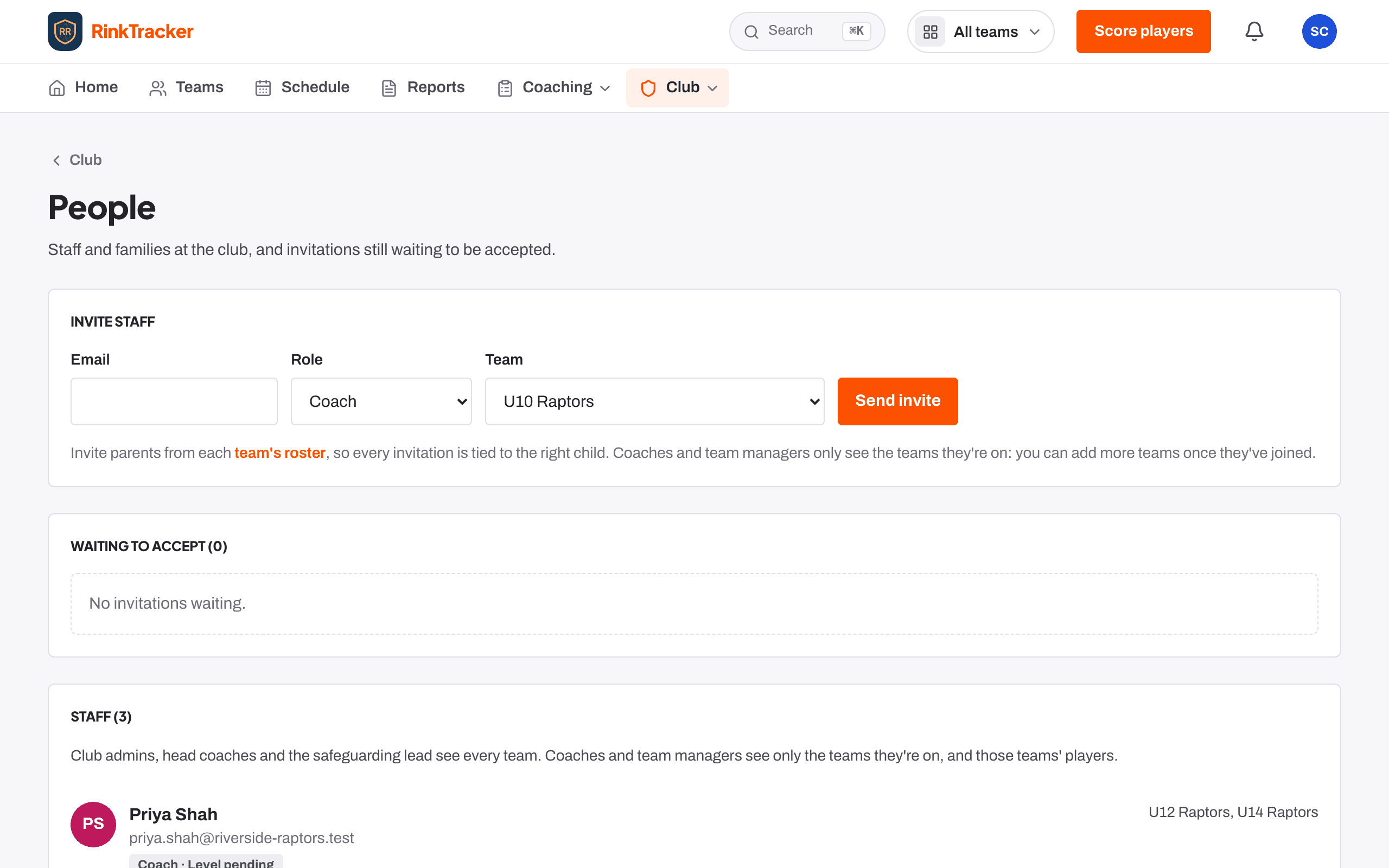
Send an invitation
- Open Club, then People.
- Under Invite staff, enter their Email.
- Choose a Role: Coach, Assistant coach, Head coach, Team manager or Safeguarding lead. A club admin can also invite another Club admin.
- Choose a Team, or No team yet (they won't see any players).
- Press Send invite.
They get an email headed You have been invited to [Club] on RinkTracker. Until they accept, the invitation shows under Waiting to accept, where Withdraw stops the link working.
What each role can do
| Club admin | Everything, including people, settings and privacy. |
| Head coach | Every team; publishes reports to families. |
| Coach | Their own teams: scoring, goals, sessions. |
| Assistant coach | Their own teams: registers and helping on the ice, with their own development record. They don't score, set goals, write reports or change the schedule. |
| Team manager | Their own teams: schedule, registers and families. |
| Safeguarding lead | Every team's welfare and safeguarding records. |
Club volunteers
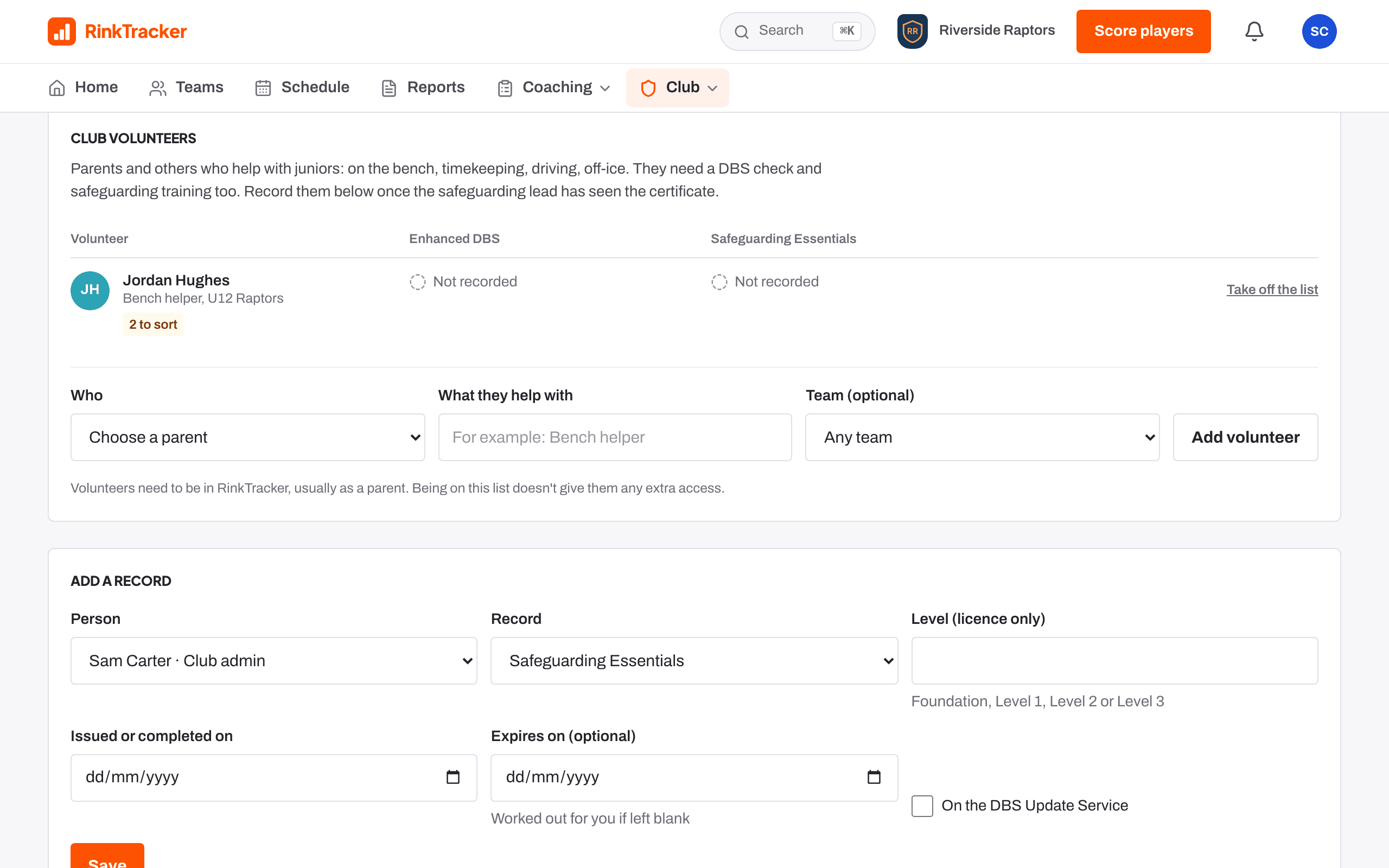
Parents who help as bench helpers, timekeepers, drivers or off-ice helpers aren't staff. A club admin or the safeguarding lead adds them under Club volunteers on Compliance, with what they help with and their team, then records their DBS check and safeguarding training. A volunteer sees only their own entry, and when they stop, the entry is ended rather than deleted.
- Putting staff on teams Help article
- Roles: who sees what Help article
- Coach licences, vetting and safeguarding records Help article
- Invite staff and families Step-by-step guide
Still stuck? Email hello@rinktracker.com and we'll help.