Putting staff on teams
How to choose which teams each coach and team manager sees, and change roles or remove someone.
For club admins
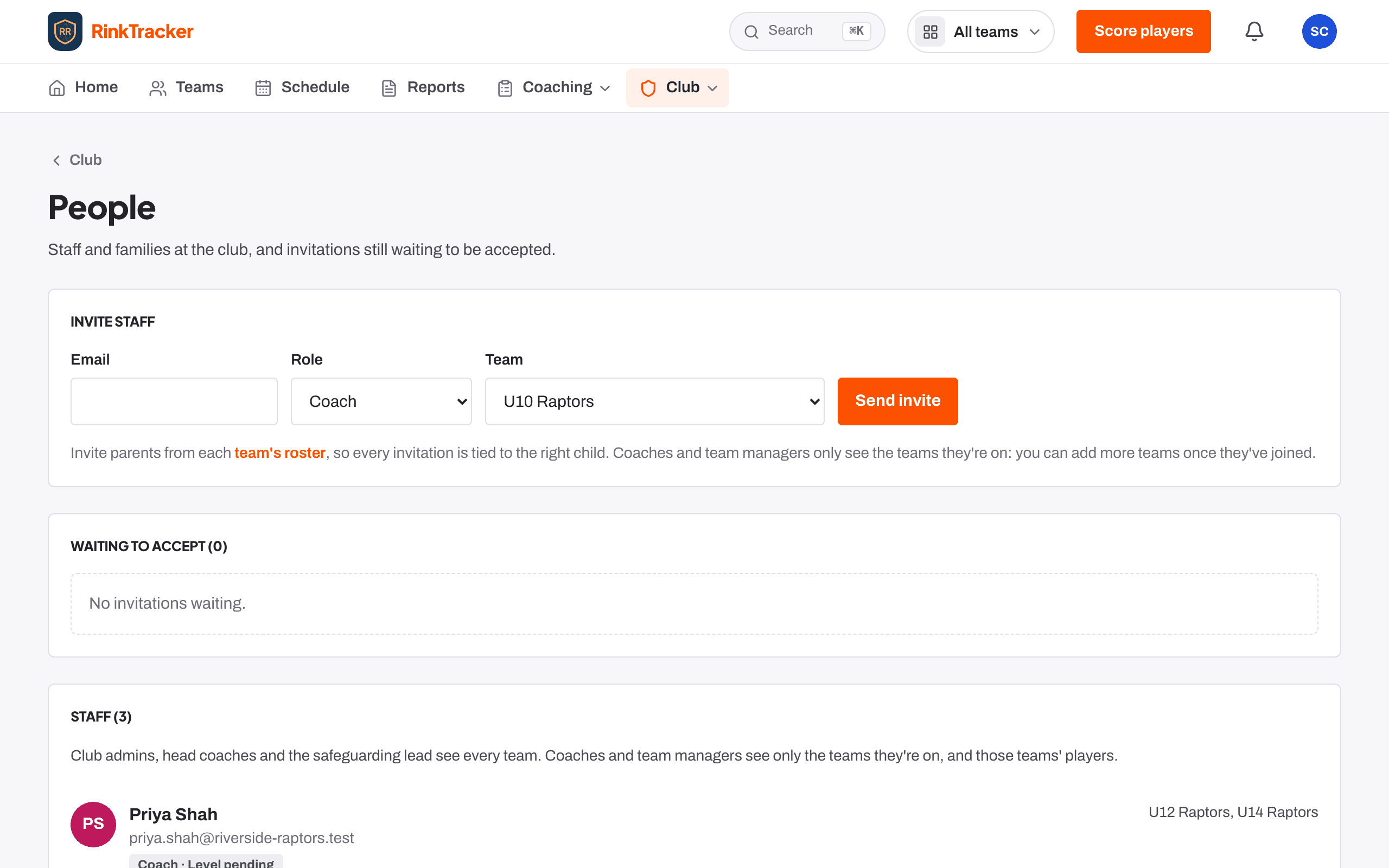
Coaches and team managers see only the teams they are on. Someone on no team sees no players at all. Club admins, head coaches and the safeguarding lead see every team.
Change someone's teams
- Open Club, then People.
- In the staff list, open Manage [name]'s teams.
- Tick the teams they should see. Tick Head coach of this team for the team's lead coach if you like.
- Press Save teams.
The staff list shows each person's teams, Not on a team yet, so they can't see any players, or Sees every team.
Roles and removing staff
- A club admin or head coach can change teams.
- Only a club admin can change roles (Save roles) or use Remove from the staff.
- To fine-tune what one person can do on top of their role, see Staff responsibilities.
- Removing someone ends their access to every team straight away. If they are also a parent at the club, they still see their own child.
Related
- Inviting coaches and staff Help article
- Staff responsibilities: switching things on or off for one person Help article
- Roles: who sees what Help article
- Teams and rosters Help article
Still stuck? Email hello@rinktracker.com and we'll help.