For coaches
A coach sees only the teams they are on. A head coach sees every team. Everything below works on a phone at the rink.
Your home page and the menu
Sign in with the email the club invited. There is no password: you get a link by email each time, and it works for 15 minutes. Home opens on What needs you: goal reviews due, feedback to approve, registers to take for recent events, parent notes on reports, players without goals and anything else waiting on you, each with a count and a button. When nothing is due it says You're all caught up. Below that: your teams and how far scoring has got, what is coming up, the drill of the week, practice this week and the activity feed, where you can Give a high five on a player's practice.
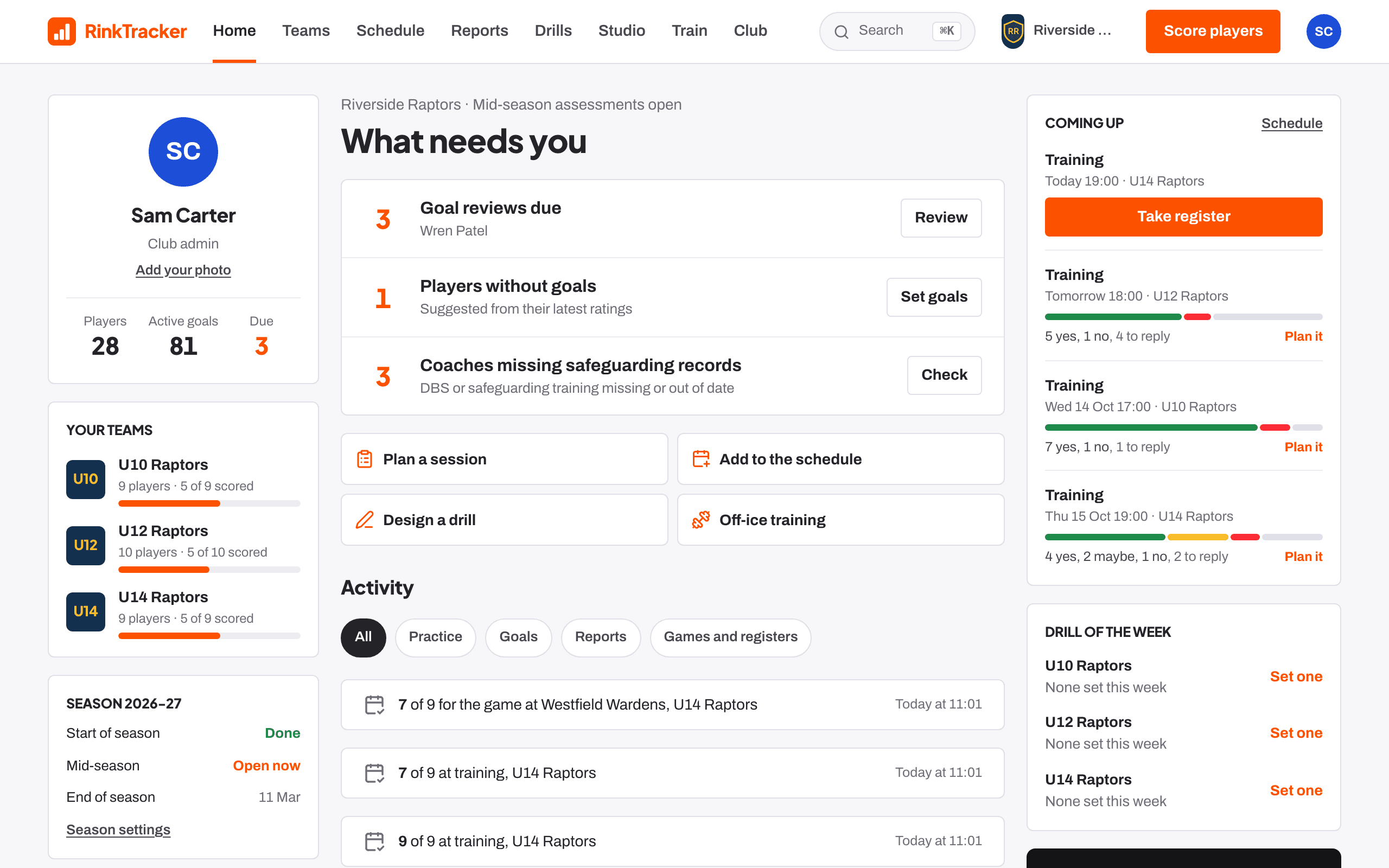
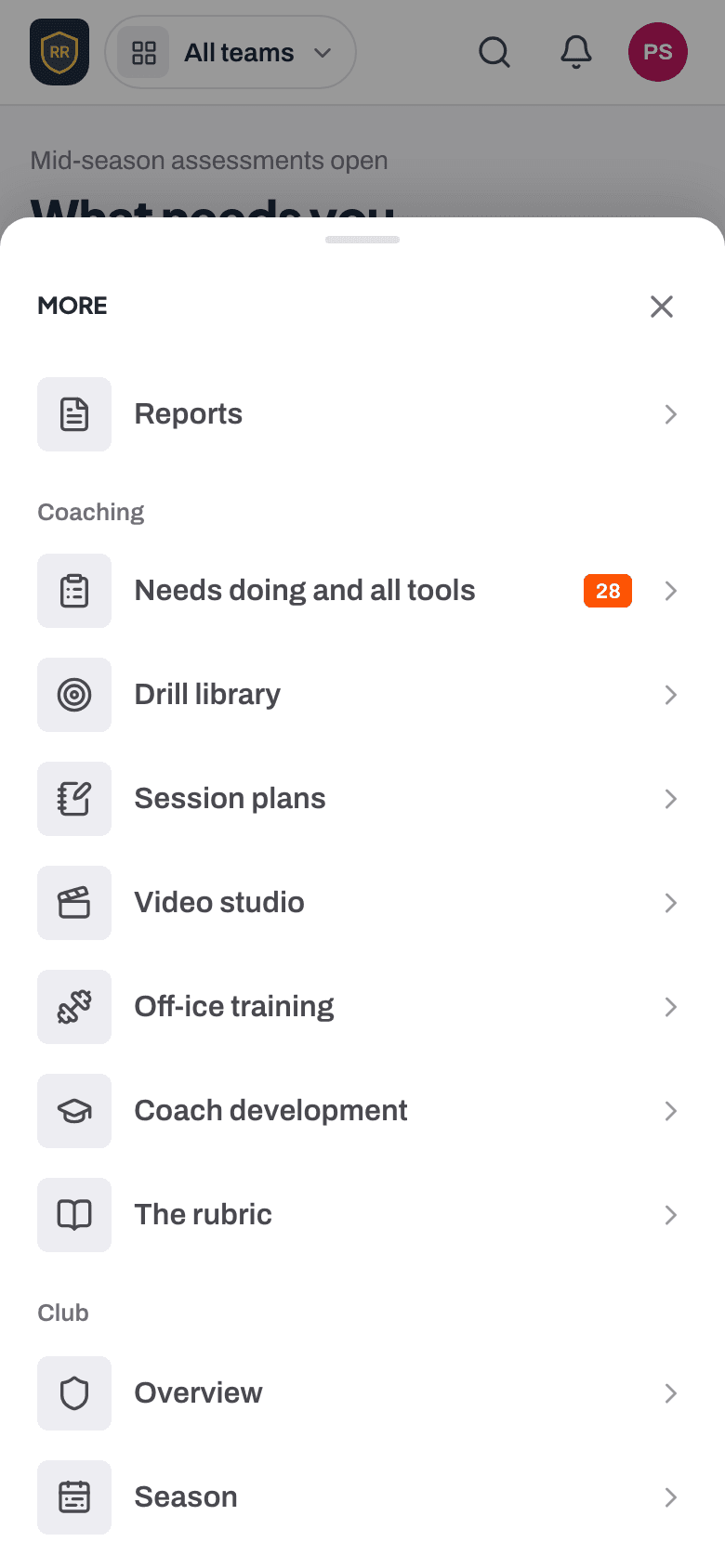
On a computer the tabs along the top are Home, Teams, Schedule, Reports, Drills, Studio, Train and Club, with the orange Score players button on the right. On a phone the bottom menu has Home, Teams, the orange Score button, Schedule and More. More opens Drills, Reports, Studio, Train and Club.
To find anything, press Ctrl or Cmd and K, or / when you are not typing. On a phone, tap the search icon at the top. Type a name, a team, a shirt number such as #14, a drill or an event. Results are grouped into players, teams, schedule, drills, session plans, videos and staff.
Scoring a skills check
The club scores every player three times a season: start, mid and end. Scoring is open while a window is open. If you have one team, Score players goes straight to the score screen; otherwise it opens Teams, where you pick the team and press Score players.
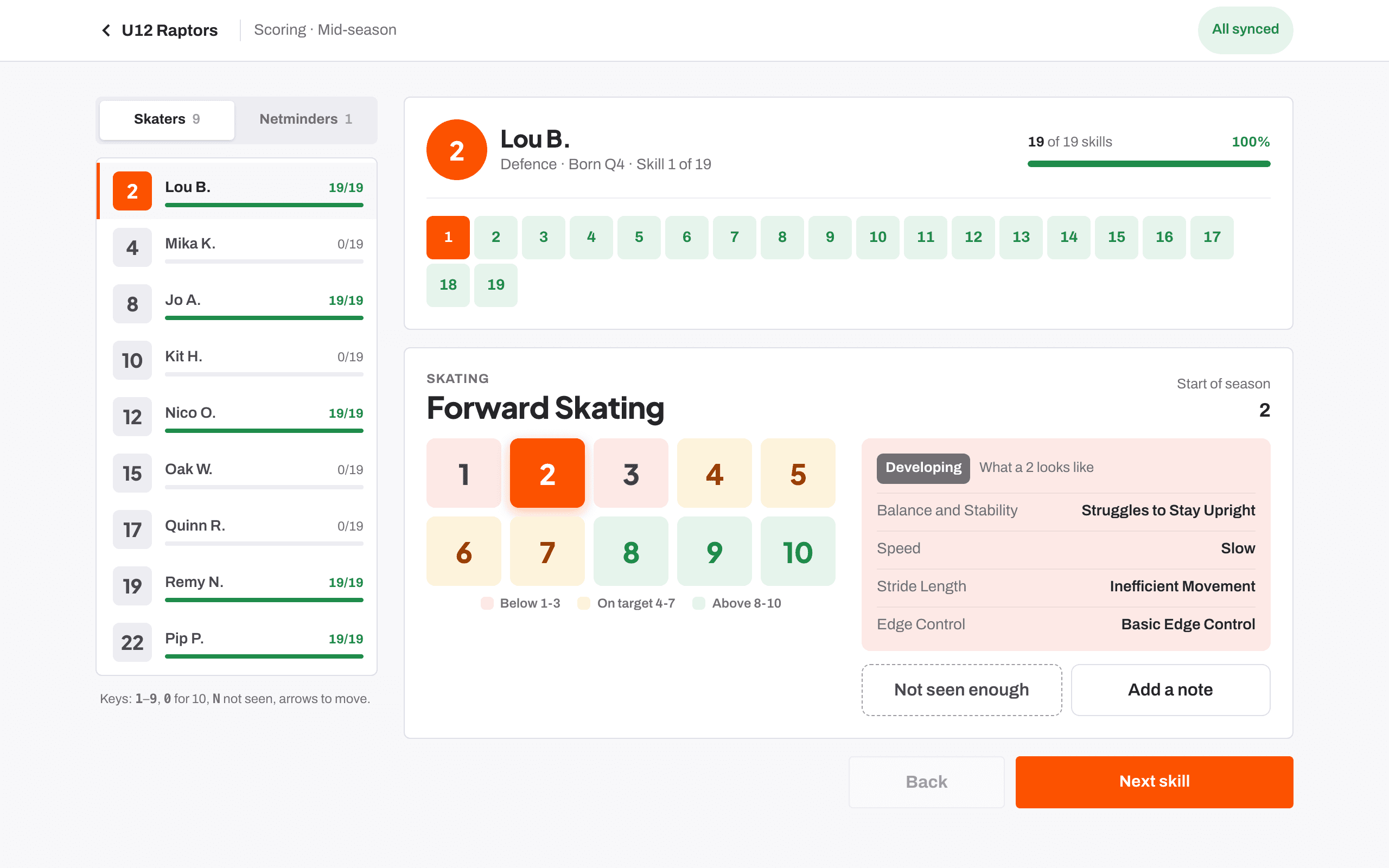
- On a computer or tablet, pick a player from the list on the left; each shows how many skills you have scored. On a phone, a strip of shirt numbers runs along the top. If the team has both, switch between Skaters and Netminders.
- For each skill, tap a score from 1 to 10. The typical range for the age group is outlined, and the score from the last window is shown. What a [n] looks like appears with that level's descriptions, so every coach scores against the same words.
- If you have not seen enough of a skill to judge it, press Not seen enough. It is saved as not observed, never counts as a low score and is left out of averages. Never guess.
- Add a note if it will help you write feedback later. Notes are for staff only.
- Move on with Next skill and Next player, or Back. On a keyboard, 1 to 9 score, 0 is 10, N is not seen and the arrows move.
Netminders are scored per criterion: each skill opens into its criteria, and the skill score is the average. At the end of the sheet you can Draft feedback, score the netminders or skaters, or go back to the team.
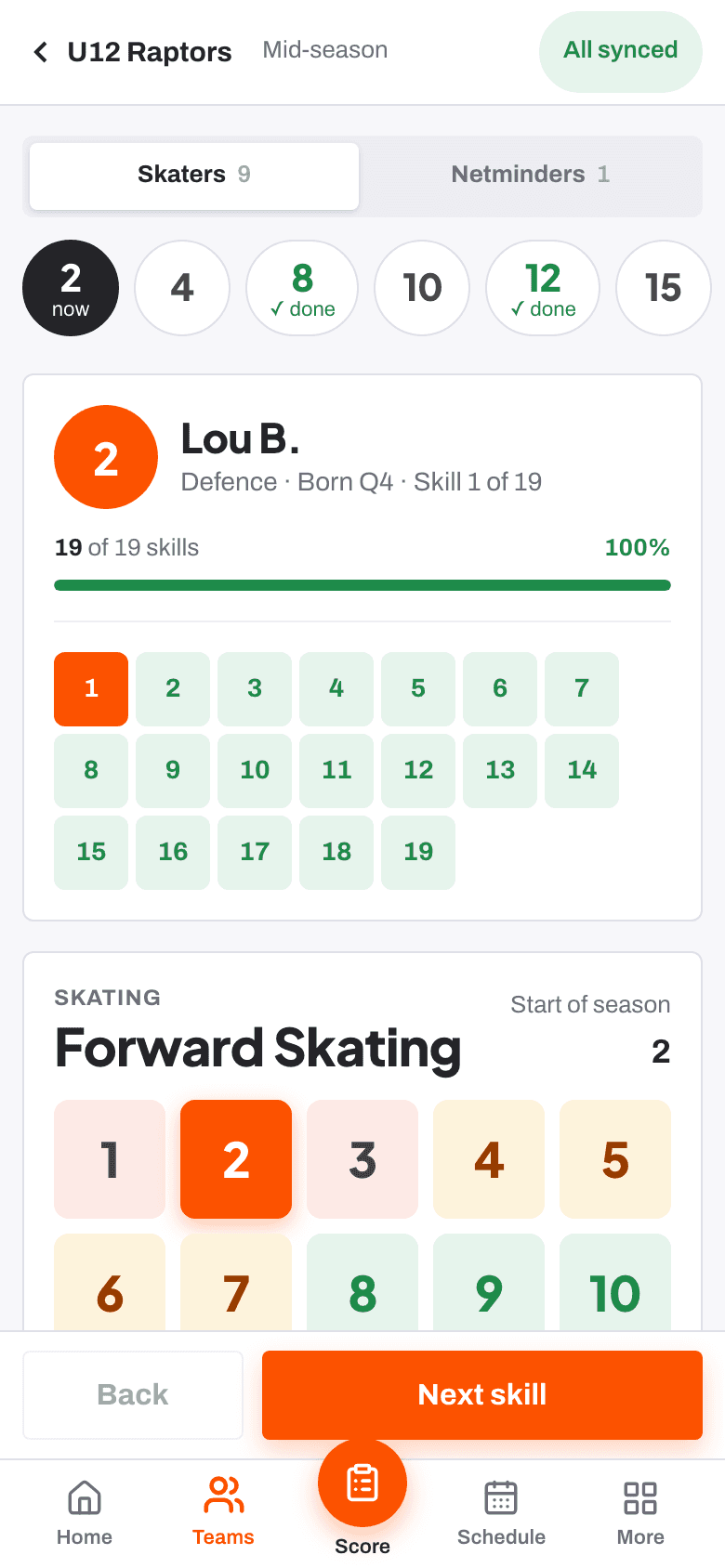
Every tap is saved on your phone first and sent when there is signal. The pill at the top says All synced, Syncing or how many scores are still on the phone; tap it to sync now. Signing out with scores still on the phone asks you first, because they would be lost.
Score one skill for everyone
When a drill shows one skill across the whole team, score it for everyone at once. Press Score one skill for everyone on Teams, or One skill on the team page.
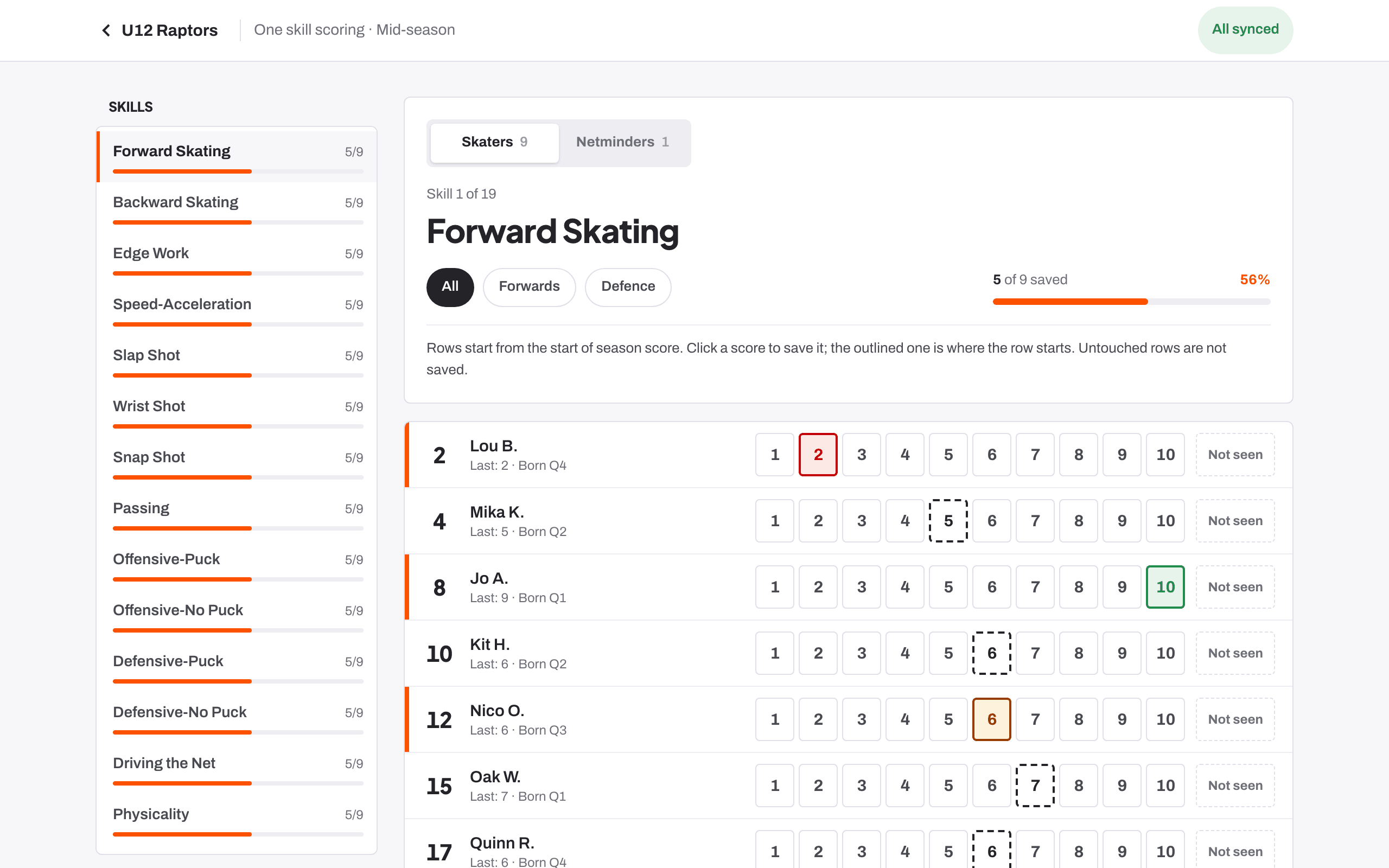
- Pick the skill. Filter skaters to All, Forwards or Defence. Netminders are scored per criterion.
- Every player is a row that starts from their last score. On a phone, nudge it with minus or plus, or tick to keep it.
- On a wider screen each row has a 1 to 10 picker: click a score to save it.
- Each row also has Not seen enough. Rows you do not touch are not saved.
Setting goals
After scoring, open the player's page from Teams. The goals card suggests up to three goals from the ratings: skills below the expected band or age expectation, skills that dropped, and one strength to build on. Each comes with the rubric's words for the next level and a target.
- Tick the suggestions you want and press Set ticked goals. Or open the team's Goals and practice board and press Set these goals to set suggestions for every player who has none, in one go.
- To write your own, open Write your own goal: the goal, the skill it is on, a target score and a line on how.
- Once you choose the skill, the off-ice exercises that build it appear. Tick the ones you want the family to use, or leave them and the app picks the best four. The family sees them on the goal with a video demo of each.
- Where the library has them, a drill for the ice and a drill for home are attached for the goal's skill.
The family, and the player with their own login, see the goal straight away and can start practising the same day.
Reviewing goals
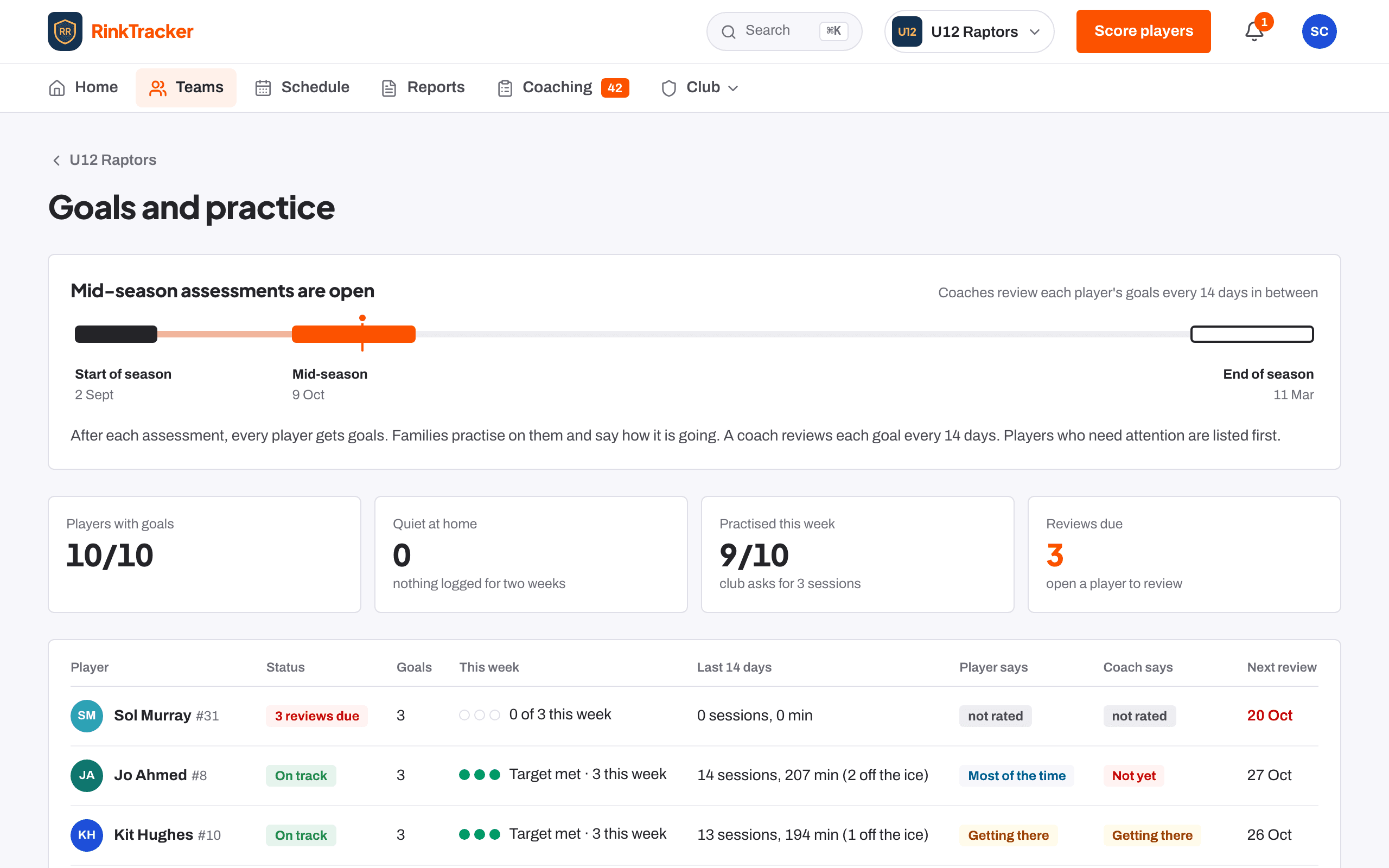
Every goal is due a review a set number of days after it was set or last reviewed (14 by default; a club admin can change it). Teams → the team → Goals and practice shows every player's goals, practice this week and over 14 days, what the player says next to what you say, and the next review.
- Open the player's page and press Review this goal.
- Answer How is it going?: not yet, getting there, most of the time or got it. Add a note if you like. Share this review with the family is ticked unless you untick it.
- Optionally give a spot check from 1 to 10. It shows direction; it is not a window score.
- When the goal is done, tick Goal achieved: close it, then Save review. The history is kept.
Quiet at home means nothing logged from home for two weeks. It is a prompt to talk to the family, not a mark against them. Workouts on Train count as practice on a goal for a skill the exercises build, so check Train before assuming nothing is happening.
Feedback and reports
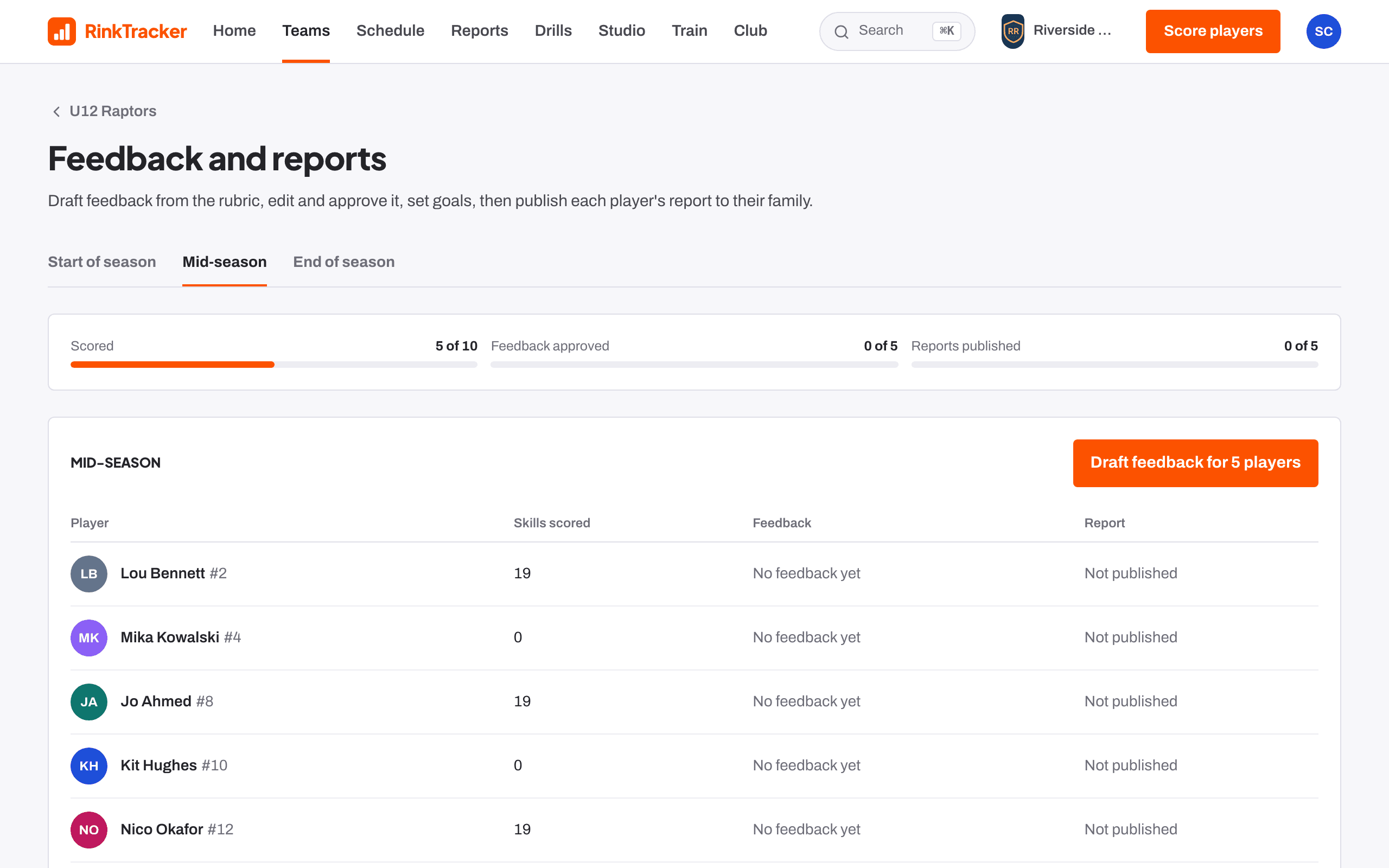
- From the team page, open Feedback and reports and pick the window. Draft feedback for N players writes a draft for each scored skill from the rubric's descriptions, plus an overall summary.
- Open each player, read and edit each draft, then Approve it, or Approve all N drafts as written. If the club has switched it on, Suggest with AI offers a rewrite for you to read, edit and approve. Nothing reaches a family until a coach has approved it.
- A head coach or club admin publishes: Publish to parents for one player, or Publish all approved. Each family who has joined gets an email straight away.
- The report shows the average, the change since last time, every skill, what the goals did, the goals for next time and things to practise at home. Families read it on their phone or as a PDF.
- Reports lists every published report and whether a parent has read it. A parent can leave a note, which shows there and on Home. If scores change after publishing, the report says so and can be published again.
Video and the studio
Studio is where you clip the plays that matter, draw on the frame, record your explanation and send the moments to a player's family. Coaches, head coaches and club admins use it.
- Upload footage: Team footage is a game or practice, up to 8 GB and 3 hours, which only the team's staff can watch. A Player clip is a short clip of one player, up to two minutes, and needs the family's consent for coaching video. Uploads carry on if the signal drops.
- While it plays, press a Mark a play button such as Shot, Turnover or Zone entry to clip a few seconds either side of that moment. Use the clip tools and the timeline to set the start and end, add a label and tag players.
- Press Draw and coach on a clip to draw on it: arrows, circles, a spotlight, lines and text. Add the coaching cue, the one line the family sees with the moment, and link a drill to practise.
- Explain this play records you talking it through, with an optional camera picture in the corner. Game audio is never recorded.
- Send review sends the moments you pick to one player's family, with a question if you like. They see only those moments, never the rest of the footage, and can reply to you. If the family has turned coaching video off, a review cannot be sent.
- Playlists line up moments from several games and practices to Present at a team meeting or send to players. Sent reviews shows which have been watched and any replies.
Drills, sessions and the season plan
- Drills holds the club's drill library, with drills for every rubric skill and many of them animated on the rink. Filter by skill and age band. Open a drill to see how to run it and what to look for, or copy it and change it.
- Design a drill opens the rink designer: place players, draw skating, passing and shooting routes in steps, and play it back. It saves as you go.
- Plan a session builds a session from timed drills, breaks and stations, from a blank page or a template. Run on the bench shows a big countdown for each block with the drill animating.
- The team's Season plan gives each week a focus and a drill of the week at home. Families tick it off when they have done it.
Schedule, answers and the register
- Schedule lists training and games with how many have answered yes, no or maybe. Coaches, head coaches, team managers and club admins can Add event, repeat it every week, and add players from other teams as guests.
- Families get an email when an event is added, changed or cancelled, and a reminder two days before if they have not answered. You get a summary of who is coming the day before.
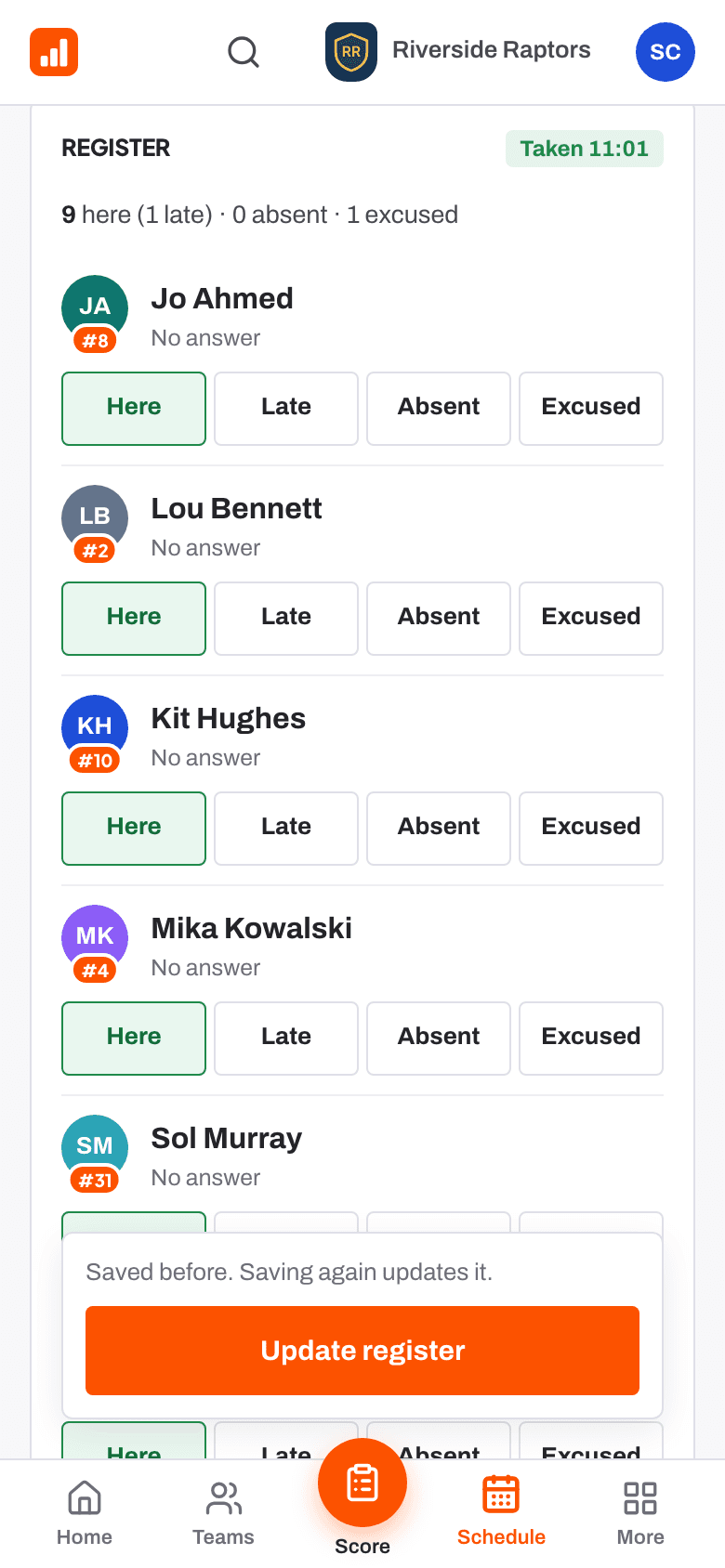
- On the day, open the event and take the register: Here, Late, Absent or Excused, filled in from the answers. Anyone left unmarked is saved absent. Attendance builds up on each player's page.
- For a game, Build lines places forwards, defence pairs and netminders, with Fill from who's coming. Then print the Game-day sheet.
Off-ice work for a team
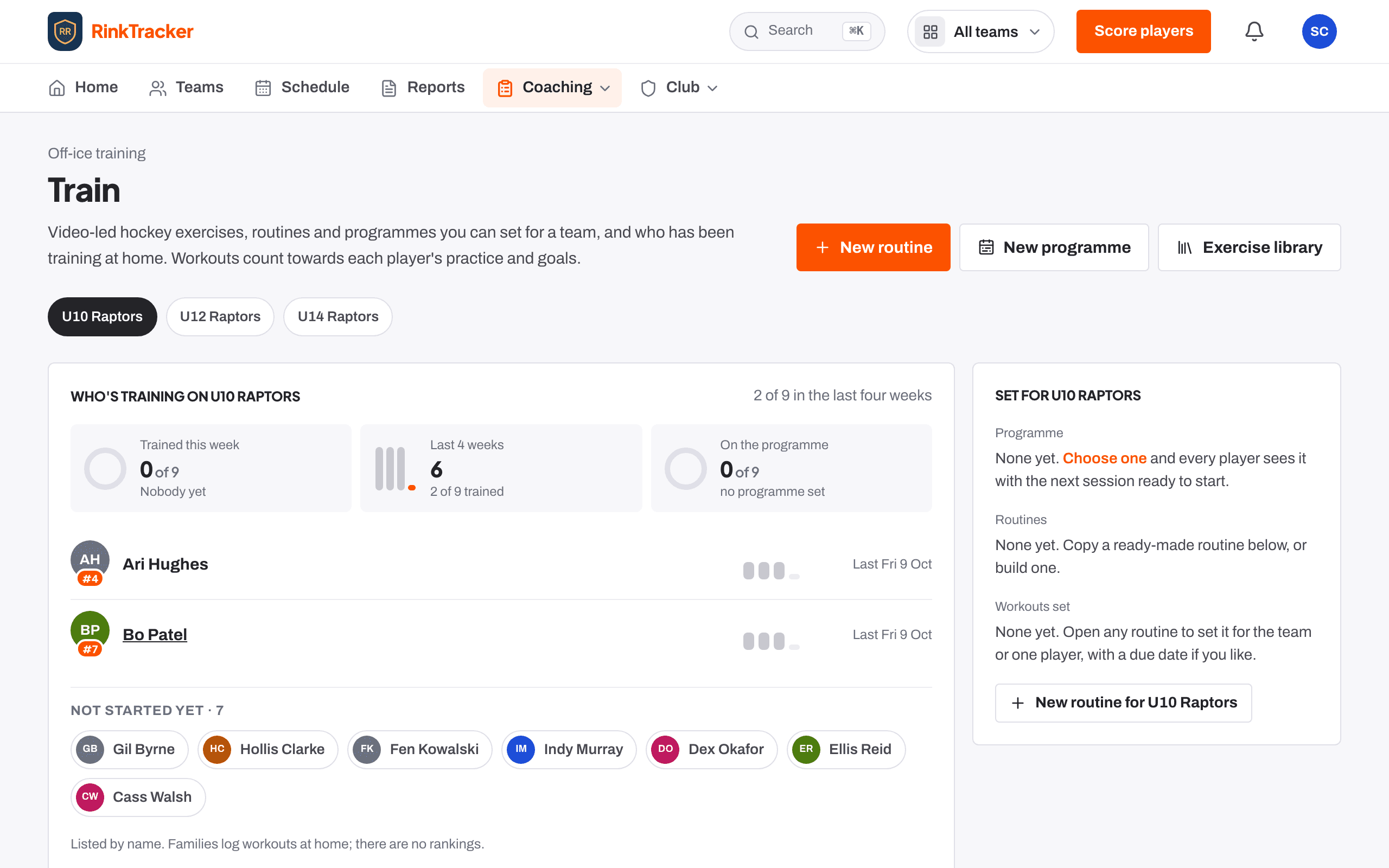
- Train opens on one of your teams. Who's training shows who trained this week and in the last four weeks, and who is on the programme. Players are listed by name; there are no rankings.
- Set for [team] shows the programme and routines the team has. Every player sees them on their Train page.
- The focus skills card takes the team's lowest skills at the last check and shows the exercises that build them. Set a routine from these opens the routine builder already filled in.
- To build your own, use New routine or New programme (several weeks that ask a little more each week). Every exercise is in the Exercise library, with a video demo.
The player page and coach notes
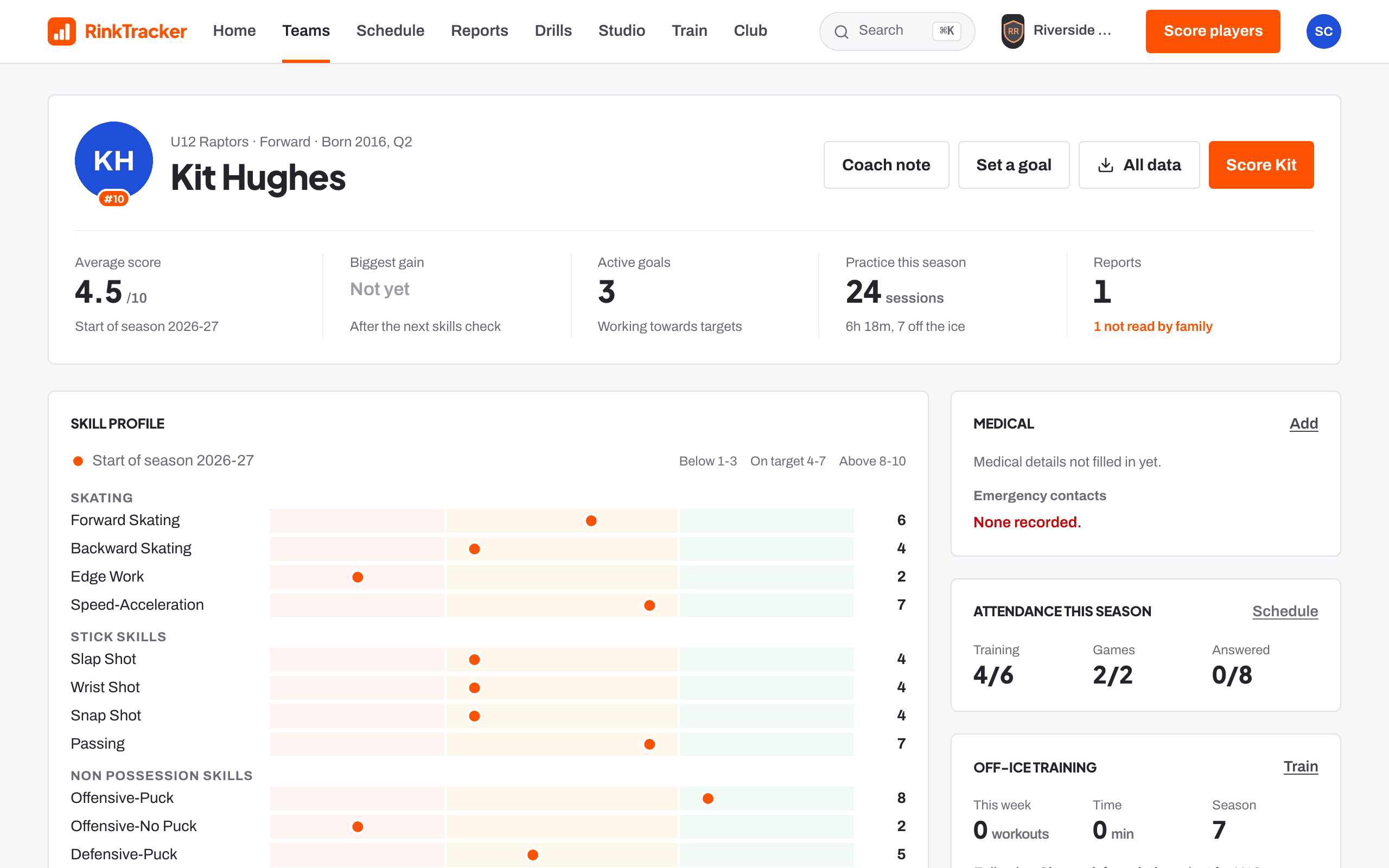
A player's page has everything in one place: average score, biggest gain, goals, practice this season, the skill profile, medical details and emergency contacts, attendance, off-ice training, game stats, video, reports and the family's consent choices. Score [name] opens the score screen on that player. Coach note asks what you noticed today; notes are for staff only and help when drafting feedback.
More help
The help centre has short articles on each screen. Step-by-step guides: score at the boards, score one skill for everyone, set and review goals, publish reports, tag a game video, coach a clip and send a review, plan a session, take the register and pick lines and set off-ice training.