Setting up your club: the checklist
The eight short setup steps a club admin goes through, and what to do once they are done.
For club admins
When your club joins RinkTracker, your club admin receives an invitation by email. The first time they sign in, RinkTracker opens on Welcome to RinkTracker with three choices: Explore the demo, Set up my academy, or Skip for now and look around.
Setup is eight short steps. You can stop and come back at any point. If you skip, a banner on every page reminds you: Your academy isn't fully set up yet.
The eight steps
- Your academy: academy name, short name, home rink, town or city, crest, crest initials and brand colours.
- Age groups and teams: tick the age bands you run (U10, U12, U14, U16, U19) and name a team for each. Players come later.
- Season: dates for the three skills checks at the start, middle and end of the season. Suggested dates are filled in for you.
- Skills rubric: Use the standard rubric (recommended), or We have our own rubric.
- The development loop: how often coaches review each player's goals, how many practice sessions a week you ask of players, and whether weekly reminder emails go out.
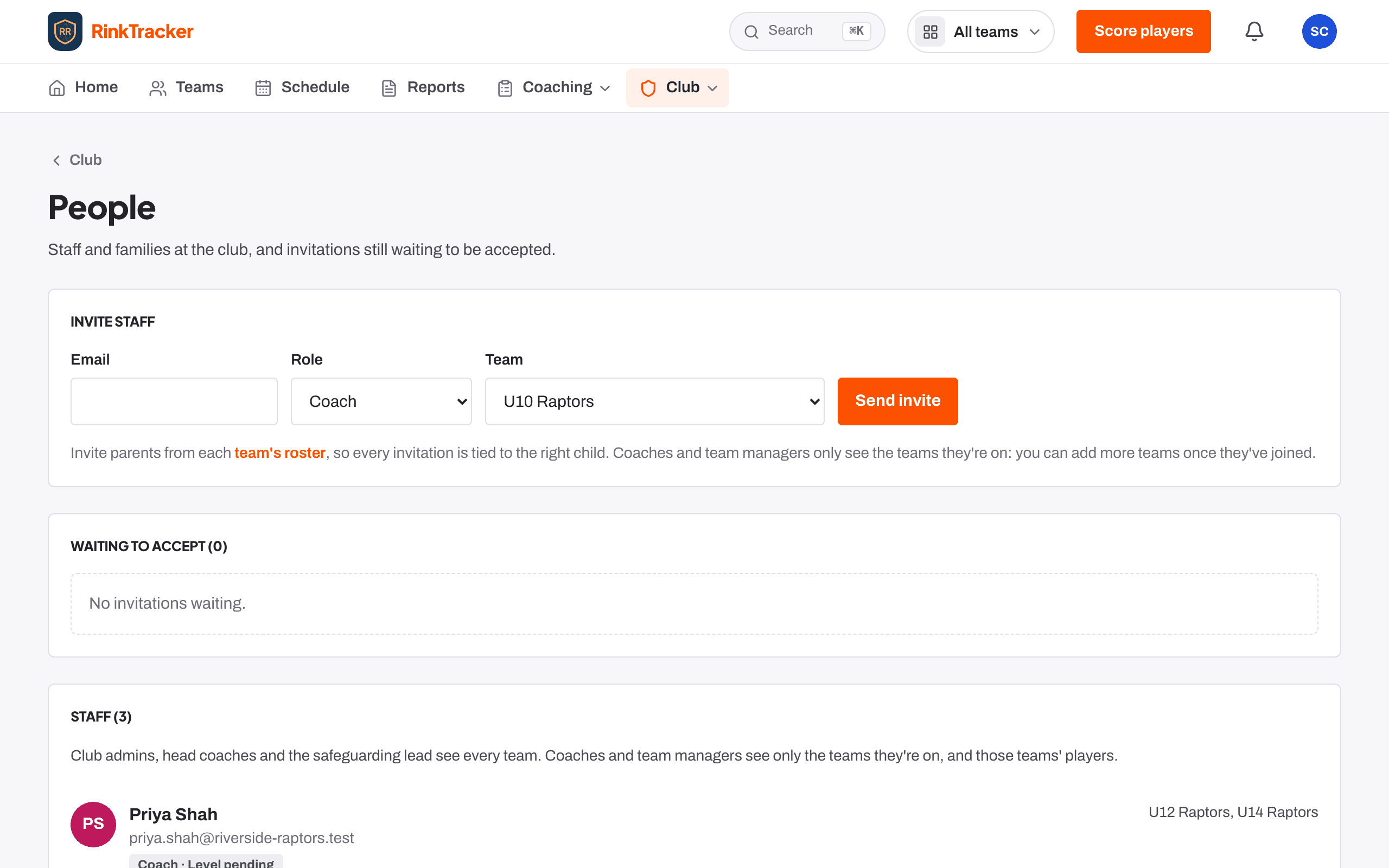
- Your coaches: invite staff by email with a role and a team.
- Data agreement: read the data processing agreement and accept it on behalf of the academy.
- You're set up: a checklist of what is done, then Go to my academy.
What next
- Bring in your players: from EIHStats, from a GameDay or Flexviews CSV, or by hand.
- Invite families from each team's roster, or share a rink code.
- Open the first skills check on the Season page when it is due.
- Ask staff to add their licences and vetting on Compliance.
Related
- Set up your club Step-by-step guide
- Exploring with the demo academy Help article
- Inviting coaches and staff Help article
- Privacy, the data agreement and who sees what Help article
Still stuck? Email hello@rinktracker.com and we'll help.