One player on several teams
Put a player on a second team in their age group from their own page, and set their shirt number for each team.
For club admins, coaches
A child who plays for two teams in the same age group, such as U12 A and U12 B, should be one player in RinkTracker on both teams. Their scores, goals, notes and reports then belong to them, so whatever you score on one team shows on the other straight away. Nothing needs to sync.
Add a player to another team
- Open the player from any roster or search.
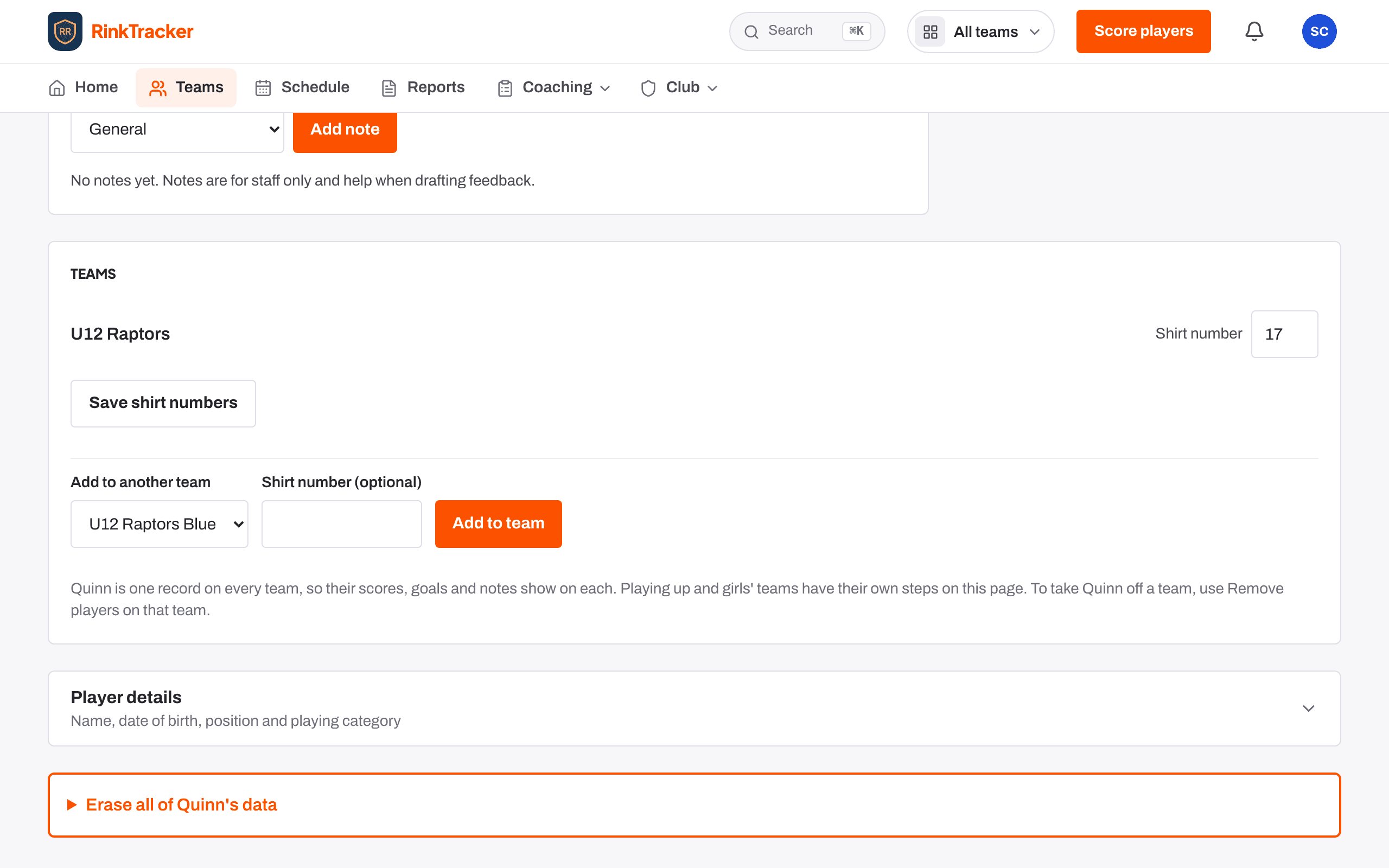
- Find the Teams box, just above Player details.
- Under Add to another team, choose the team. Add their shirt number for that team if you know it.
- Press Add to team. They're on that team's roster and its upcoming sessions and games.
Shirt numbers
The Teams box lists every team the player is on, with a shirt number for each. Change any of them and press Save shirt numbers. A number someone else already wears on that team is refused.
Which teams are offered
- Teams in the player's own age group, this season, that they aren't on yet. The player needs a date of birth first.
- Playing up to an older age group has its own step on the same page, with the family's agreement and sign-off. See Playing up.
- Girls' teams have their own step too, for players in the girls' category.
- To take a player off a team, open that team and use Remove players on the roster.
Adding players to teams needs Add and edit players: club admins, head coaches and team managers have it, and a coach can be given it. See Staff responsibilities.
- Teams and rosters Help article
- Playing up, to the EIH Junior Playing Up Policy Help article
- Importing a roster from GameDay or Flexviews Help article
Still stuck? Email hello@rinktracker.com and we'll help.