For club admins
A club admin sees the whole club. Set the season up once and every team works to it.
Getting started
The first time you sign in, RinkTracker offers three ways in.
- Explore the demo adds three invented teams with players, a season of skills checks, goals, practice, a schedule and published reports. Nothing is sent to anyone, a banner on every page reminds you it is a demo, and only a club admin can Remove demo in one step.
- Set up my academy walks you through eight short steps: your academy, age groups and teams, the season's dates, the skills rubric, the development loop, your coaches, the data agreement, and a checklist of what next. You can stop and come back at any point.
- Skip for now and look around. A banner then reminds you the academy is not fully set up yet.
The data processing agreement must be accepted before you invite families.
Season and skills checks
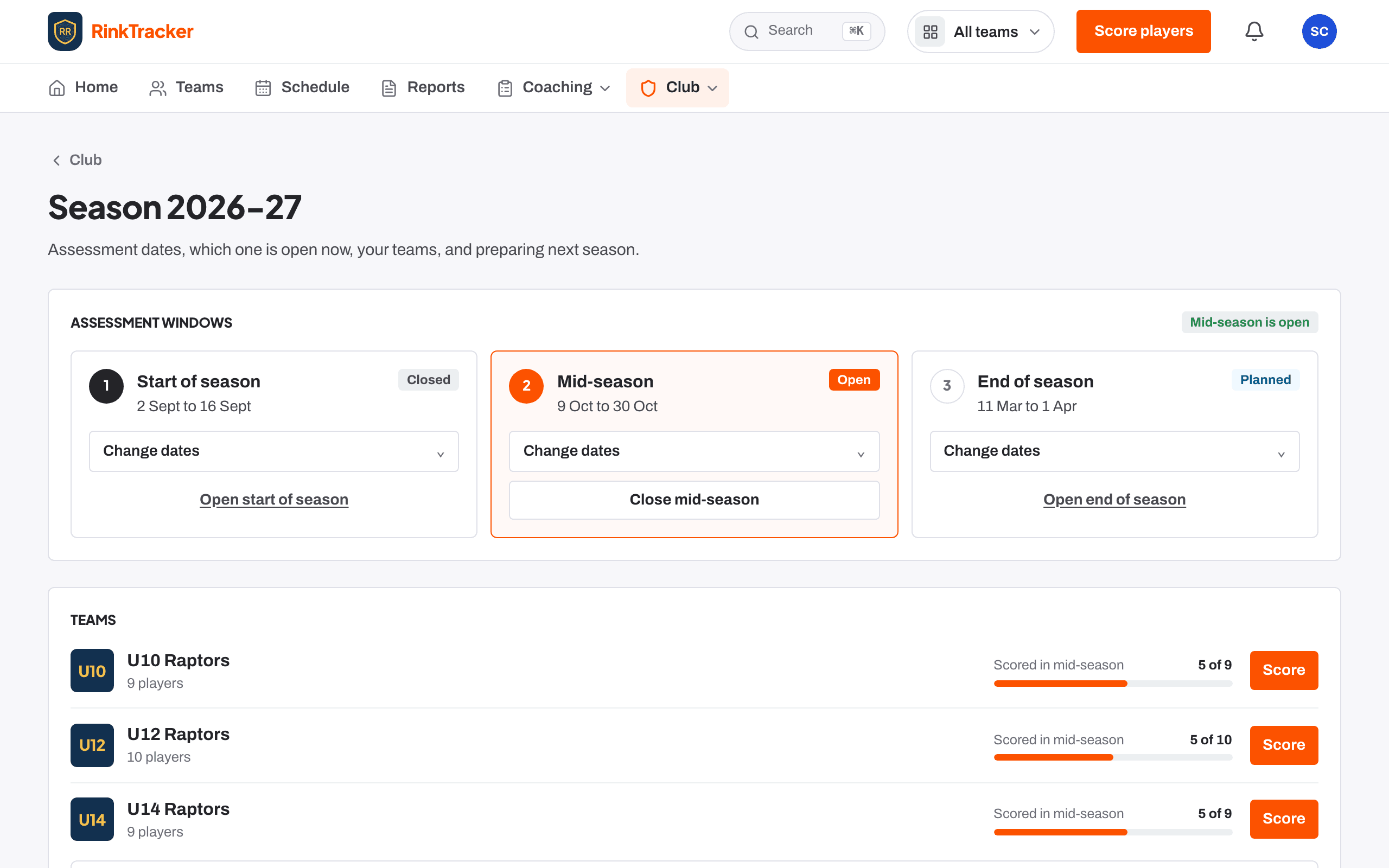
- Under Club → Season, each season has three windows: Start of season, Mid-season and End of season. Use Change dates to set when each opens and closes.
- A window opens itself on its opening date, or press Open. Only one window is open at a time. Closing it is a deliberate step, so coaches can finish; Home reminds you if a window is still open after its end date.
- Before a new season, the Next season card shows each player moving into the age band for their birth year, and anyone who ages out of junior hockey. Tick that you have checked the moves, then prepare the new season. Nothing changes for families until it starts.
Teams and rosters
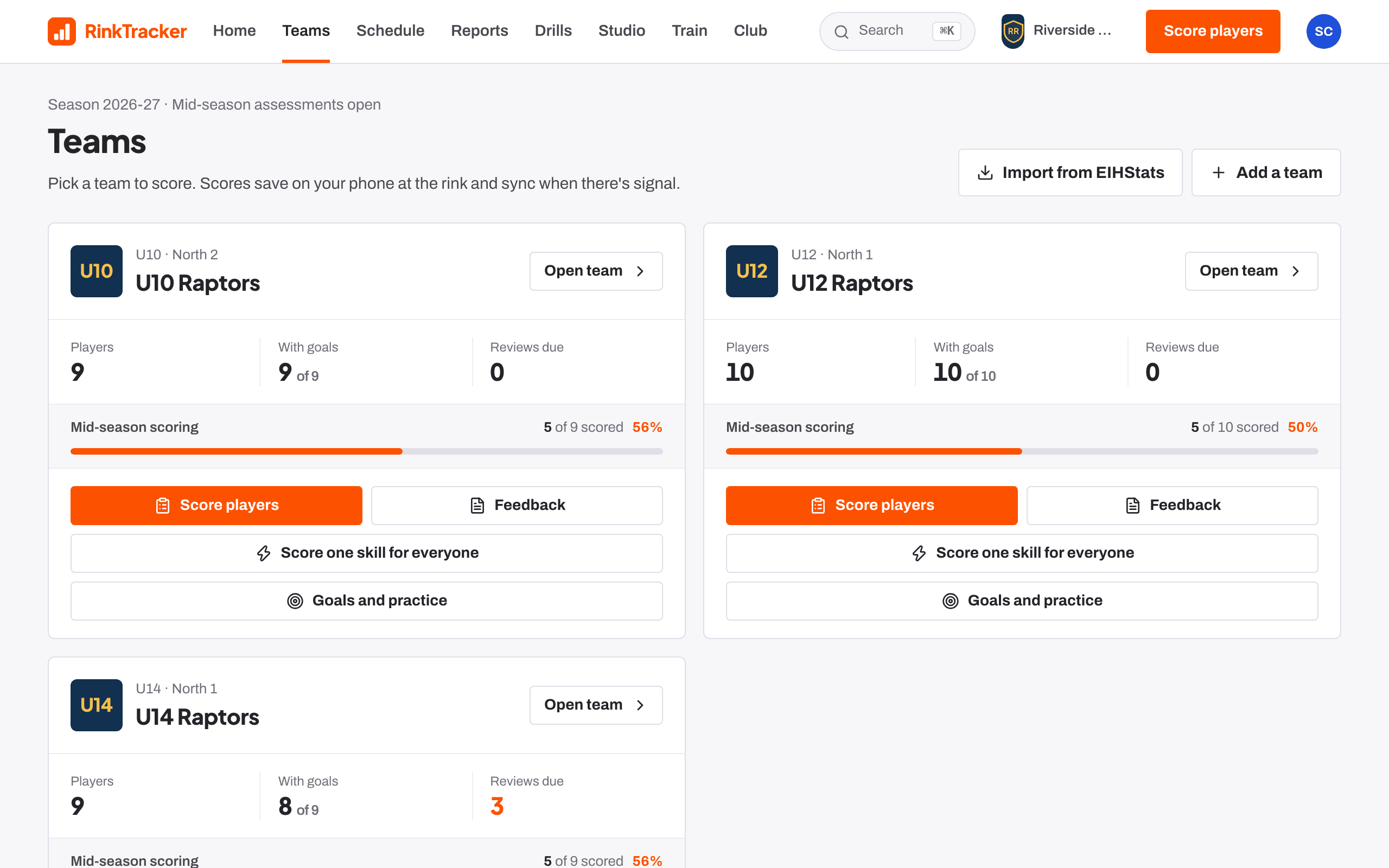
- Import teams from EIHStats brings in rosters, shirt numbers, season stats, fixtures and results. Names come exactly as EIHStats publishes them, and nobody is removed from an existing roster. Or Add a team by hand: a name, an age band (U10, U12, U14, U16 or U19) and an optional division.
- Add players by hand with Add a player, from a rink code sign-up, or with Import roster from CSV under Team settings, exported from GameDay or Flexviews. Re-importing updates players instead of duplicating them.
- A player's date of birth decides their age band. Players brought in from EIHStats arrive without one, so the team page shows who still needs a birth date.
- A team logo can be added under Team settings.
Staff and what they see
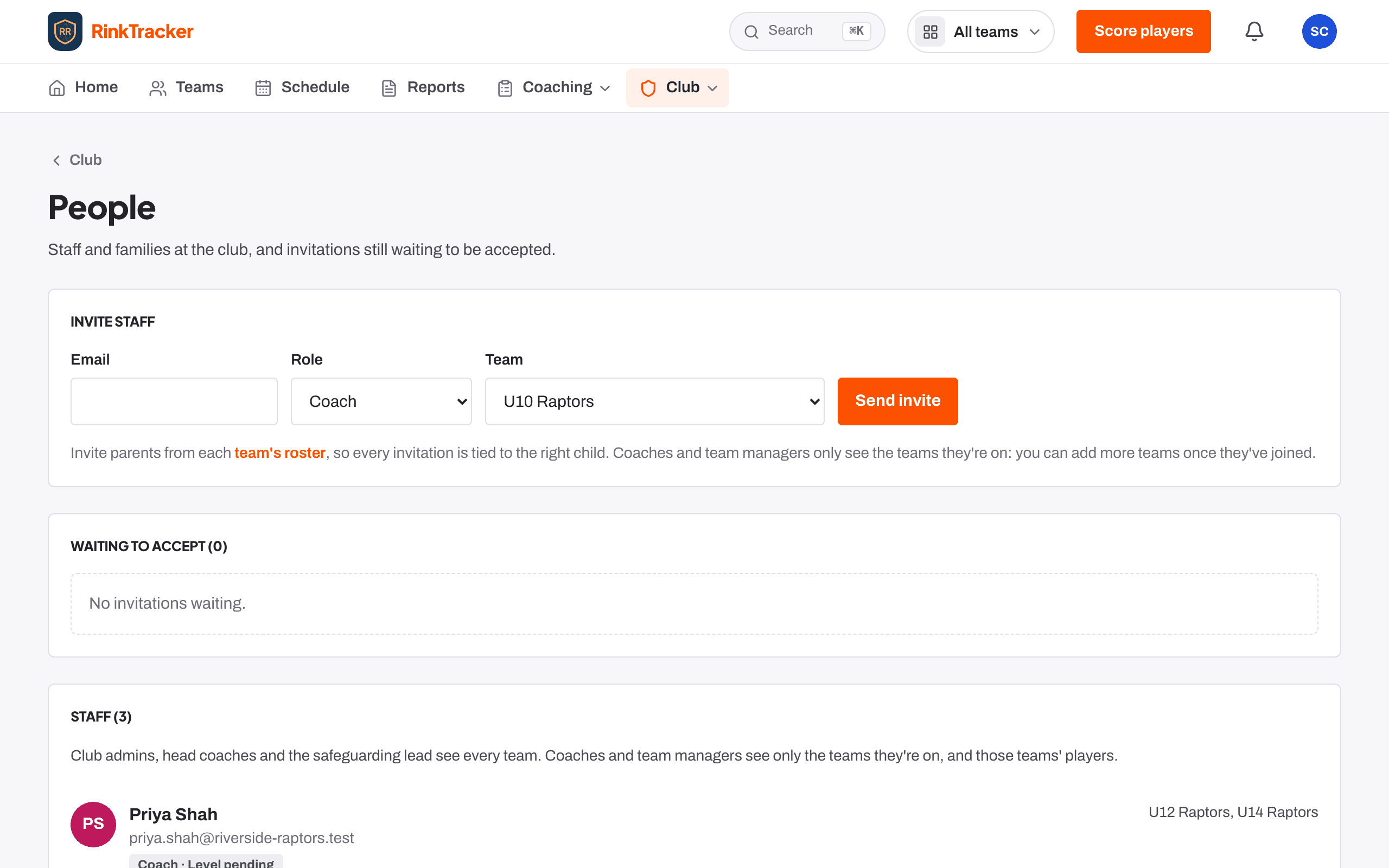
- Under Club → People, Invite staff by email with a role: coach, head coach, team manager, safeguarding lead or club admin, and a team. One person can hold several roles.
- Coaches and team managers only see the teams they are on. Someone with no team yet sees no players. Use Manage [name]'s teams to tick a person's teams and mark who is head coach of a team. Club admins, head coaches and the safeguarding lead see the whole club.
- Only a club admin can change roles or remove someone from the staff. The club always keeps at least one admin, and you cannot remove your own admin role.
Families and rink codes
- On a team's Sign-ups tab, Make a rink code and share the code or the join link. A parent sends their details, their child's and any medical details. Nothing is linked until you match each child to a roster player or a new player and press Link and invite. Sign-ups not handled in 60 days are deleted.
- Or invite a parent by email from the team roster, so every invitation is tied to the right child. Either way the parent only ever sees their own child.
- From 13, a parent can give a player their own login. The player sees only their own information.
- Families choose their own consents, such as photos and coaching video, from their child's page. Staff see each child's choices on the player page.
The rubric
Most clubs use the standard rubric: 19 skater skills and 15 netminder skills, written with UK junior coaches. Every skill is scored from 1 to 10 against written descriptions of each level, with the typical range for each age group. Club → The rubric shows it in full; families see the same descriptions under Scores explained. If you have your own rubric, choose that during setup and it is set up with you. A draft rubric waiting for sign-off is seen only by staff.
The whole club at a glance
- The Club dashboard, for club admins and head coaches, shows how many players are scored, reports published, skills not observed and players with no parent linked, team by team. The average by skill and age band is hidden where fewer than three players are scored, so no cell is one child's score. It is for coaching decisions, not for ranking children.
- Announcements go one way, from the club to the parents of a team or the whole club, by email and in the app. Families cannot reply, and there is no chat or direct messaging.
Safeguarding and compliance
- Club → Compliance tracks each person's coaching licence, vetting (Enhanced DBS, PVG or AccessNI), Safeguarding Essentials, first aid and the other records their role needs, with expiry dates. Only status and dates are kept, never certificates. Records a person adds themselves stay unverified until a club admin or safeguarding lead verifies them.
- Missing safeguarding records show on Home for club admins and the safeguarding lead.
- Medical details and emergency contacts are on each player's page, seen only by club staff and the player's family.
Club settings and reminders
- Club settings holds the crest, the club's colours, the club name and short name.
- Development loop: how often coaches review each goal (7 to 42 days, 14 by default) and how many practice sessions a week the club asks for (1 to 7, 3 by default).
- Reminder emails: the Monday coach digest, the Sunday practice reminder for families, training and game emails for families, and day-before answers for coaches. Switch any of them off for the club; each person can also turn off their own, and every email has a one-click unsubscribe.
- AI-assisted feedback drafting is off unless a club admin switches it on under Data and privacy. A coach still approves every word, and the child's name is never sent.
Privacy and data
- Data and privacy shows the processing agreement, whether AI drafting is on, and where data is stored: London, UK, separated per club.
- For a subject access request, open the player and press All data to download everything held about them. Respond within one month.
- For an erasure, open the player and choose Erase all of [name]'s data. You give a reason and type the full name. The audit log keeps that an erasure happened, without the child's details.
- The Audit log lists every view, export, change and consent decision, newest first. Entries cannot be edited.
More help
The help centre has short articles on each screen. Step-by-step guides: set up your club, import from EIHStats, invite staff and families, run a skills check, publish reports and close the season.