For families
You see your own children and nothing else. Most of this takes a tap or two on a phone.
Joining and signing in
- The club either sends an invitation to your email, or gives you a rink code for the team. With a code, fill in the short form: your details, your address, your child's name and date of birth, up to two emergency contacts and any medical details. It takes about three minutes. A coach checks the details, usually within a few days, and matches you to your child.
- Sign in with your email. There is no password: each time, the app emails you a link that works for 15 minutes.
- On a phone, add RinkTracker to your home screen from the browser's menu. It then opens like any other app.
Your home page and the menu
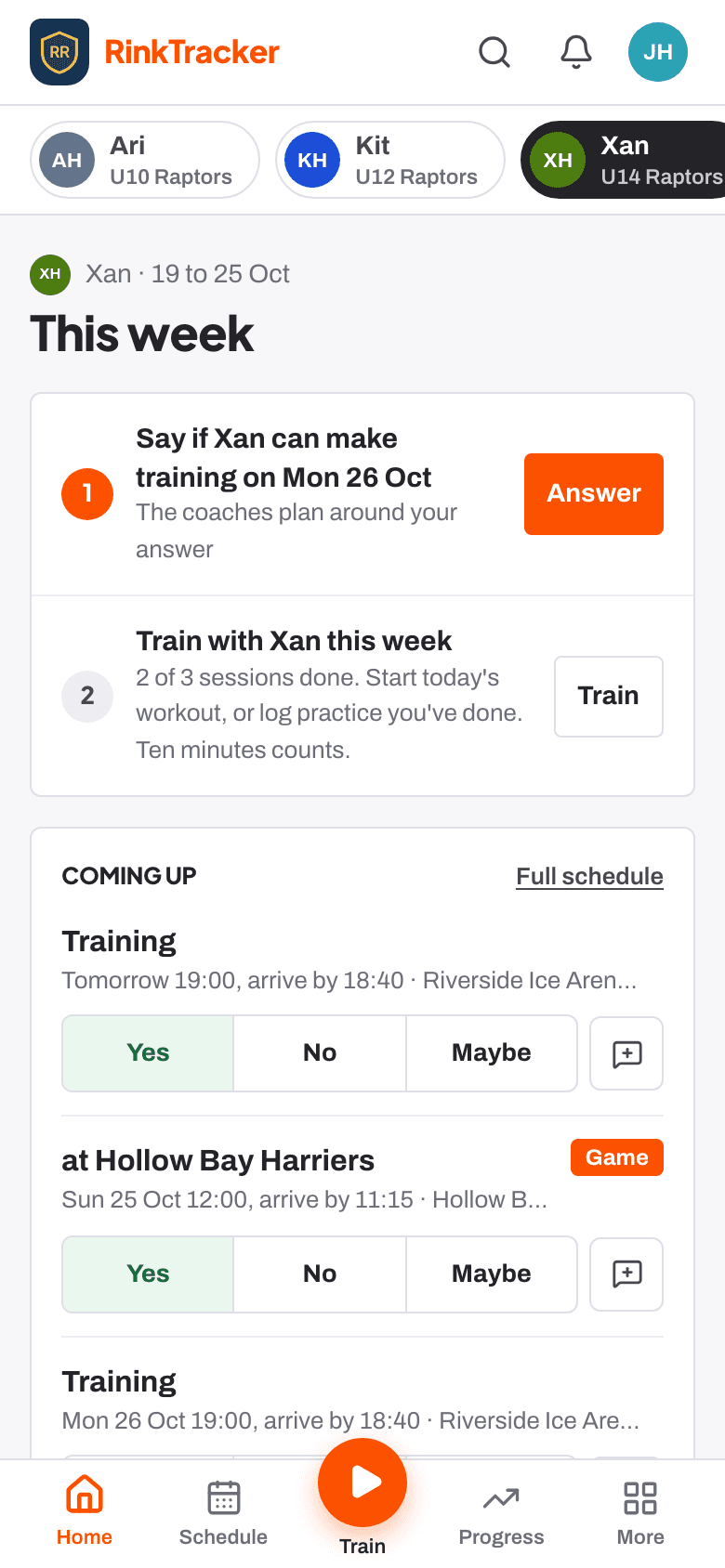
This week starts with at most three things to do next for one child: log practice, start a workout, reply to a video review, or read what the coaches said. Each has a button that goes straight to it. Below it: training and games coming up, each with Yes, No or Maybe, and how the week is going. With more than one child, the names along the top switch between them.
On a phone the bottom menu has Home, Schedule, the orange Train button, Progress and More. On a computer those are tabs along the top, with Train as an orange button. Under More are medical details and contacts, privacy and consent, notifications and reporting a safeguarding concern.
To search for your children or the schedule, press Ctrl or Cmd and K on a computer, or tap the search icon at the top on a phone.
Can your child come?
- Every training session and game asks Can [name] come? Answer yes, no or maybe, and use Add a note for the coach if you need to, for example that you will arrive late.
- Only club staff see your answer, not other families. You can change it until the event.
- You get an email when an event is added, changed or cancelled, and a reminder two days before if you have not answered. Turn these off with Training and game emails on your child's page.
Your child's goals
- After each skills check, the coaches set goals from the scores. Open your child's page and the Goals tab. Each goal names the skill, the score it starts from and the target.
- Talk it through with your child. There's nothing to sign off: they can start the same day. Press the orange Train button for a workout, or Log practice for practice done away from the app.
- Drills for this goal shows drills to practise, with steps. Work on it off the ice shows exercises that build the skill, each with a video.
- How is it going? lets your child rate the goal: not yet, getting there, most of the time or got it. Add something for the coach if you like, then Send to coach. Please do not include other children's names.
Logging practice
- The club asks for a few short practice sessions a week (three unless the club changes it). Ten minutes at home counts.
- Press the orange Train button, then Log practice, or Log practice on your child's page. It asks one thing at a time: the goal, the drill (orSomething else), then how many minutes and when. Choose your child under Who's logging it? if they're recording it, then press Save. The coaches see it straight away.
- Off-ice workouts count as practice on a goal for the same skill, without logging them separately.
- When the coaches set a drill of the week, press Mark [name] done once it is done.
- On Sunday you get an email with the week's practice against the target and each goal. Turn it off with Sunday practice reminder on your child's page.
Off-ice workouts
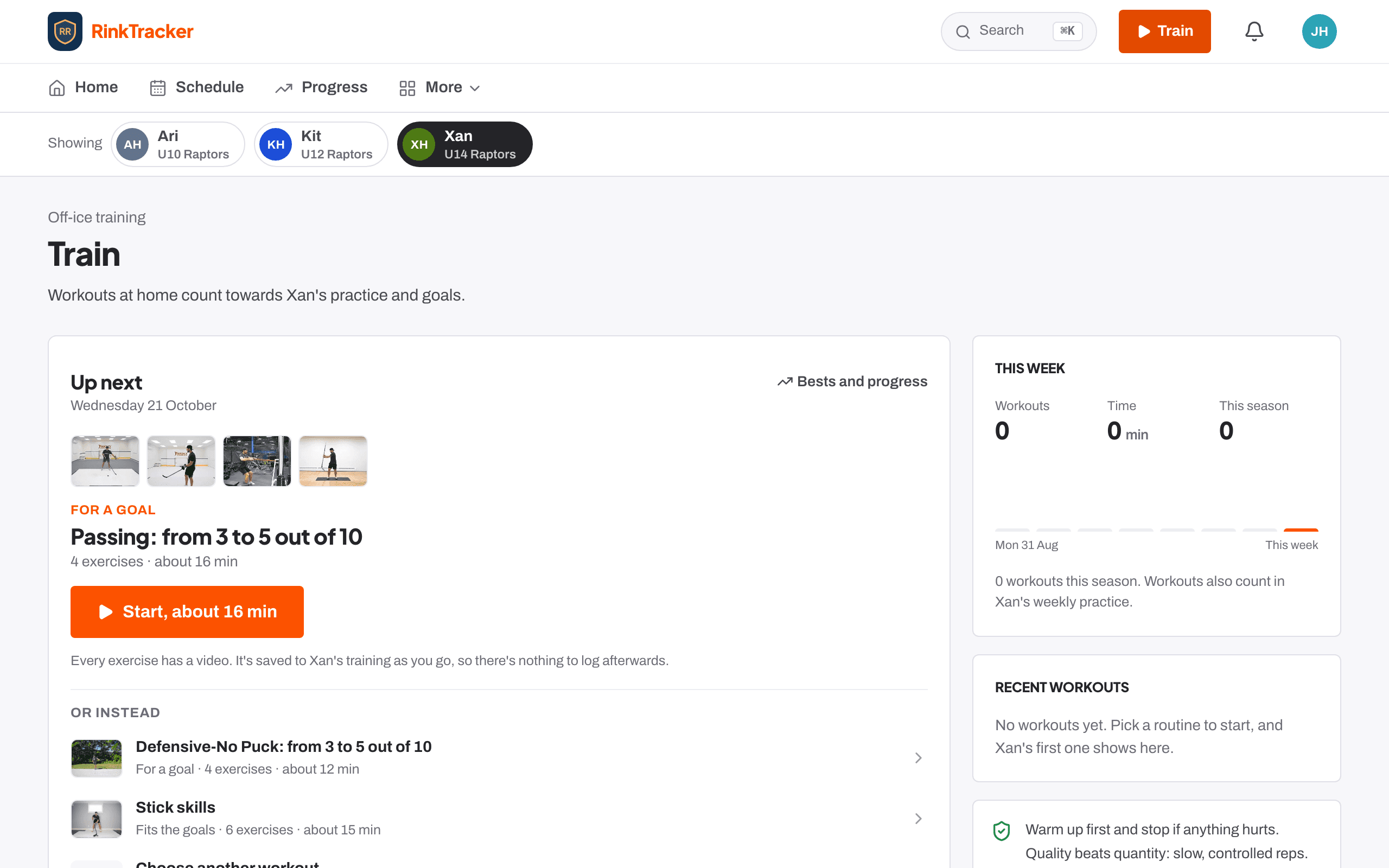
- Train shows this week's workouts and time, with no streaks. For your goals has off-ice work picked for each goal, with a button to start it. Below are the routines and programmes the coaches have set, and the Exercise library.
- Every exercise has a demo video, the steps, things to think about and why it helps on the ice.
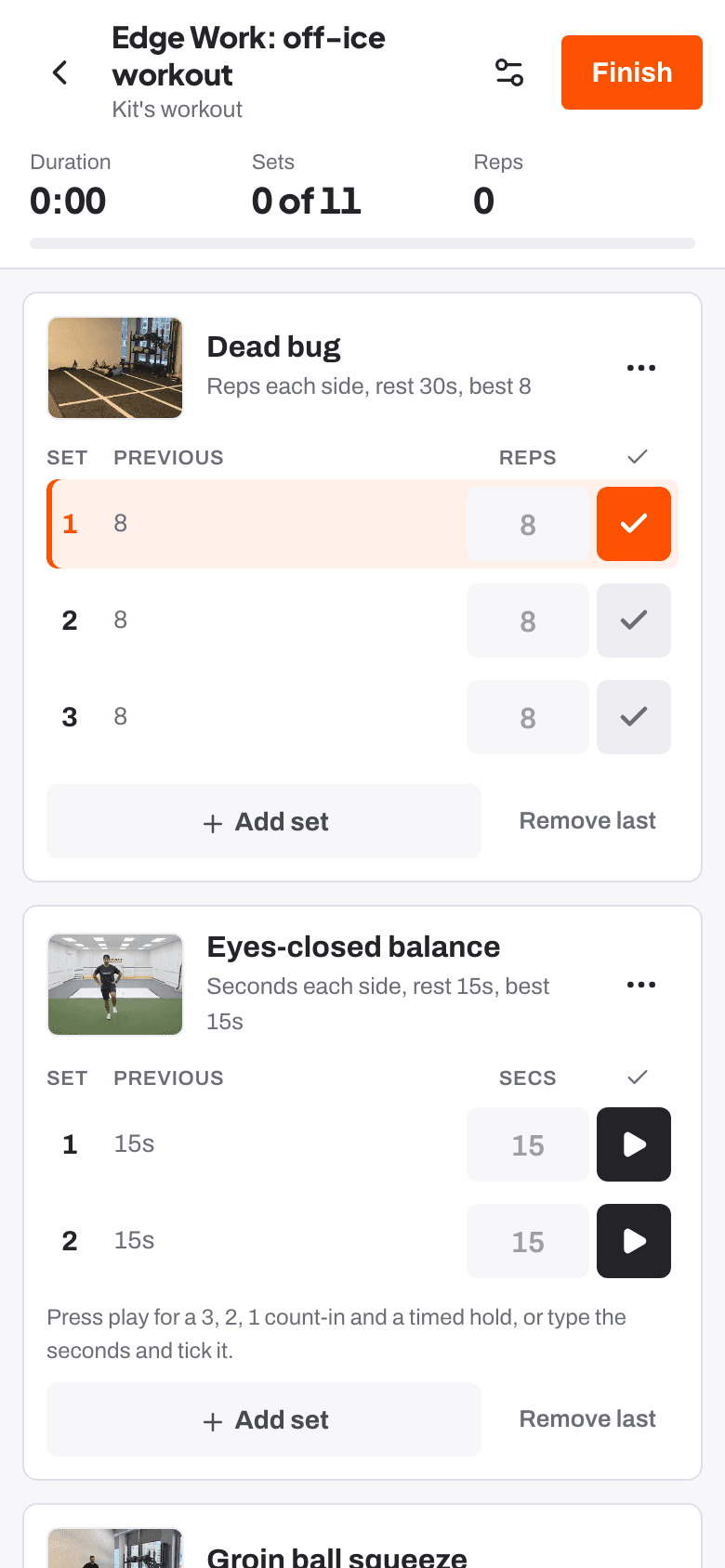
- Press Start a workout and tick each set when it is done. The app runs the rest timer, shows last time's numbers and stars a personal best. If you lose signal, the workout is saved on the phone and uploads next time you open Train with a connection.
- Finish workout asks how it felt and lets you leave a note for the coach. The workout counts as practice on any goal for a skill its exercises build.
- Warm up first and stop if anything hurts. Exercises with weights are for U16 and older.
Progress, reports and video reviews
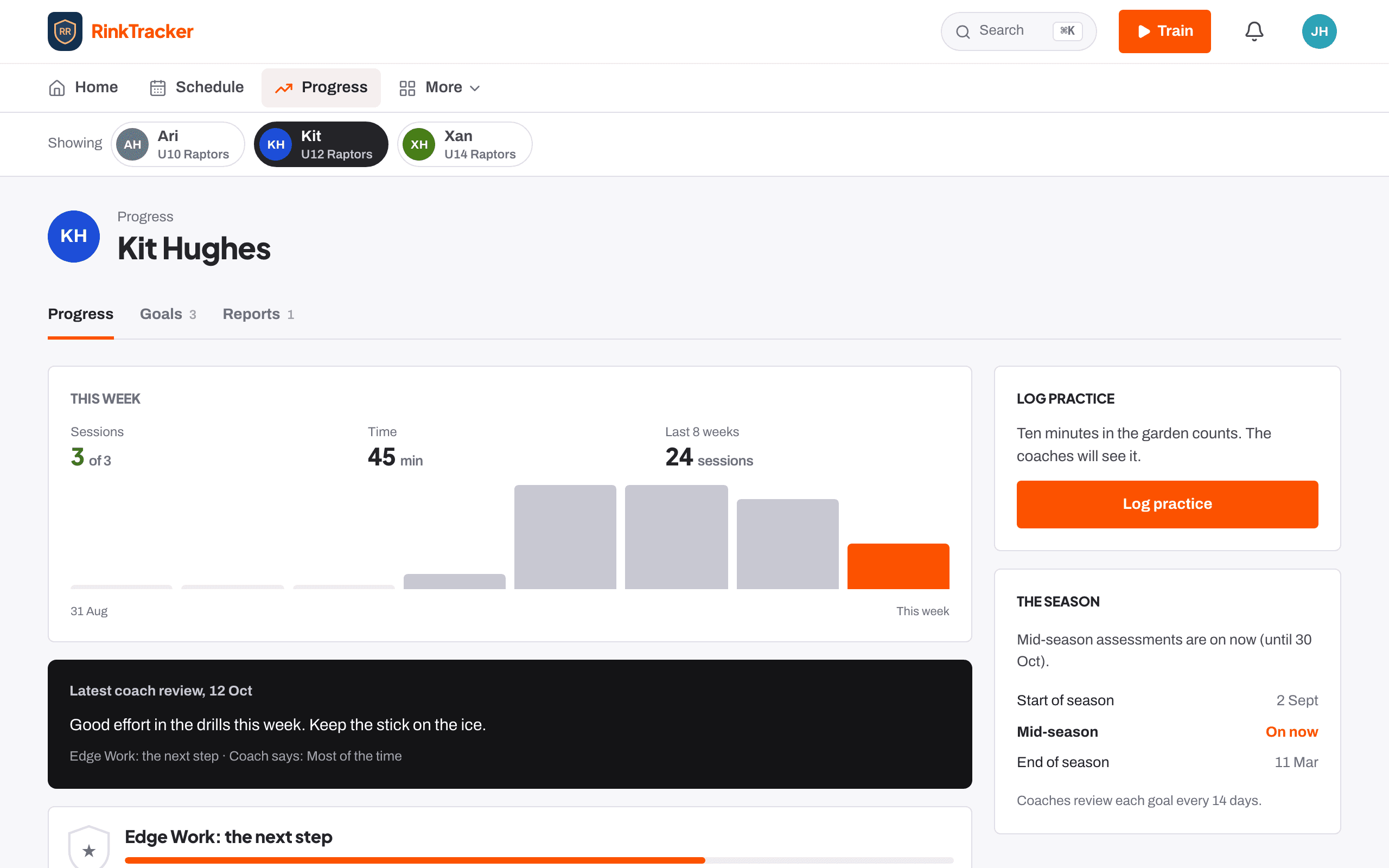
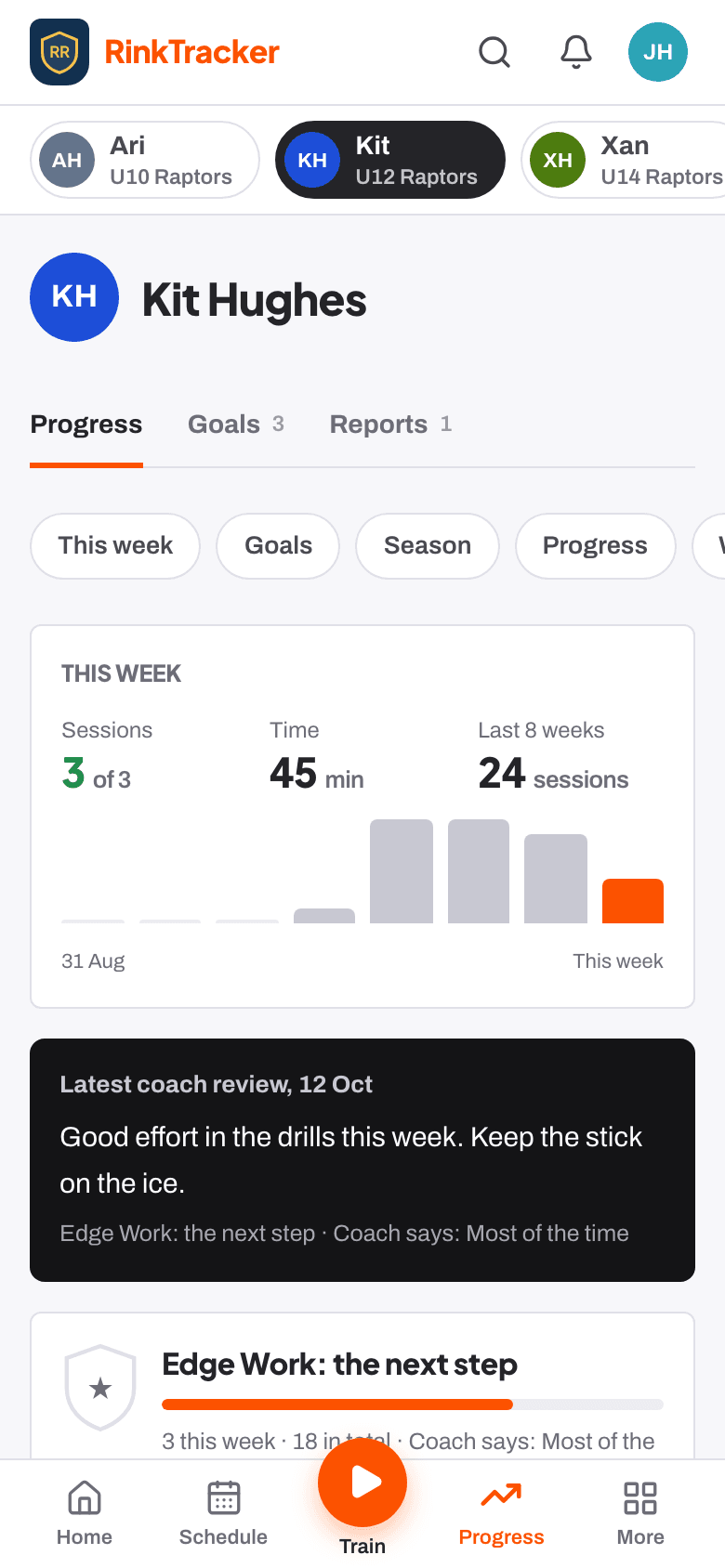
- Your child's page has three tabs. Progress shows sessions this week against the target, time, the latest coach review and each goal. Goals is where you see each goal and log practice. Reports holds every published report.
- A new report is flagged on Home and by email. It shows the average, the change since last time, every skill, what the goals did, the goals for next time and things to practise at home. Press PDF for a copy.
- Press I have read this report so the coaches know. If you disagree, Add a note if you disagree: it is kept with the report and the coaches are told. It does not change the scores.
- When a coach sends a video review, Watch the coach's video review appears on Home. You see only the moments the coach picked, with what to look for, and can Reply to the coach. Only the coaches see your reply.
- Scores explained shows what every level of every skill looks like, in the club's own words.
Your child's details and consent
- Your child's coaches and club officials see their scores, goals, medical details and contacts. Other families never do. Nobody is ranked.
- Medical and emergency contacts on your child's page is where you add or update them. If a coach has added a photo of your child, you can remove it.
- Privacy and consent lists your choices: photos, video for coaching, club promotion, livestreams, an own login from 13 and sharing with the GB pathway. Each can be changed at any time and takes effect straight away. Turning coaching video off deletes your child's coaching clips and video reviews for good.
- To ask for a copy of your child's data, or for it to be deleted, speak to the coach or the club's welfare officer.
- Every reminder email has a one-click unsubscribe.
More help
The help centre has short articles on each screen. Step-by-step guides: your first week, log practice and workouts and set up your child's own login.