Clip the plays that matter and send them to the family
Upload game or practice footage, mark the plays, draw on the frame and record your explanation. Then send a player's family only the moments you pick.
Upload team footage and player clips
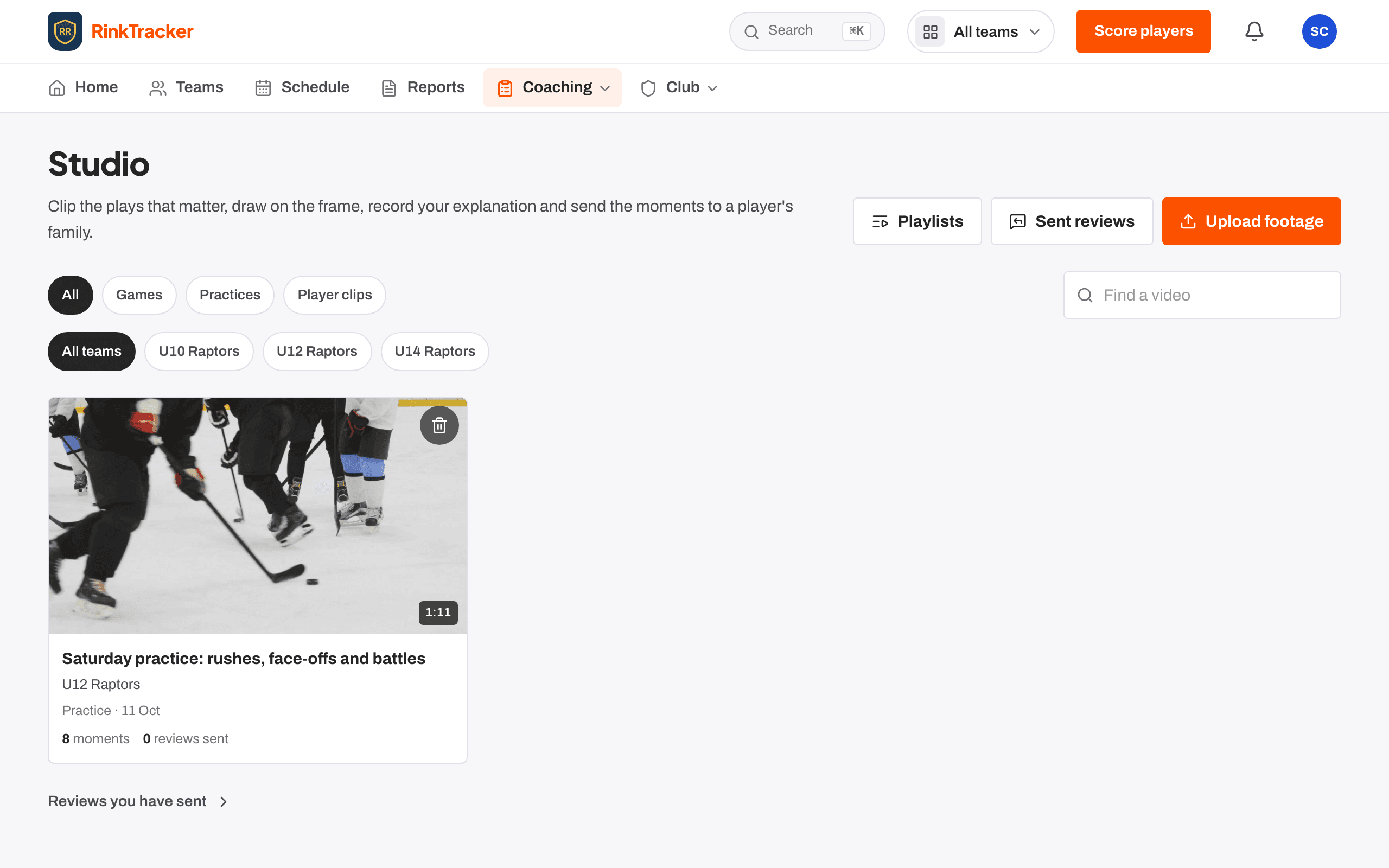
Coaches upload a whole game or practice as team footage, up to 8 GB and three hours, or a short clip of one player of up to two minutes. Uploads go in resumable pieces, wait while you're offline, and can be paused or carried on later. Only the team's staff can watch team footage.
Long games
Team footage up to 8 GB and three hours, linked to the game or practice on the schedule.
Player clips
A short clip from a player's page, linked to one of their goals if you like.
Survives a closed page
Choose the same file again and the upload carries on where it stopped.
The studio: mark a play as it happens
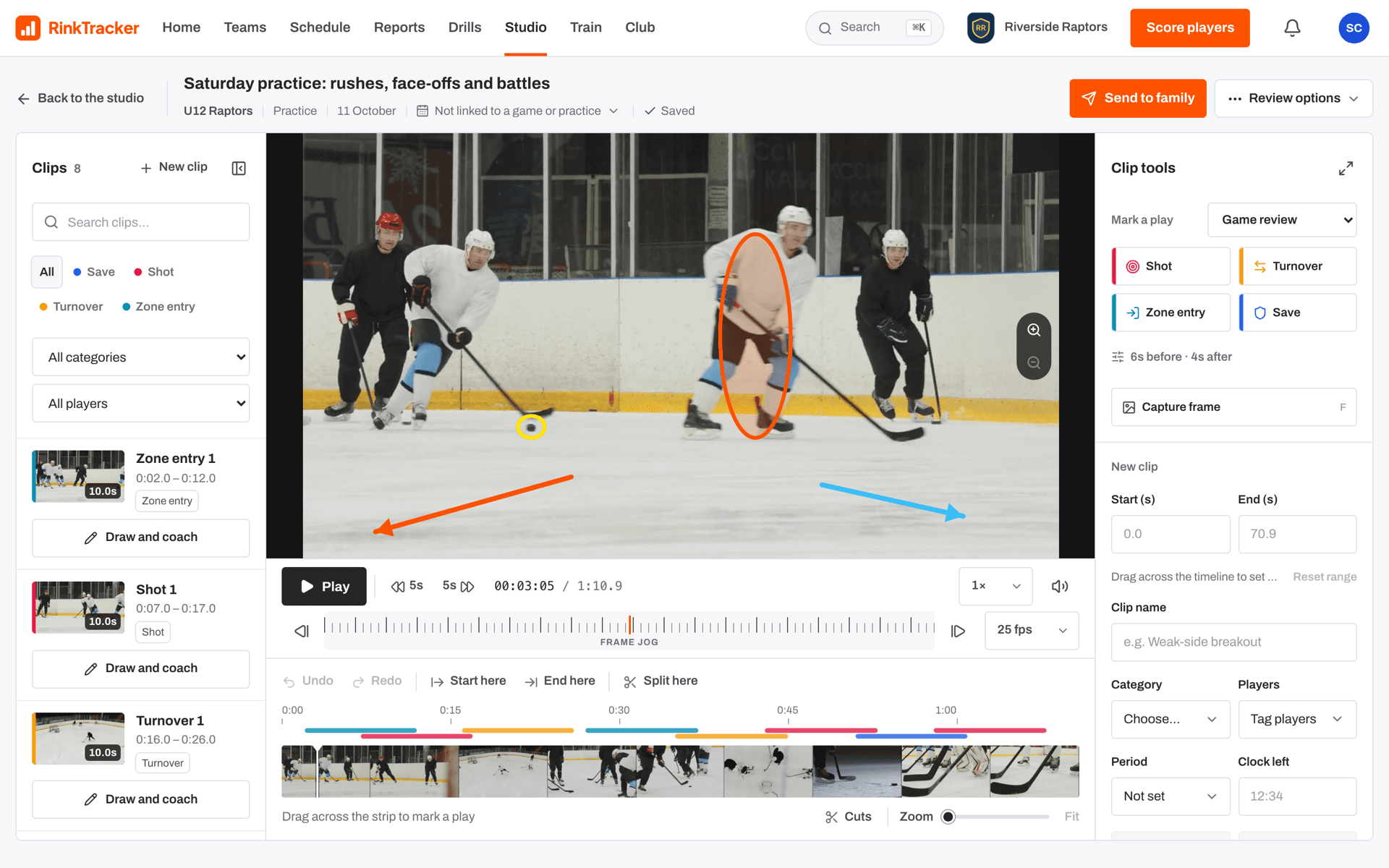
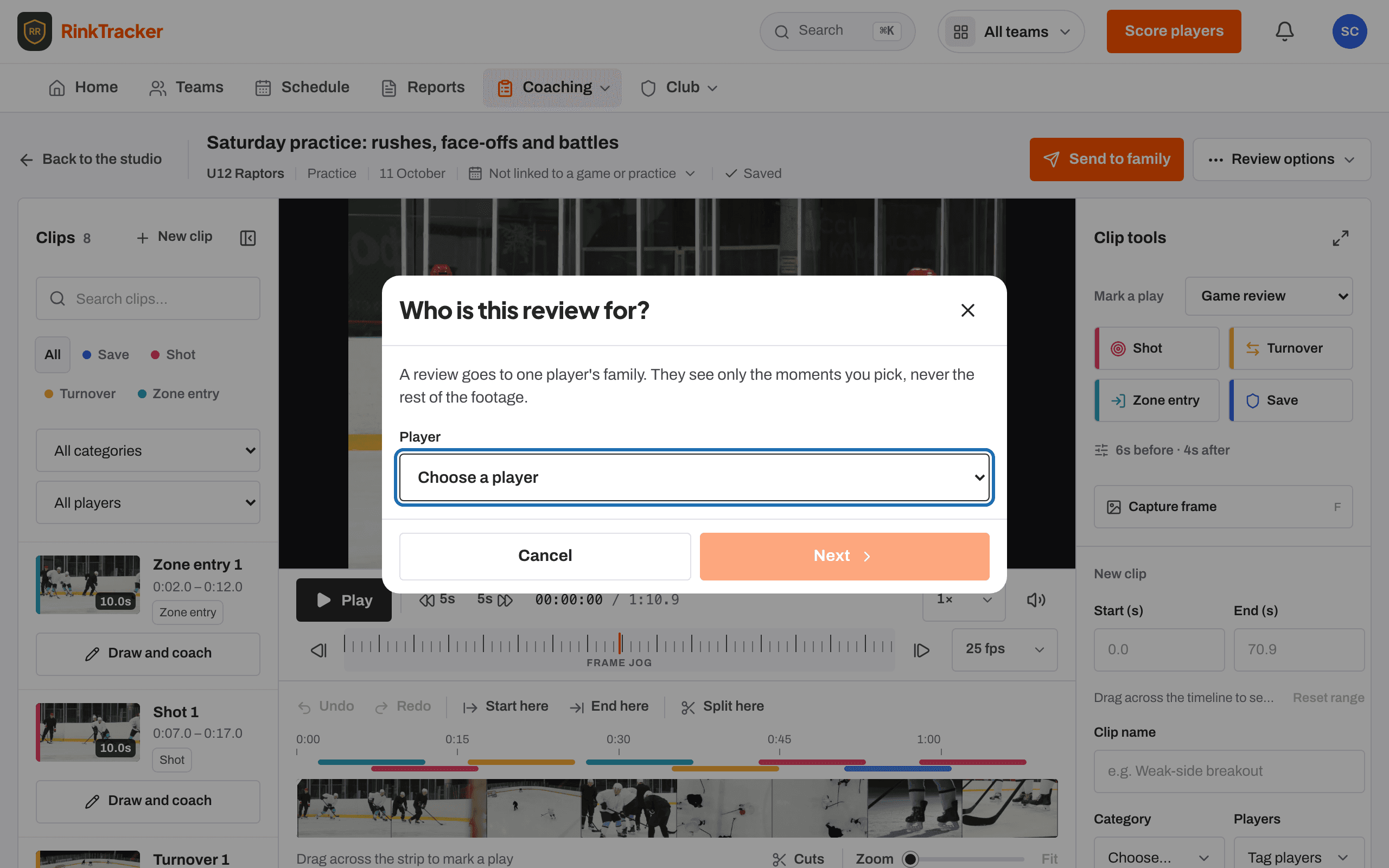
In the Studio, the Mark a play buttons stamp a clip around the playhead for events such as Shot, Turnover, Zone entry, Save or Breakout. Each event has its own colour, the same on its button, on the timeline and in the clip list. Pick a preset such as Game review, Entries and exits, Special teams or Goalie, or build your own selection.
Colour-coded events
A Shot is the same colour everywhere, so the timeline reads at a glance.
Clips and tags
Set the start and end, add a label, the period and game clock, and tag players or a line.
Frame by frame
Step a frame at a time, jump five seconds, or use the Frame jog wheel.
Draw and coach
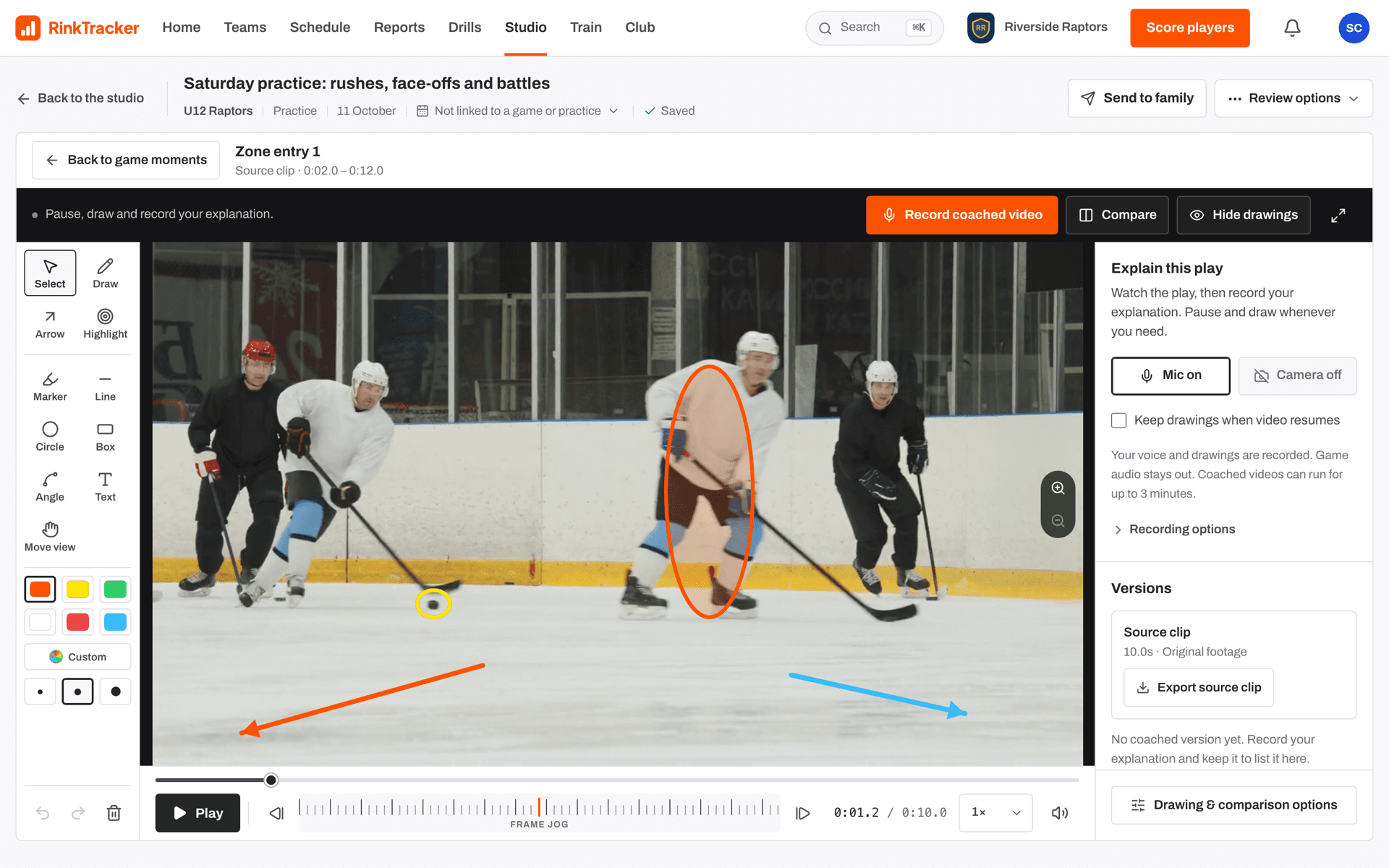
Each clip has Draw and coach. Capture a frame, then draw with arrows, a spotlight, lines, circles, angles and text. Add a coaching cue, the one line the family sees with the moment, and link a drill to practise.
Teach as you watch
Record your explanation with the microphone and optional camera while you play, pause and draw.
Game audio left out
Recordings never include the game's own sound.
Compare
Play another clip or an animated rink drill beside the footage.
Send a review to one family
A review goes to one player's family. They see only the moments you pick, never the rest of the footage, with your cue and drawings and an optional question. They can reply, and only the coaches see the reply. On a family's home the review shows as Watch the coach's video review.
Playlists
Line up moments from different games, present them at a team meeting, or send them to players.
Frozen when sent
Sending fixes what the family sees, so later edits never change it.
Seen and answered
Sent reviews show whether the family has watched and replied.
Consent comes first
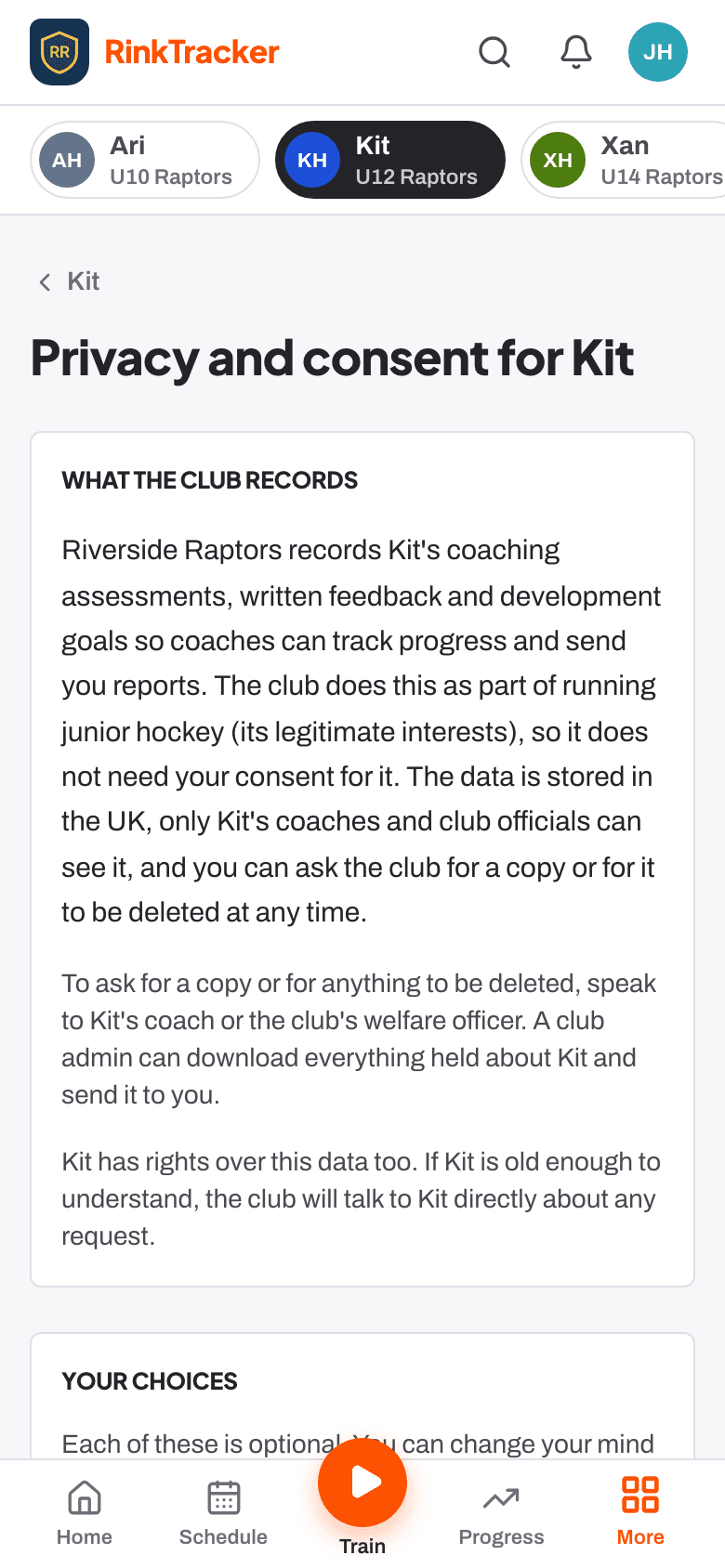
Coaching video is on unless a family turns it off, and it is never public or downloadable by other families. If a family turns it off, their child's coaching clips and video reviews are deleted for good, and no review can be sent to them. Video plays through short-lived signed links.
Family choice
Parents manage Video for coaching from their own account.
Staff only
Team footage is for the team's staff; families see only the moments sent to them.