Choose how to start
The first time you sign in as club admin you land on Welcome to RinkTracker. You have three choices.
- Set up my academy: eight short steps. You can stop and come back at any point.
- Explore with a demo academy: three invented teams with a season of scores, goals and reports, so you can look round first.
- Skip for now and look around: a banner then reminds you the setup isn't finished.
This guide follows Set up my academy. Each step has Back and Continue at the foot.
Name your academy
Your academy sets how the club appears to coaches and families, on reports and in emails.
- Fill in Academy name, and a Short name (optional) such as Raptors for the header and team names.
- Add your Home rink and Town or city.
- Upload a crest if you have one (PNG, JPEG or WebP, square, under 1 MB), or set Crest initials to show instead.
- Pick your club colours, then press Continue.
Add your age groups and teams
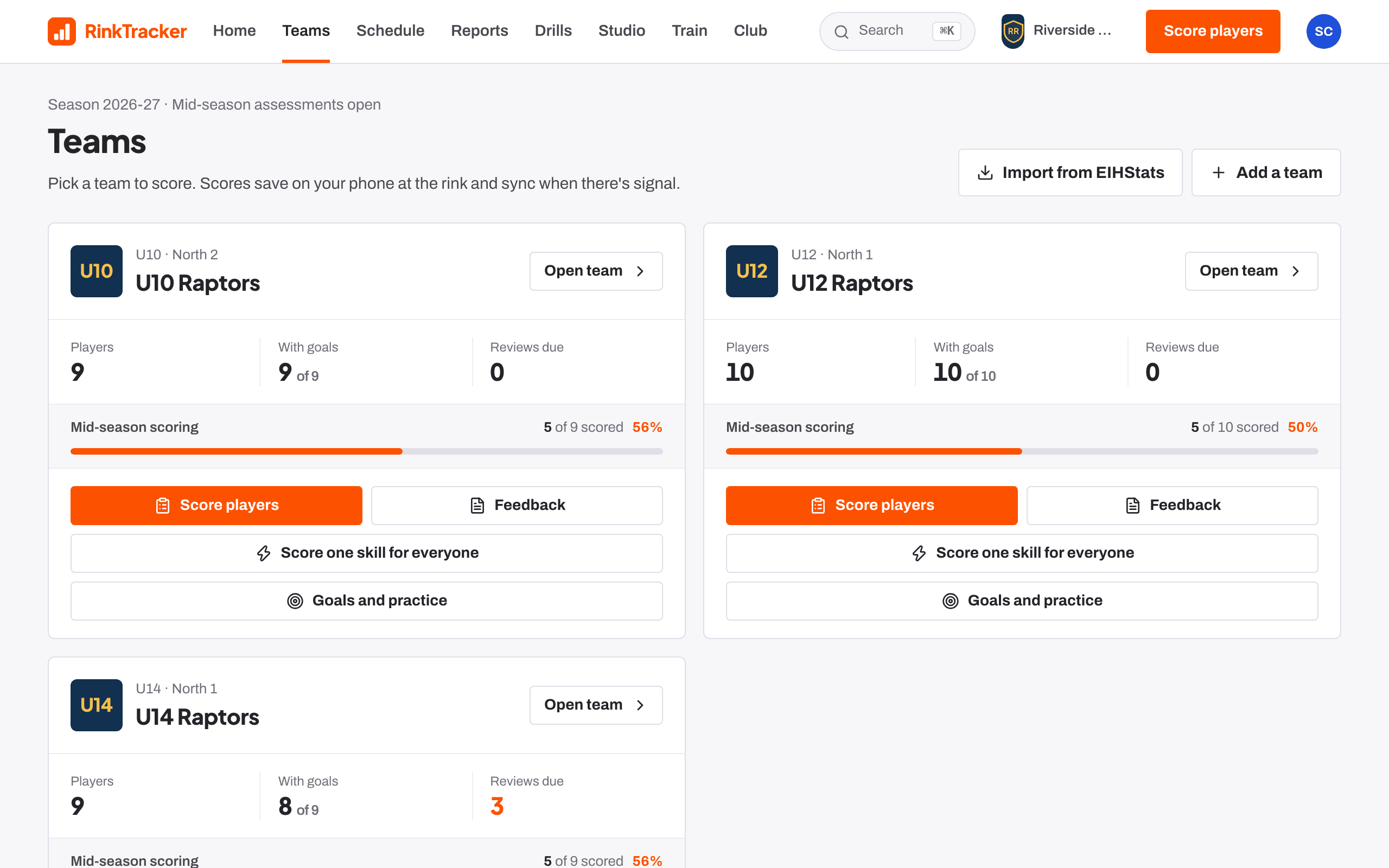
On Age groups and teams, tick each age band you run: U10, U12, U14, U16 or U19. Each one shows the birth years it covers. Name a team for each, for example U12 Raptors, then press Continue.
Players come later. You can import them from EIHStats, from a CSV export, or add them by hand.
Set the three skills check dates
Coaches score every player three times: at the start, middle and end of the season. The Season step suggests dates for each window, starting in mid-September, January and April.
- Check the Opens and Closes dates for each of the three windows.
- Change any that clash with your season, then press Continue.
Pick the rubric and the development loop
On Skills rubric, choose Use the standard rubric (recommended): 19 skater skills and 15 netminder skills, written with UK junior coaches. If you choose We have our own rubric, you start on the standard one and we get in touch about yours.
On The development loop, set how the goals cycle runs between skills checks.
- Coach reviews each player every: 7, 14, 21, 28 or 42 days. A fortnight suits most academies.
- Practice sessions a week: the target for each player, from 1 to 7.
- Weekly reminder emails: the Monday coach digest and the Sunday family practice email.
Invite your coaches
- On Your coaches, enter a coach's Email.
- Choose a Role: Coach, Head coach, Team manager or Safeguarding lead.
- Choose their Team, or leave them with no team for now.
- Press Send invitation. Repeat for each coach, then press Continue.
Accept the data agreement and finish
Data agreement shows the data processing agreement between your club and RinkTracker. Tick I am authorised to accept this agreement on behalf of the academy. and press Accept and continue.
You're set up shows a checklist of what's in place and three ways to carry on: import your players, open the first skills check or invite families. Press Go to my academy to go to your Home page.
- Import your teams from EIHStats Guide
- Invite staff and families Guide
- Setting up your club: the checklist Help article
- Exploring with the demo academy Help article
Stuck? Email hello@rinktracker.com or search the help centre.