Sending a video review to a family
Send chosen moments, with your drawings, cue and a question, to one player's family, and what they see.
For coaches, families, players
A review goes to one player's family. They see only the moments you pick, never the rest of the footage.
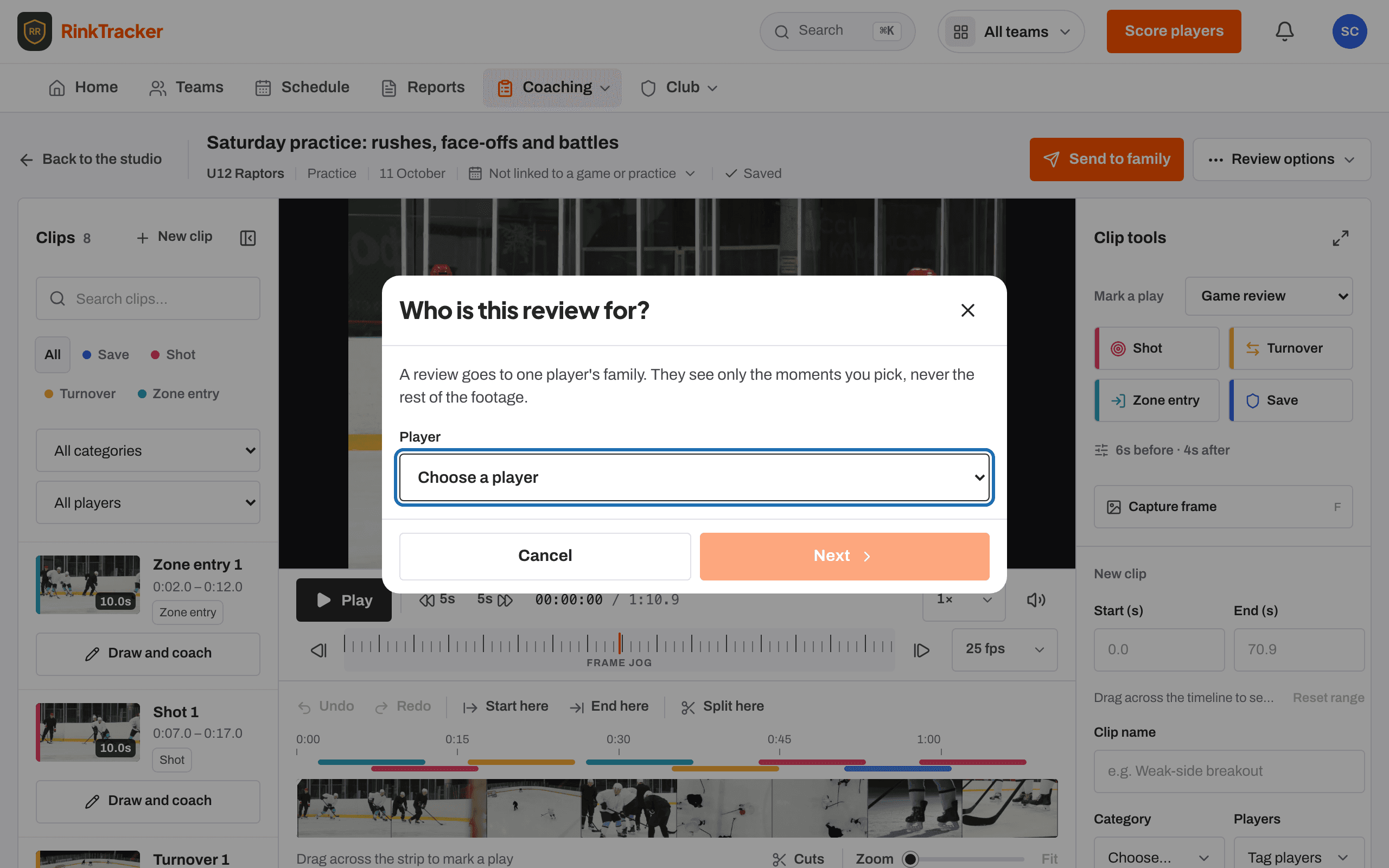
Sending a review
- In the studio, press Send to family in the header.
- For team footage, answer Who is this review for? by choosing the player.
- Under Moments to include, tick the moments. Moments tagged with that player are ticked for you.
- Give it a Title, and add A question for the player if you like, such as "What did you see before the pass?"
- Link it to one of the player's goals if it fits.
- Press Send review.
The family sees exactly these clips and drawings, as they are at that moment. Changes you make afterwards stay in the studio. To give each moment a line of explanation, set its coaching cue in coaching mode: it is the one line the family sees with that moment.
What the family sees
The family gets an email, "A video review from" the coach, and Watch the coach's video review appears at the top of their This week page. The review shows each moment with its drawings and a Look for: line, then The coach's question. A player aged 13 or over with their own login sees their own reviews too.
They can Reply to the coach. Only the coaches see the reply. No other family can see the review.
After sending
Sent reviews in the Studio lists every review, whether it has been watched, and replies, with New reply on fresh ones. You can Revoke a review to take it back.
- Recording a coached video Help article
- Review playlists Help article
- Video and consent Help article
- Coach a clip and send a video review Step-by-step guide
Still stuck? Email hello@rinktracker.com and we'll help.