Drawing on video
Capture a frame, use the drawing tools, and choose whether drawings stay on screen when the video plays.
For coaches
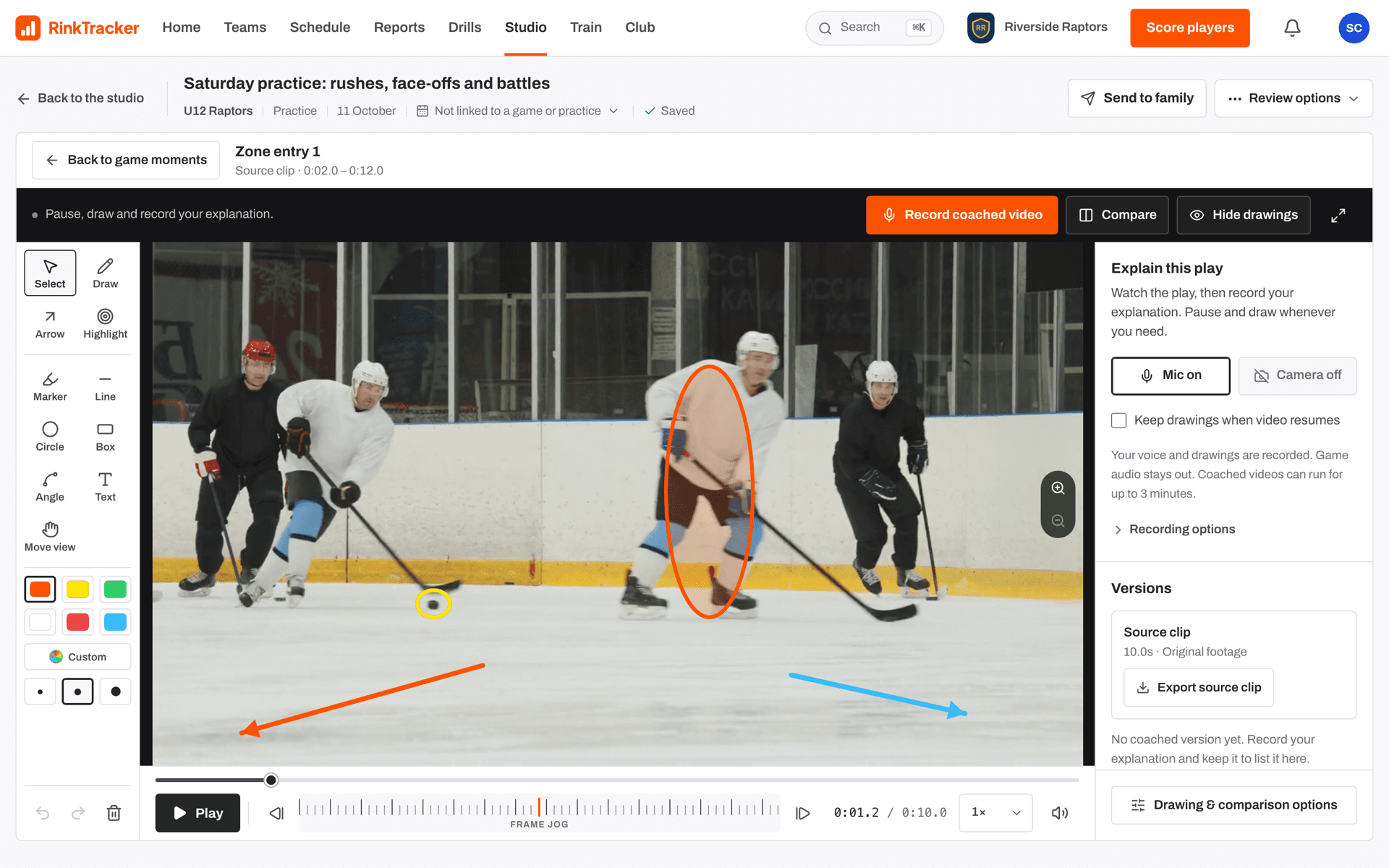
You draw in coaching mode. Press Draw and coach on a clip, or on a captured frame, to open it.
Capture a frame
To draw on one still picture, pause on the frame and press Capture frame (F) in clips mode. It is added to the clip list as a frame. Open it with Draw and coach and its drawings stay on that one frame.
The tools
- Select: tap a drawing to select it, drag it to move it, or drag a white handle to reshape it.
- Draw: a freehand pen.
- Arrow: drag from the start of a movement to where it ends.
- Highlight: drag across a player to put a spotlight on them.
- Marker, Line, Circle, Box, Angle and Text for lanes, zones and labels.
- Move view: zoom in, then drag the footage to move the view.
Choose a colour and line weight from the rail. Undo and Redo sit at the foot, with Clear drawings (Undo brings them back). Hide drawings and Show drawings switch them off and on without deleting them. Picking a drawing tool pauses the video.
When the video plays again
On a clip, drawings leave the picture as soon as the video plays, so the play is clear to watch. If you want them to stay, tick Keep drawings when video resumes in the Explain this play panel. With it ticked, a drawing stays on screen to the end of the clip, including the ones already drawn on it.
Without the tick, each drawing belongs to a short stretch of the clip from where you drew it. During a coached recording, drawings made in the take are cleared when you press play, unless the box is ticked.
Zoom
Zoom into the picture with + and −, reset with 0, or pinch, or hold Ctrl or Cmd and scroll. Full screen is in the top corner.
- Recording a coached video Help article
- Finding your way round the Studio Help article
- Frame-by-frame and Studio shortcuts Help article
- Coach a clip and send a video review Step-by-step guide
Still stuck? Email hello@rinktracker.com and we'll help.