Clips and the timeline
Choose a play on the filmstrip, set its start and end, cut the footage, zoom in, and manage the clip list.
For coaches
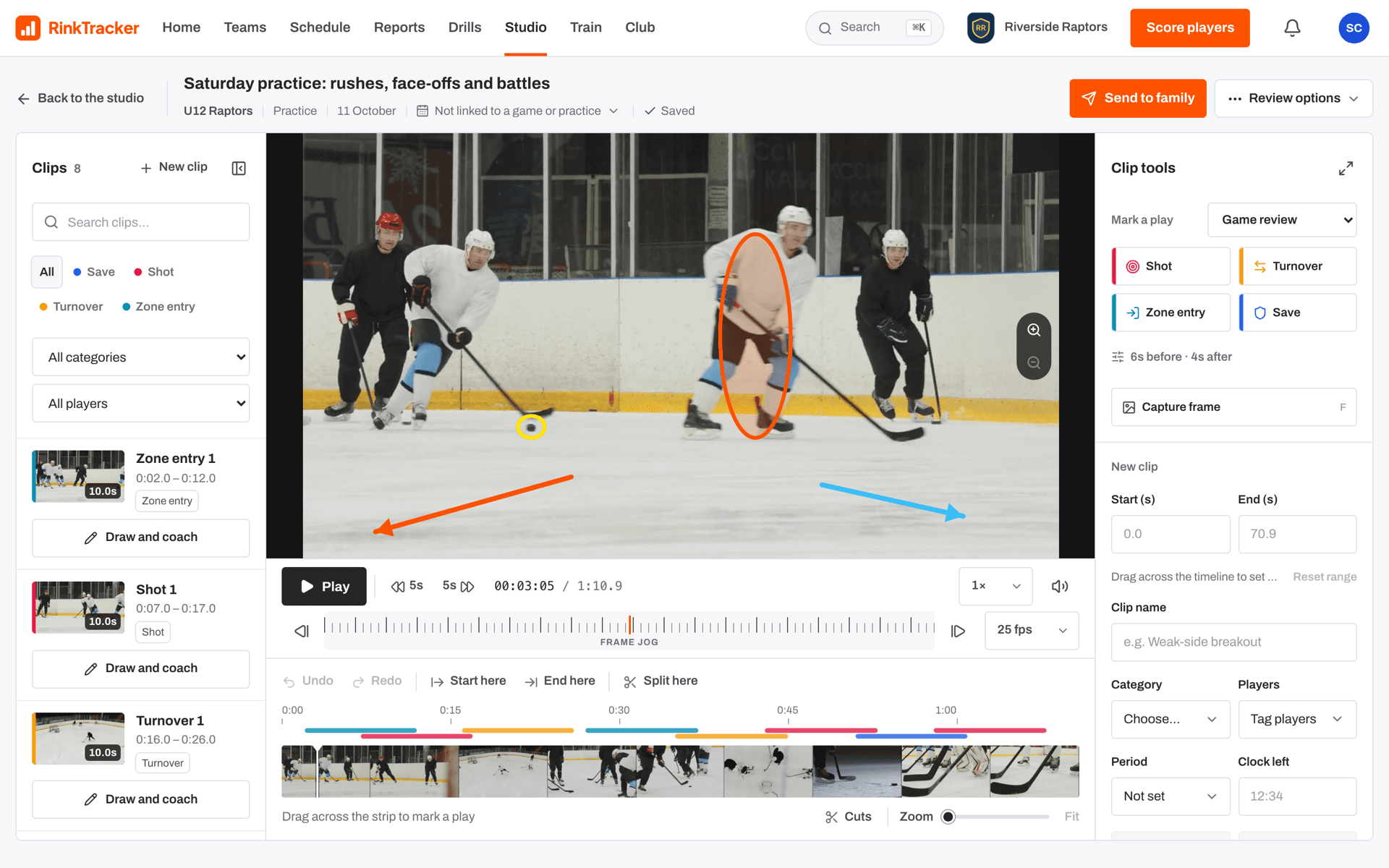
Under the footage in clips mode is the timeline. A ruler of times runs along the top and a filmstrip of the footage runs below it. Saved clips show as coloured bars above the strip, and the white playhead shows where you are.
Choosing a play
- Drag across the filmstrip to choose a play. Outside the play goes dim and the footage follows your pointer so you can see where it ends.
- Drag the orange handles at either end to adjust it.
- Drag the playhead, or drag along the ruler, to move through the footage without choosing anything.
- Or play to the right spot and press Start here (I), then End here (O).
The line under the strip shows the play's start and end and its length, such as "1:12 – 1:19 · 7.0s selected".
Cutting the footage
Split here (C) drops a cut at the playhead. Cuts show as amber lines. Open Cuts to see the segments between them: press a segment to make it the play range. Razor lets you click the strip to drop or lift a cut, and Clear cuts removes them all.
Zooming in
Use the Zoom slider to see less of the footage in more detail, with a second slider to move along. Fit shows the whole video again. While the video plays, the view follows the playhead.
Saving the clip
In Clip tools, check Start (s) and End (s), add a Clip name, a Category, Players, and for games the Period and Clock left. You can also Tag a line from the team's saved lines. Preview plays the range alone. Then press Save clip. A video can hold up to 64 clips.
The clip list
Each saved clip shows its frame, its length, and where it sits in the footage from start to end, with its tags. Search the list, or filter by category, player and period. Select a clip to put its range back on the timeline and edit it, or press Draw and coach to open it in coaching mode.
- Marking plays with one press Help article
- Frame-by-frame and Studio shortcuts Help article
- Finding your way round the Studio Help article
- Tag a game video Step-by-step guide
Still stuck? Email hello@rinktracker.com and we'll help.