Recording a coached video
Talk a player through a play with your voice, your drawings and, if you like, your camera, then keep it as a clip.
For coaches
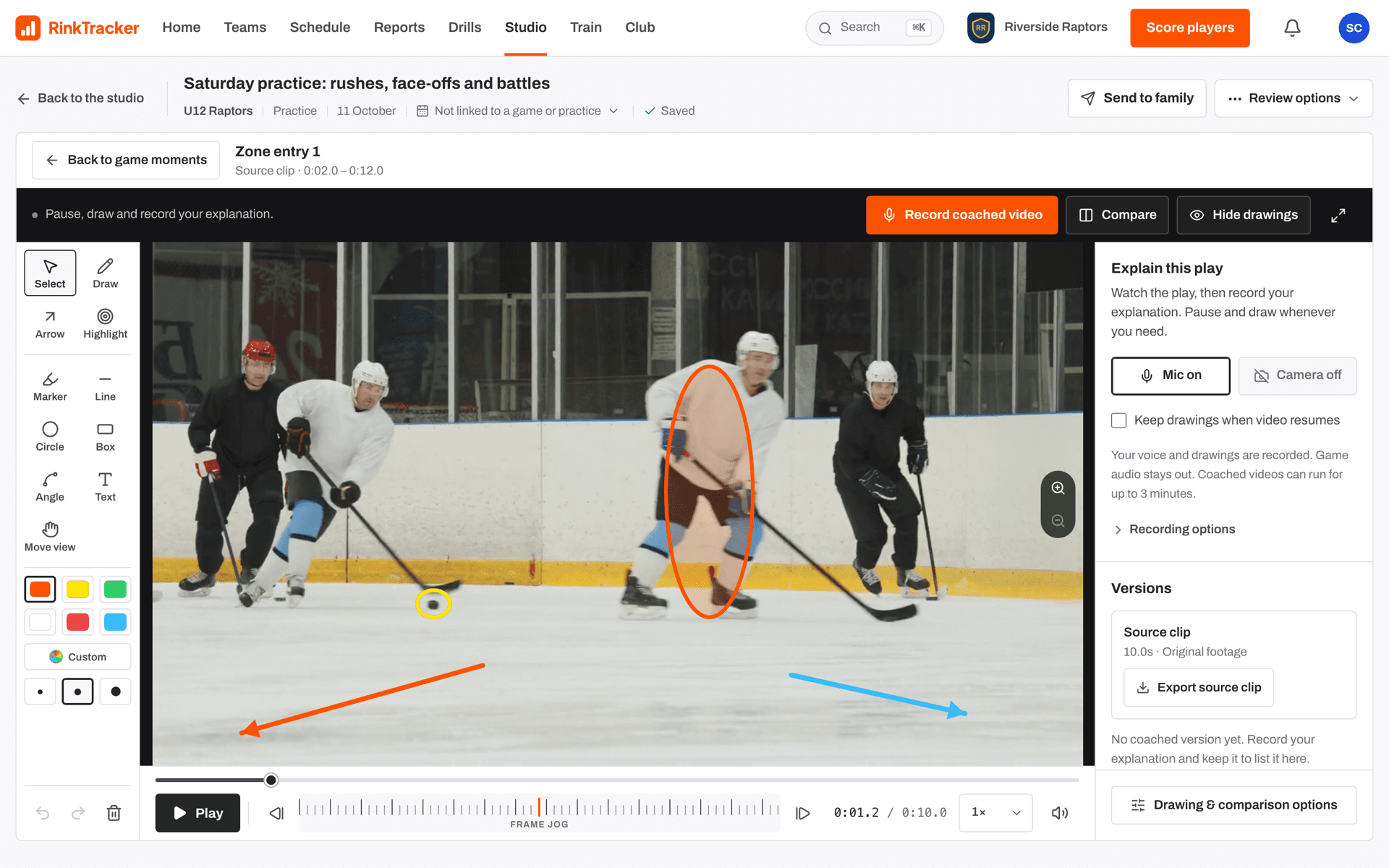
A coached video is a short recording of you explaining a play: the footage, your drawings and your voice together. You make it in coaching mode, from the Explain this play panel.
Before you record
- Mic on or Mic off: your voice is recorded, game audio is not.
- Camera on or Camera off: your camera shows as a small circle in the corner of the video.
- Keep drawings when video resumes: whether your drawings stay on screen when you press play.
- Recording options: Live lesson (play, pause and draw as you talk) or Play clip (the moment plays once while you narrate, then stops), and the File type: Best available, MP4 or WebM.
Recording
- Press Record coached video. On a captured frame it reads Record over frame.
- The panel changes to Teach as you watch. Pause, draw and keep talking. Resume when you are ready.
- A red Recording bar shows the time. Coached videos can run for up to 3 minutes, and it warns you near the end.
- Press Finish & review to watch the take.
- Press Keep lesson and choose the player, or Discard to throw it away.
Keep makes a new clip of that player, on the same goal if the clip had one. It is not kept if the player's family has turned coaching video off. Your drawings and moments on the original footage are not changed by the take.
Versions
The Versions panel lists the coached videos made from a moment. Export source clip records the clip with its drawings, without sound, and saves the file to your device. It works for clips up to 3 minutes long.
- Drawing on video Help article
- Sending a video review to a family Help article
- Video and consent Help article
- Coach a clip and send a video review Step-by-step guide
Still stuck? Email hello@rinktracker.com and we'll help.