Marking plays with one press
Use the Mark a play buttons to clip shots, entries, saves and other events as you watch, each with its own colour.
For coaches
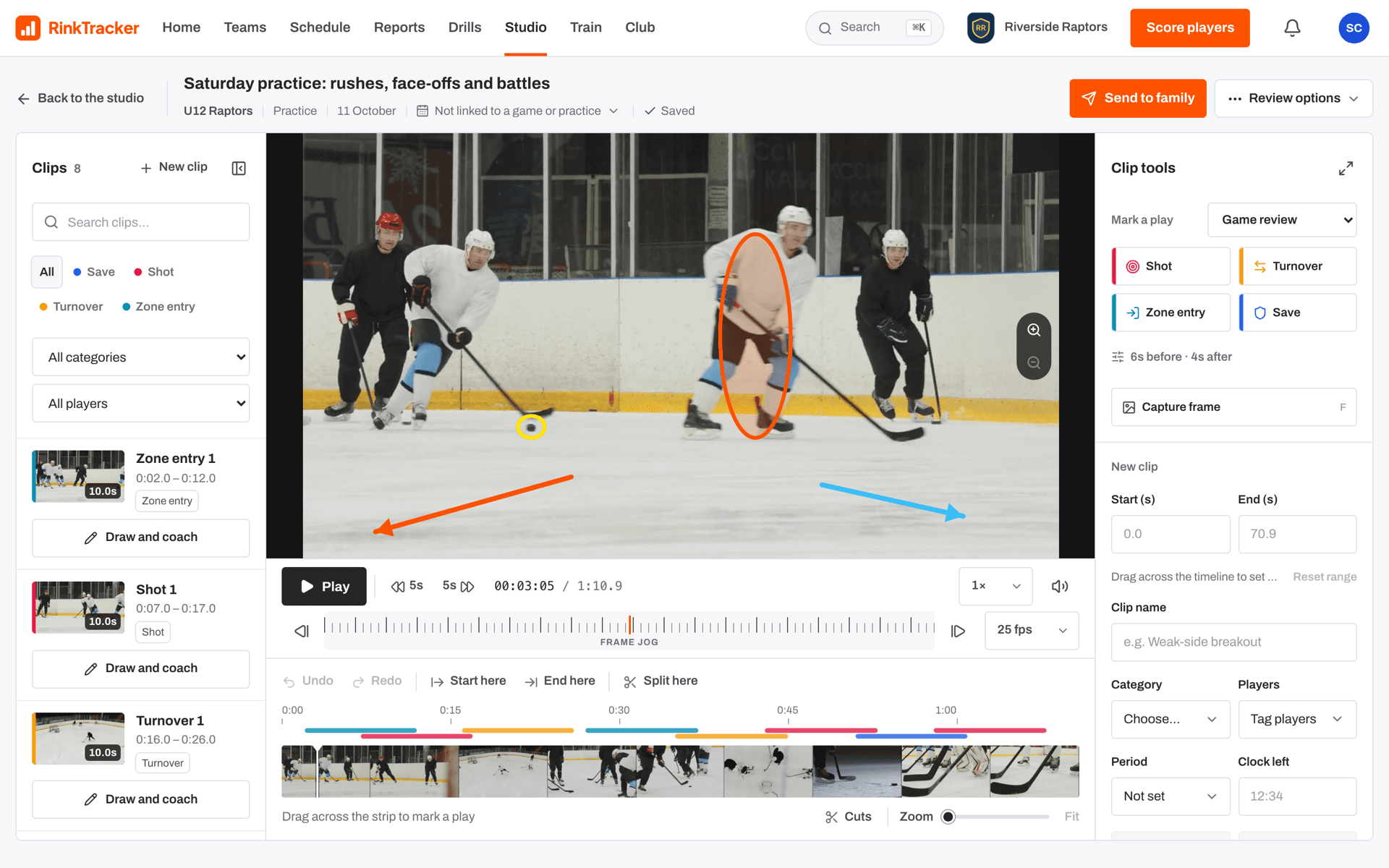
Mark a play sits at the top of Clip tools. Each button is a hockey event. Press it as the play happens and RinkTracker saves a clip from a few seconds before the playhead to a few seconds after, named and categorised for that event. If you have already chosen a range on the timeline, the clip uses that range instead.
Events and presets
The events are Shot, Turnover, Zone entry, Save, Zone exit, Breakout, Forecheck, Faceoff, Power play, Penalty kill, Goal, Rebound, Screen and Takeaway. You do not need them all at once. Press the settings line under the buttons (it reads like "6s before · 4s after") to choose:
- Tagging preset: Game review, Entries and exits, Special teams, Goalie, or Your own selection.
- Before and After: how many seconds each clip runs either side of the playhead, up to 30.
- Buttons and shortcuts: tick up to 8 events and give each one a key.
- Keyboard shortcuts on: Alt (Option on a Mac) with the key marks that event.
These settings are kept for you in this browser, so each coach can set up their own.
Colours
Every event has its own colour, and it follows the clip everywhere. The button has a stripe and icon in that colour, the clip's bar on the timeline uses it, the clip list shows it down the edge of the thumbnail, and the category filter chips above the list carry a dot of it. A run of red Shots or blue Saves is easy to spot at a glance.
| Alt or Option + your key | Mark that event around the playhead |
| M | Mark a moment at the playhead, or on the range you have chosen |
- Clips and the timeline Help article
- Frame-by-frame and Studio shortcuts Help article
- Finding your way round the Studio Help article
- Tag a game video Step-by-step guide
Still stuck? Email hello@rinktracker.com and we'll help.