Drafting and approving feedback
Draft each player's feedback from the rubric, edit it, and approve it before it goes into the report.
For coaches, club admins
After a skills check, each player's scores become written feedback. RinkTracker drafts it from the rubric's descriptions. A coach reads it, edits it and approves it.
Draft for the team
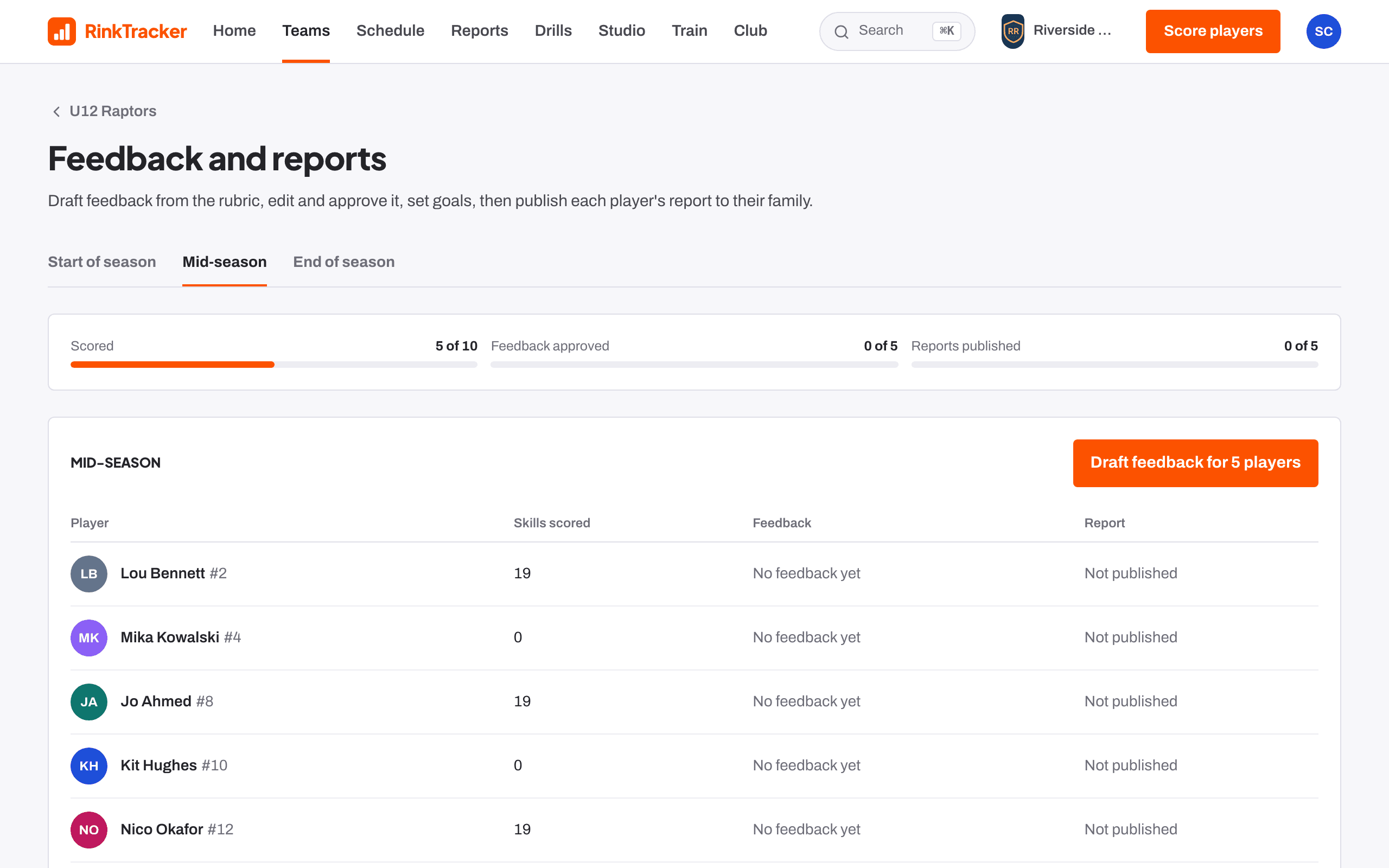
- Open the team, then Feedback and reports. You can also press Draft feedback at the end of the scoring sheet.
- Pick the window tab.
- Press Draft feedback for N players.
Progress at the top shows how many players are scored, how many have approved feedback and how many reports are published.
Edit and approve one player
Open a player from the list. Each skill shows the score and the previous window. If two coaches scored a skill differently, it says Coaches differ by N.
- Edit any item, then press Save draft or Approve.
- Write an Overall summary.
- Mark goals Achieved, remove them, or write a new one.
- Press Approve all N drafts as written if you are happy with them all.
Use the previous and next buttons to move through the team.
Suggest with AI
If your club admin has switched on AI drafting, Suggest with AI loads a suggestion. Read it, edit it if needed, then approve it. Suggestions are never saved or shown to families until a coach approves them. The child's name, date of birth and club are never sent.
- Publishing reports to families Help article
- Coach notes Help article
- Publish reports to families Step-by-step guide
Still stuck? Email hello@rinktracker.com and we'll help.