Open Feedback and reports
Go to Teams and press Feedback on the team's card, or open the team and choose Feedback and reports in the team tools. Pick the window's tab. Progress shows Scored, Feedback approved and Reports published.
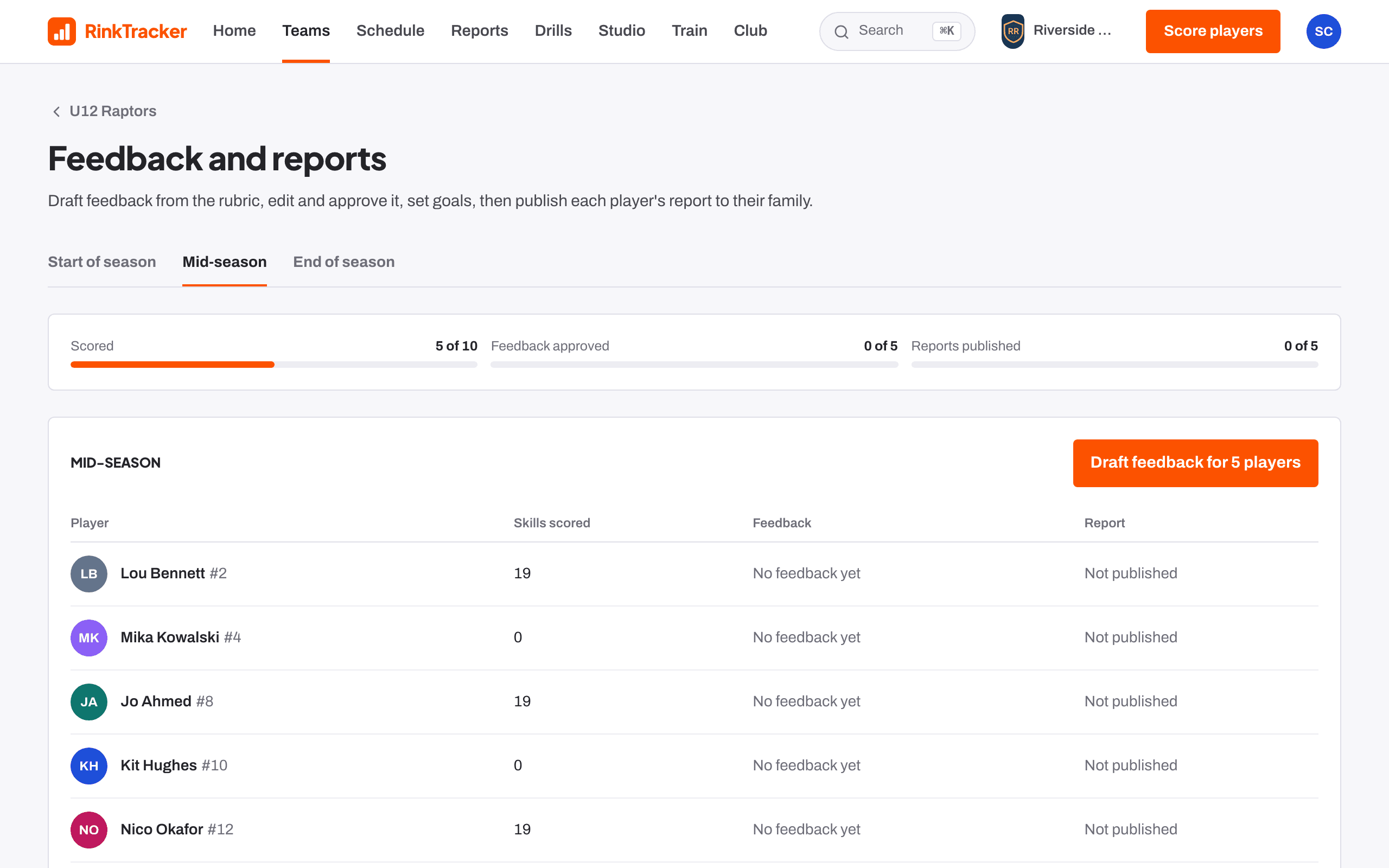
Draft feedback for the team
Press Draft feedback for N players. RinkTracker writes a draft for every scored skill from the rubric's descriptions of that level.
Edit and approve each player
- Open a player. Each skill shows the score, with last window's score as a grey dot.
- Edit any draft in your own words and press Save draft, or Approve it.
- Write the Overall summary.
- When you're happy with the rest, press Approve all N drafts as written.
- Use the next player button to move on.
If scorers disagree on a skill, the page shows Coaches differ by N. Worth a chat before you approve.
Check the goals
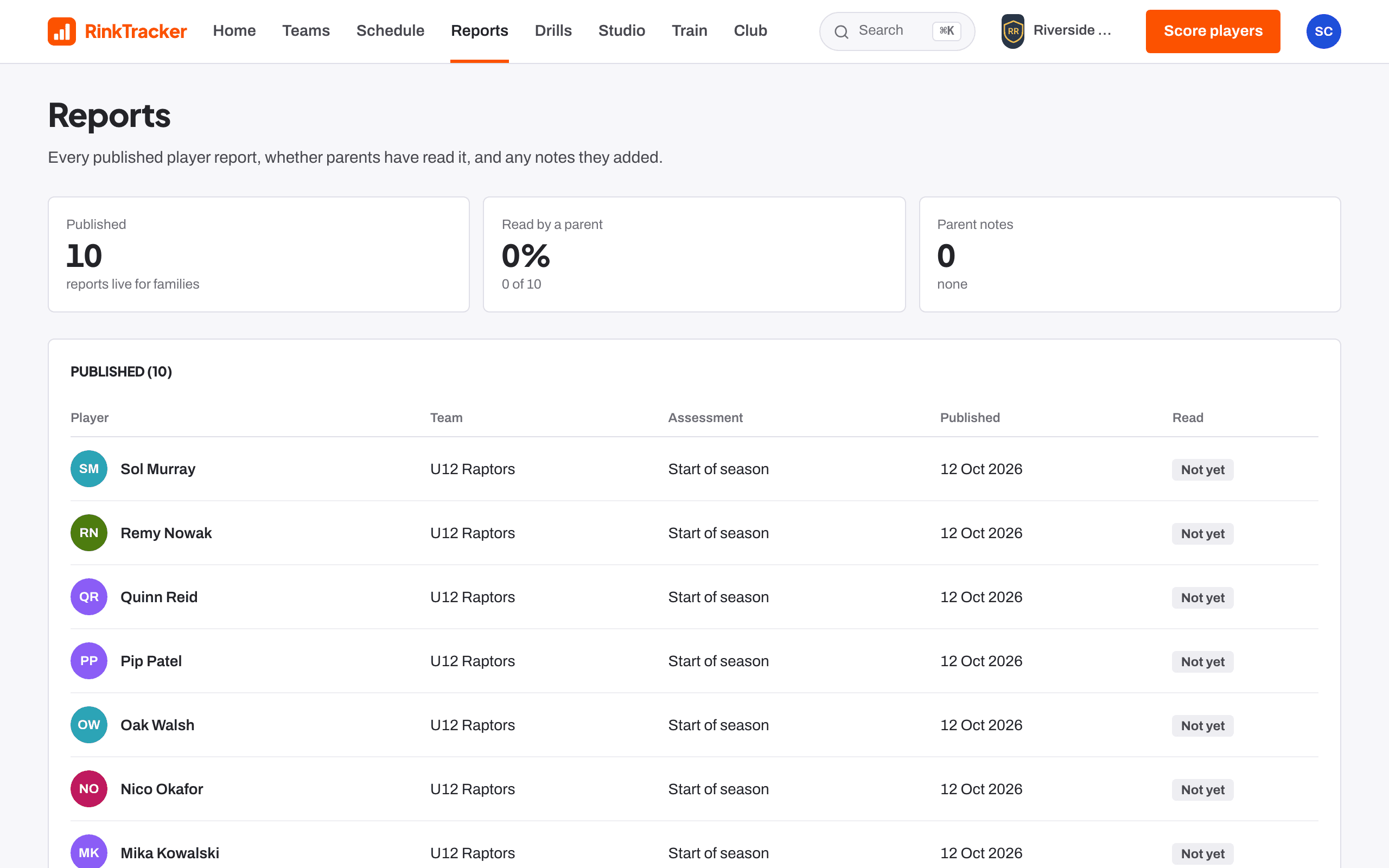
Under the development goals, mark any that are Achieved, Remove any that no longer fit, or Write your own goal. These appear on the report as goals for next time.
Publish
A head coach or club admin publishes. Press Publish to parents on one player, or Publish all approved on the team page.
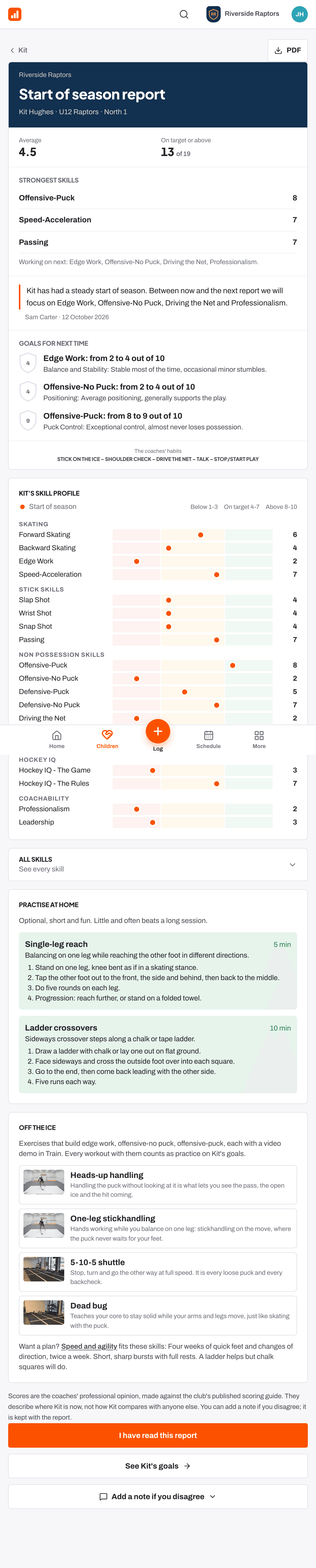
See who has read it
Reports lists every published report, marked Read or Not yet, with Read by a parent and Parent notes at the top. Families press I have read this report and can add a note if they disagree. A note doesn't change the scores.
Open a report for its PDF, or to Withdraw this report with a reason. If scores change after publishing, the feedback page tells you to publish again to update the family.
- Drafting and approving feedback Help article
- Publishing reports to families Help article
- Downloading a report as a PDF Help article
- Close the season Guide
Stuck? Email hello@rinktracker.com or search the help centre.