Scoring a player at the boards
Work through each player's skills on the scoring sheet, with the description of every level in front of you.
For coaches
The scoring sheet takes you through one player at a time, one skill at a time. It works on a phone at the boards, a tablet or a computer.
- Press Score in the bottom menu on a phone, or Score players on a computer or the team page. Pick the team if asked.
- The sheet opens at the first player. Tap a different shirt number on a phone, or a name in the list on a larger screen, to change player.
- Tap a score from 1 to 10. The panel below shows What a 7 looks like with that level's description. If it is not the level you meant, tap another.
- Press Next skill. After the last skill, press Next player.
- After the last player, press Finish.
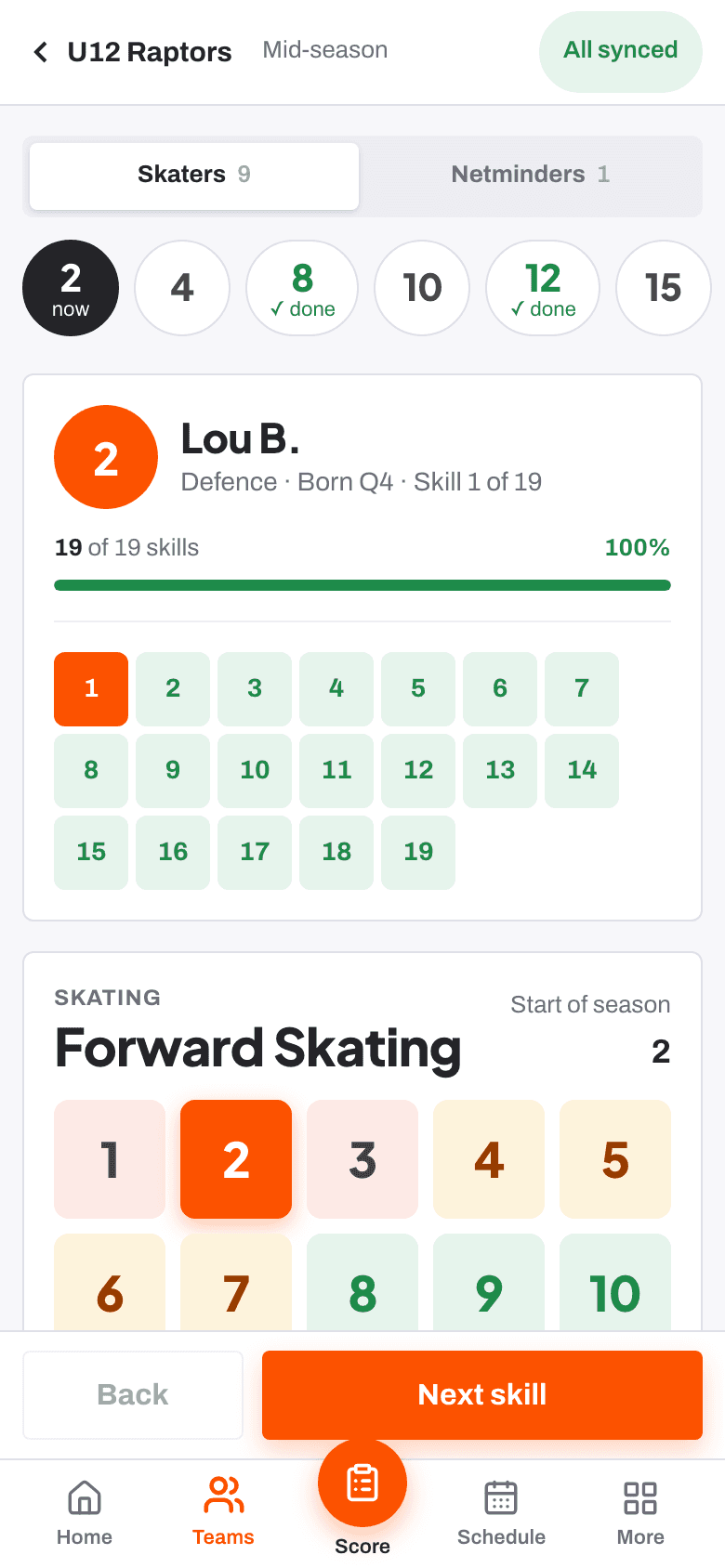
What is on the screen
- The skill name and its group, and which skill of how many you are on.
- The player's score from the previous window, if there was one.
- The typical range for their age band, outlined on the buttons.
- Not seen enough and Add a note.
Notes added here are for staff only. Use your keyboard's microphone to dictate if your hands are cold.
When you finish
The end of the sheet shows how many players you have scored, with Draft feedback, Back to the team and Keep scoring. If the team has netminders, there is a button to score them next.
Scores save on your phone as you tap and sync when there is signal. Each coach's scores are kept separately, and averaged if more than one coach scores the same player.
- Keyboard shortcuts for scoring Help article
- Using RinkTracker with no signal Help article
- Score at the boards Step-by-step guide
Still stuck? Email hello@rinktracker.com and we'll help.