Data requests: downloading and erasing a player's data
How to answer a subject access request with a player's full data download, and how a club admin permanently erases a player's data.
For club admins
Families ask the club, usually through their child's coach or the welfare officer, for a copy of their child's data or for it to be deleted. These tools are listed under Data rights tools on Data and privacy.
Download everything held about a player
- Open the player's page.
- Press All data. A file downloads with everything RinkTracker holds about the player.
- Send it to the family in the way your club handles data requests.
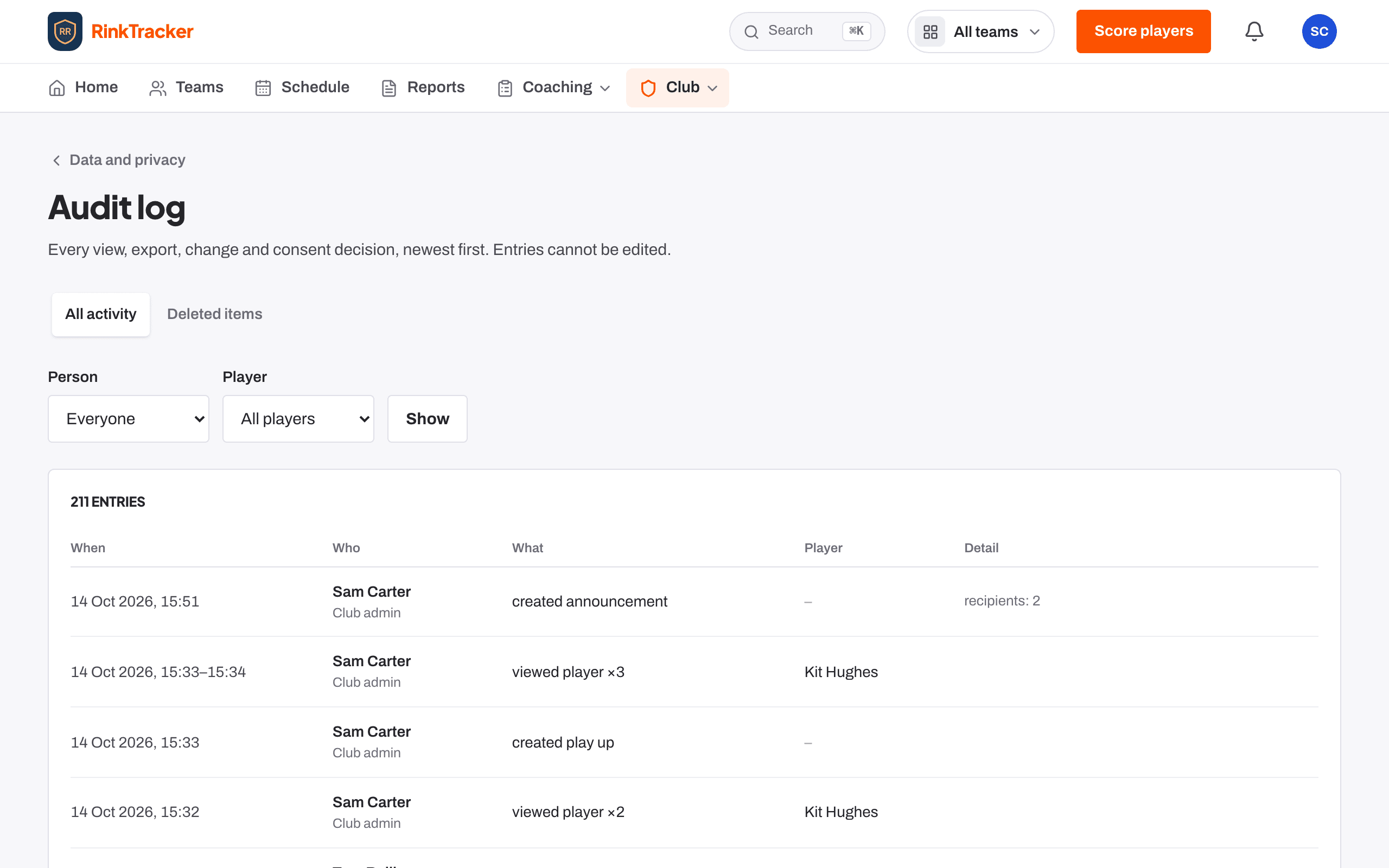
All data is available to the club admin and the safeguarding lead. The download is a structured data (JSON) file, and it is recorded in the audit log. Respond within one month.
Erase a player's data
Use erasure for a request under the right to erasure, or when a player has left and the retention period has passed. The suggested retention is: keep development records while the player is a member, plus six years, then erase.
- Open the player's page and scroll to Erase all of [first]'s data.
- Enter the Reason (kept in the audit log), for example the date of the parent's request.
- Type the player's full name to confirm.
- Press Erase permanently.
The audit log keeps a record that an erasure happened and why, without the child's details.
Coaching video
A family can delete their child's coaching clips and video reviews themselves by turning off Video for coaching on their privacy page. That deletion is permanent.
- Privacy, the data agreement and who sees what Help article
- Your consent choices Help article
- Video and consent Help article
Still stuck? Email hello@rinktracker.com and we'll help.