For players
From 13 you can have your own login. It shows you, and only you.
Your own login
- A parent sets it up from your page in their account, using your own email address. You need to be 13 or over, and they need to give permission.
- Sign in with that email. Each time, the app sends you a link; there is no password to remember.
- Your parent can pause or remove it at any time. If it is paused, you can sign in but you will not see anything.
Finding your way round
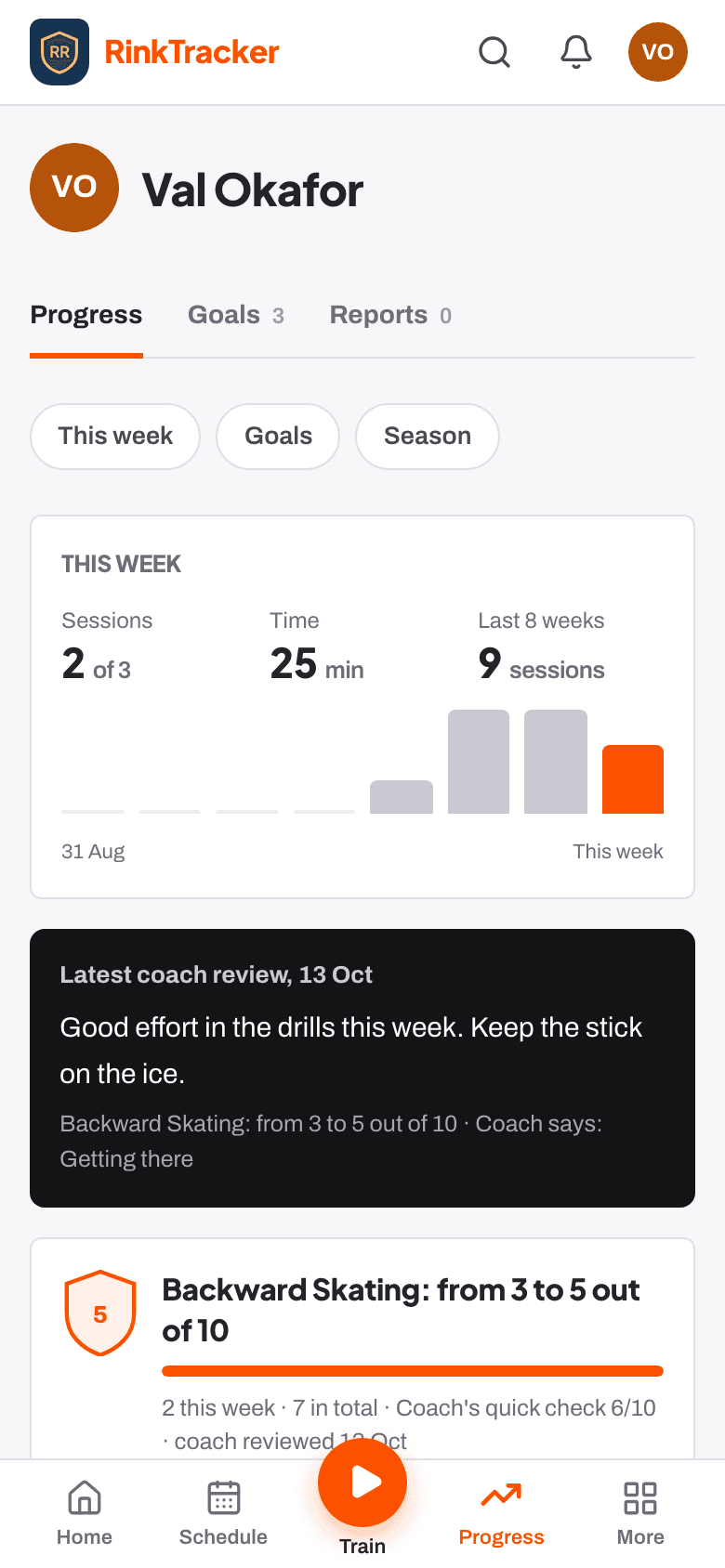
On a phone the bottom menu has Home, Schedule, the orange Train button, Progress and More. More opens Scores explained and Club. On a computer those are tabs along the top. Home shows what is up next for you.
What you can see
- Your goals, your practice, your workouts, your published reports and video reviews the coach sends you.
- What each score means, in the club's own words, under Scores explained.
- Not coach notes, not other players, and not anything your parents manage, like consent or medical details.
- There is no chat and nobody can message you in the app.
Your goals and practice
- After each skills check your coaches set goals. Open Progress and the Goals tab. Read each one: you can start on it straight away.
- Press the orange Train button to start a workout, or Log practice for practice done away from the app: the goal you worked on, the drill, how many minutes and when. The club asks for a few short sessions a week. Ten minutes counts, and the coaches see it straight away.
- How is it going? lets you rate each goal: not yet, getting there, most of the time or got it. Be honest; the coach rates it too and the two sit side by side.
- Each goal has drills and off-ice exercises with videos. A workout with those exercises counts as practice on the goal without logging it.
- If the coaches set a drill of the week, press Mark as done when you have done it.
Can you come?
Schedule lists your training and games. Each one asks Can you come? Answer yes, no or maybe, and add a note for the coach if you need to. Only club staff see your answer.
Workouts
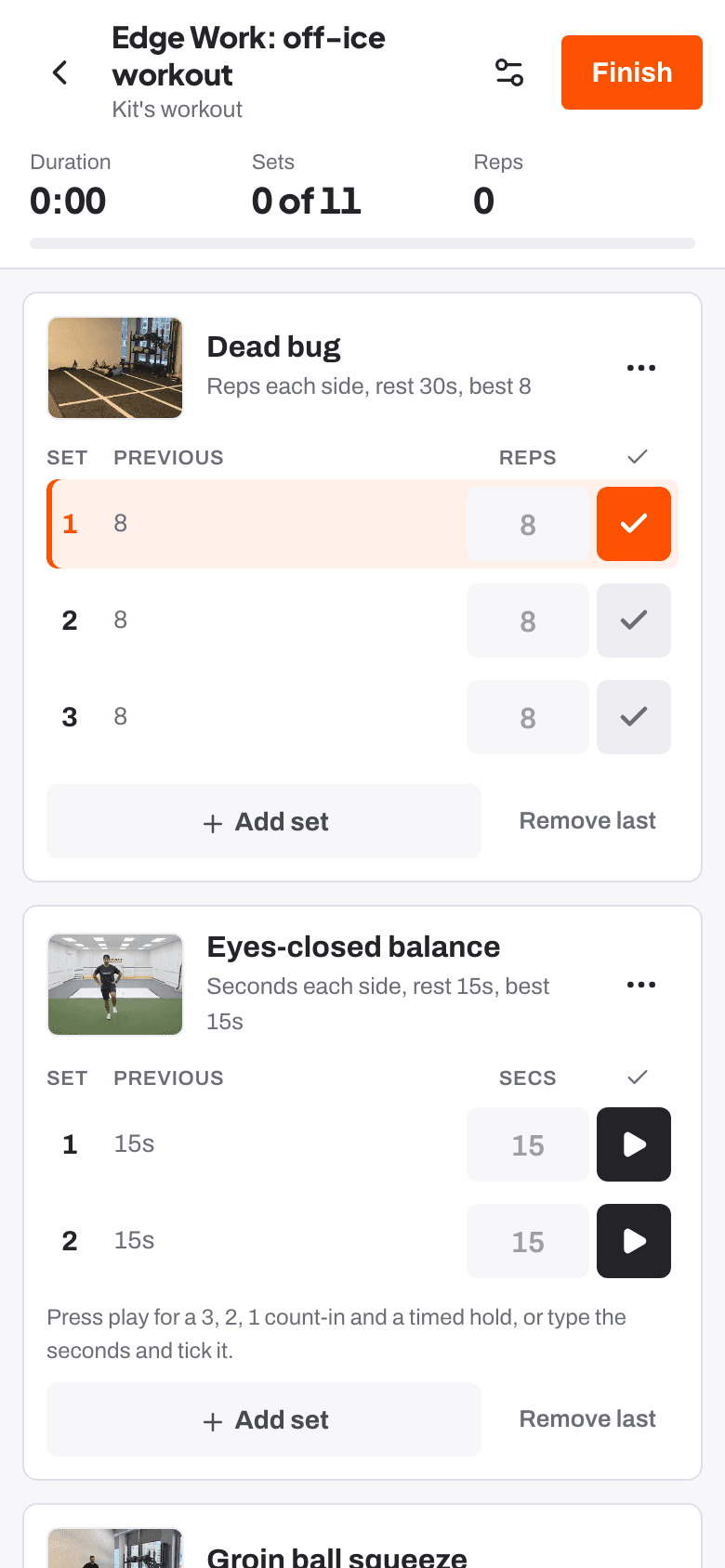
- Train shows off-ice work for your goals, the routines and programmes your coaches set, and the exercise library. Press start on any of them.
- Watch the demo video first if the exercise is new. Tick each set when it is done; the app runs the rest timer, shows your last numbers and stars a personal best.
- Warm up first and stop if anything hurts. Exercises with weights start at U14; U10 and U12 train with bodyweight only.
- Your coach can see that you trained. Nobody is ranked.
Reports and video reviews
When your coaches publish a report, it appears under the Reports tab on Progress: your average, every skill against last time, what your goals did and the goals for next time. Read it with your parents; they get it too.
When a coach sends you a video review, you see only the moments they picked, with what to look for and sometimes a question. Use Reply to the coach to answer. Only the coaches see your reply.
More help
The help centre has short articles on each screen. For the full story of a player login, see the guide your own login, and for practice see log practice and workouts.