Finish the end-of-season scoring
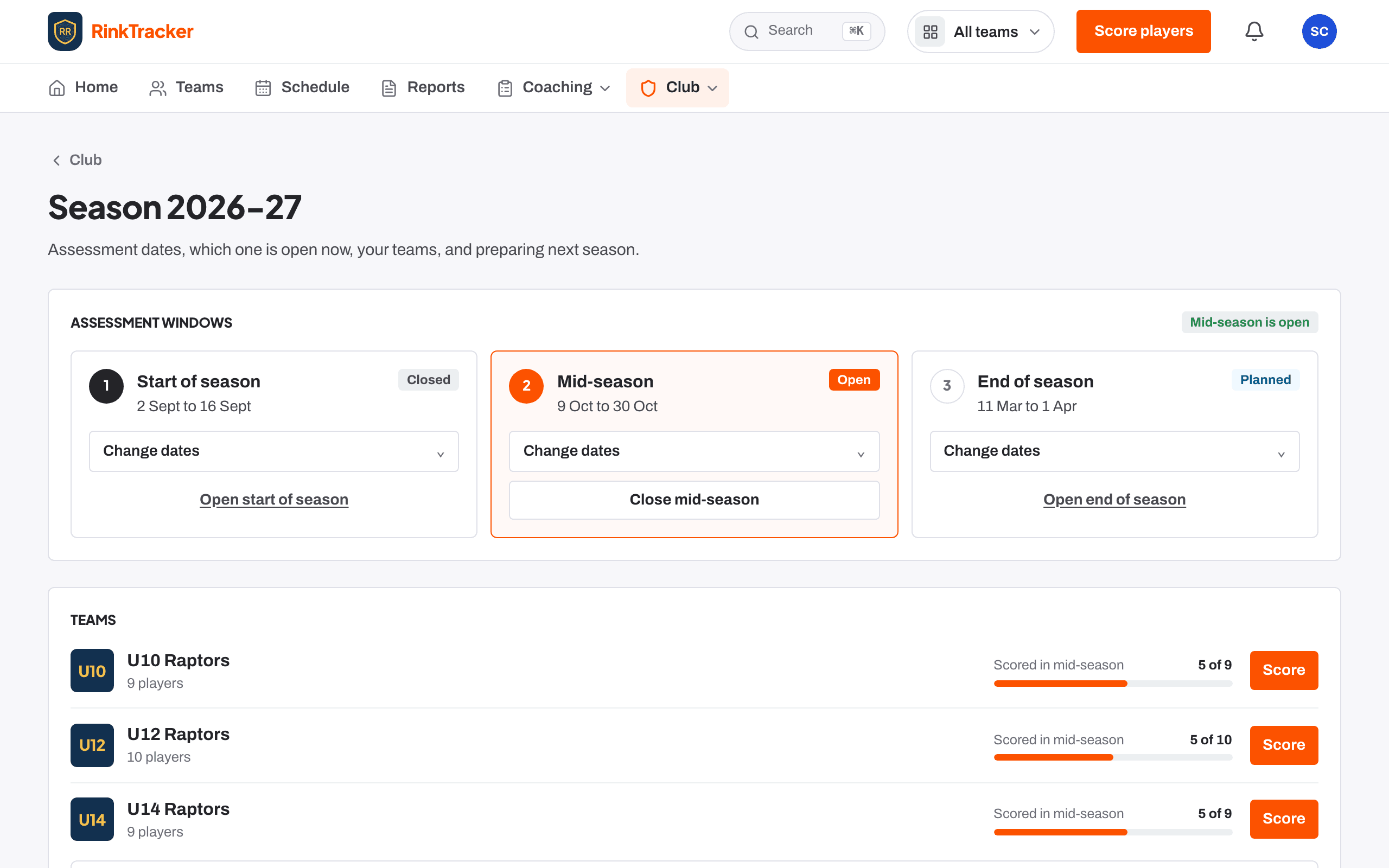
Check each team's scoring progress on Teams or Season. When everyone is done, go to Season and press Close end of season.
Publish the last reports
For each team, open Feedback and reports, approve the feedback and press Publish all approved. Each family who has joined gets an email straight away.
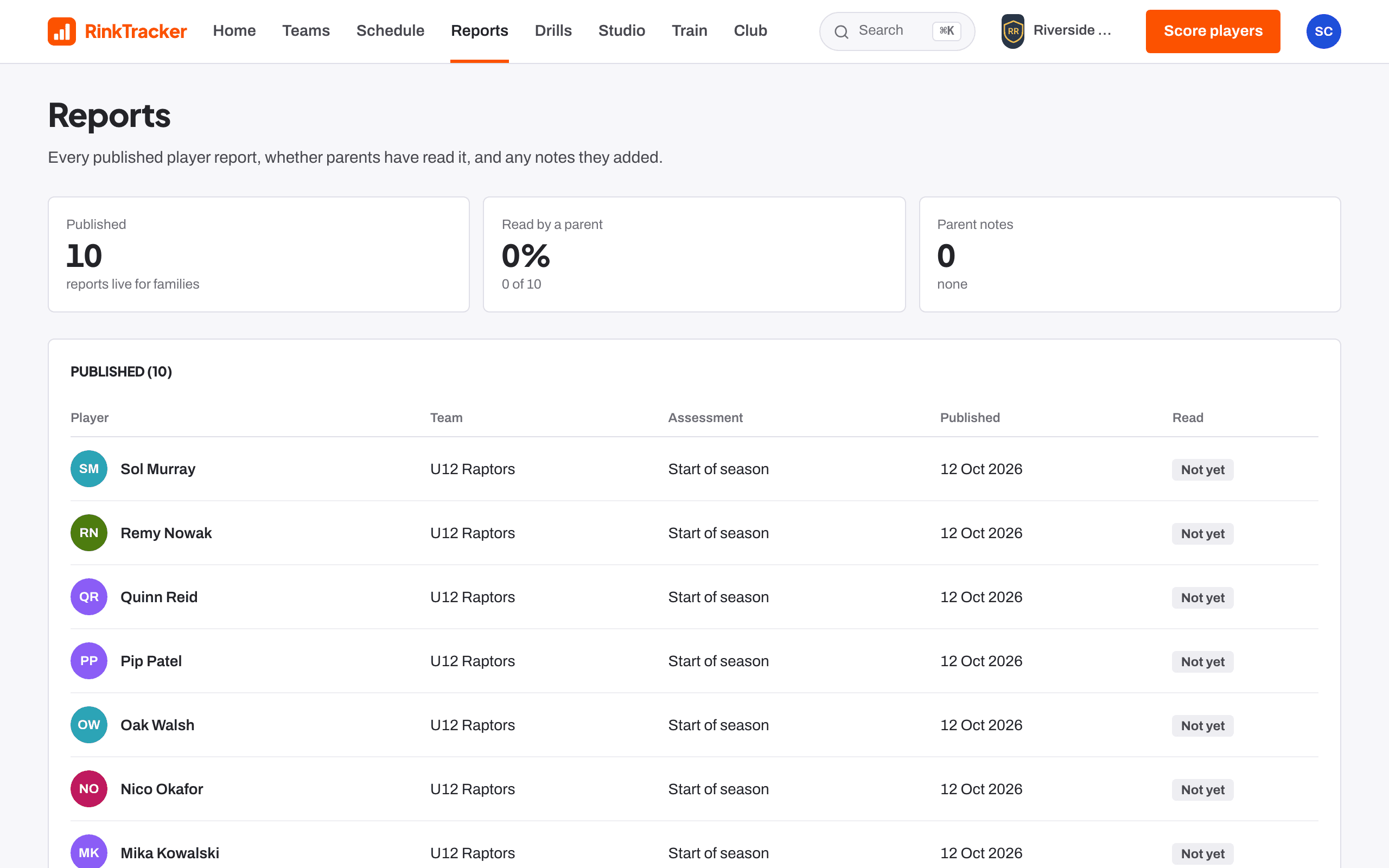
Reports shows which families have read theirs and any parent notes to follow up.
Look back at the season
Open Club, then Club dashboard. Pick a window tab for players scored, reports published, how much was not observed and players with no parent linked. Below that are progress by age band, each team's figures and the club average by skill.
Prepare next season
On Season, the Next season card offers to prepare next season early. It copies your teams into next season and moves each player into the age band for their birth year. Nothing changes for families until the new season starts.
- Read the table of player moves, including anyone who Ages out of junior hockey.
- Tick I have checked the moves above.
- Press Prepare followed by the new season's code.
Think about leavers' data
Data and privacy suggests keeping development records while a player is a member, plus six years, then erasing them. A club admin can erase a player's data from their page with Erase all of [first]'s data.
- Preparing next season Help article
- Data requests: downloading and erasing a player's data Help article
- Publish reports to families Guide
- Assessment windows: start, mid and end of season Help article
Stuck? Email hello@rinktracker.com or search the help centre.