Find your club
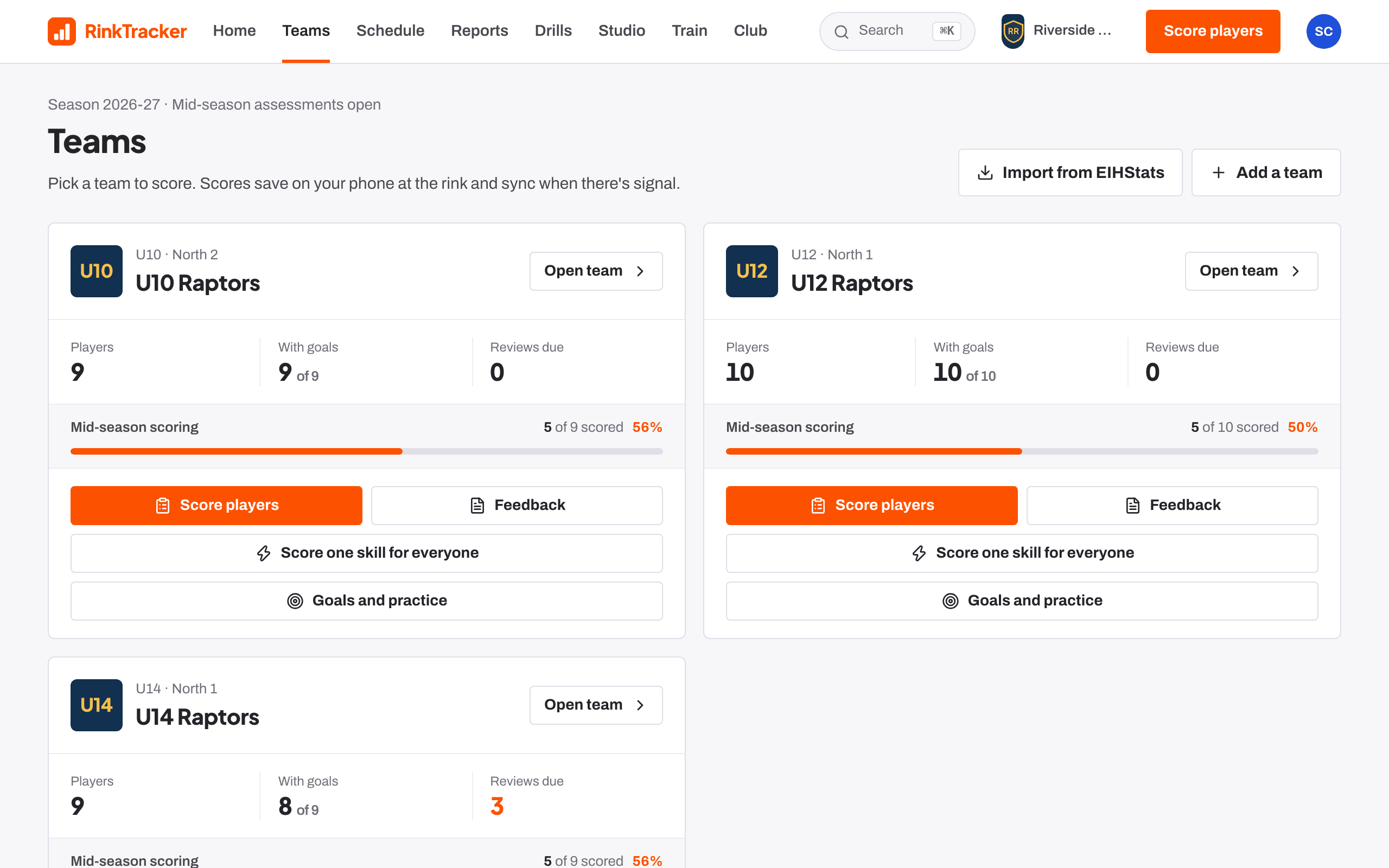
- Go to Teams and press Import from EIHStats.
- Type your Club name as it appears on EIHStats.
- Press Find teams.
Choose the teams to bring in
- Tick the teams you want, grouped by age band.
- Change the Name in RinkTracker if you'd like a different name, such as U14 Raptors.
- Press Import N teams.
Each team comes in with its roster, shirt numbers, season stats, fixtures and results.
Add birth dates
Players from EIHStats arrive without a date of birth. The date decides a player's age band and the expectations they are scored against.
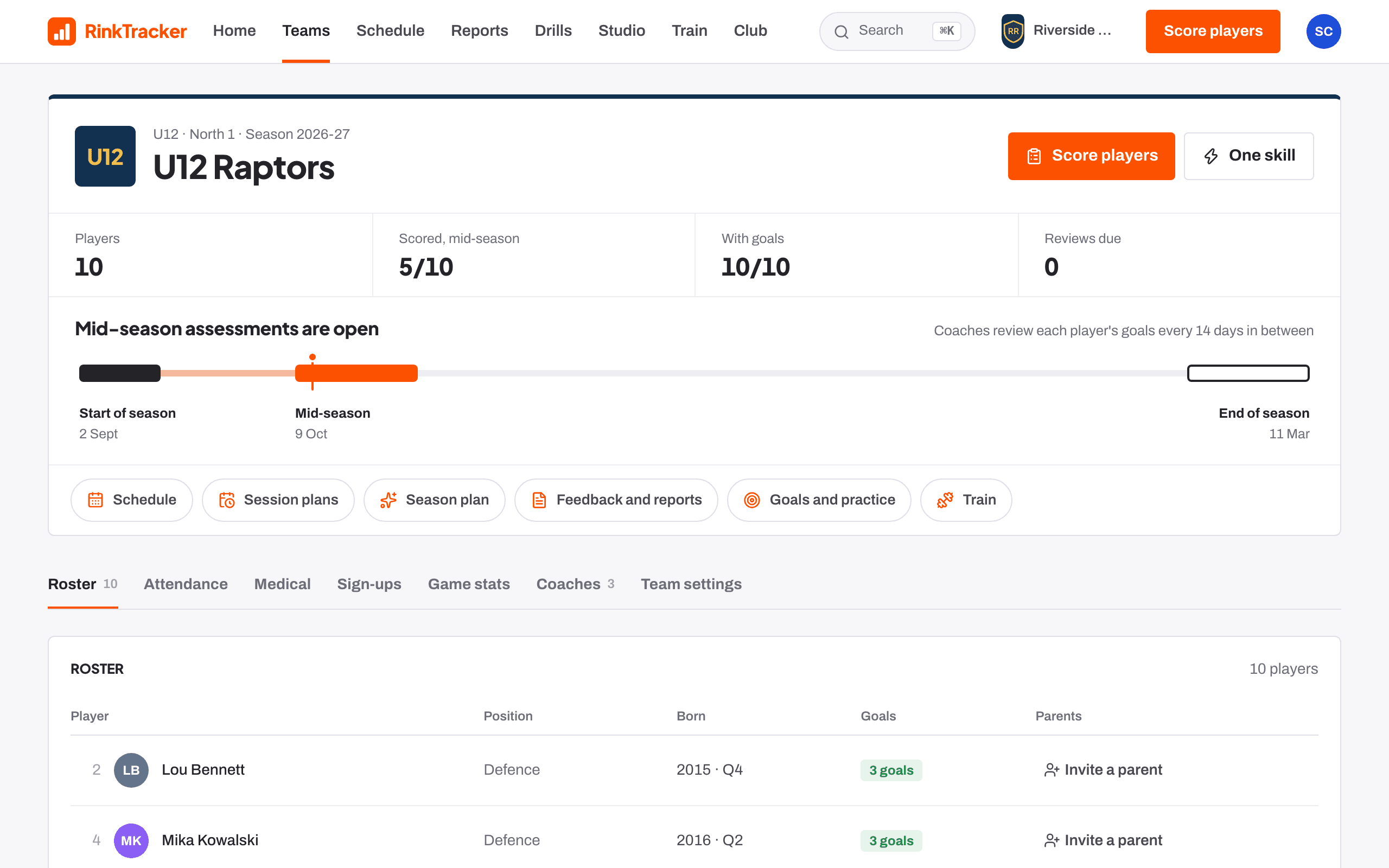
- Open each team. The header shows how many players need a birth date.
- On the Roster tab, press Add birth date next to each one.
Put the fixtures on the schedule
If EIHStats has games that aren't on your calendar, the team page says how many upcoming games aren't on the schedule yet. Press Add to the schedule to add them, so families can say who is coming.
Keep a team in sync
On a team's Team settings tab, the EIHStats panel shows the link. Press Sync now to update season stats and results and add any new players. A sync never removes anyone. Unlink stops it.
To link a team you added by hand, choose the Competition, press Show teams, pick the team, then Link and import.
- Importing teams from EIHStats Help article
- Importing a roster from GameDay or Flexviews Help article
- Invite staff and families Guide
- Teams and rosters Help article
Stuck? Email hello@rinktracker.com or search the help centre.