The schedule and adding events
Add trainings, games and other events, repeat them weekly, invite players, and change or cancel them.
For coaches, club admins
Schedule lists your teams' trainings, games and events. Filter by team with the chips, and switch between Upcoming, Past and Calendar. Each row shows how many have answered, or Take register once it has started.
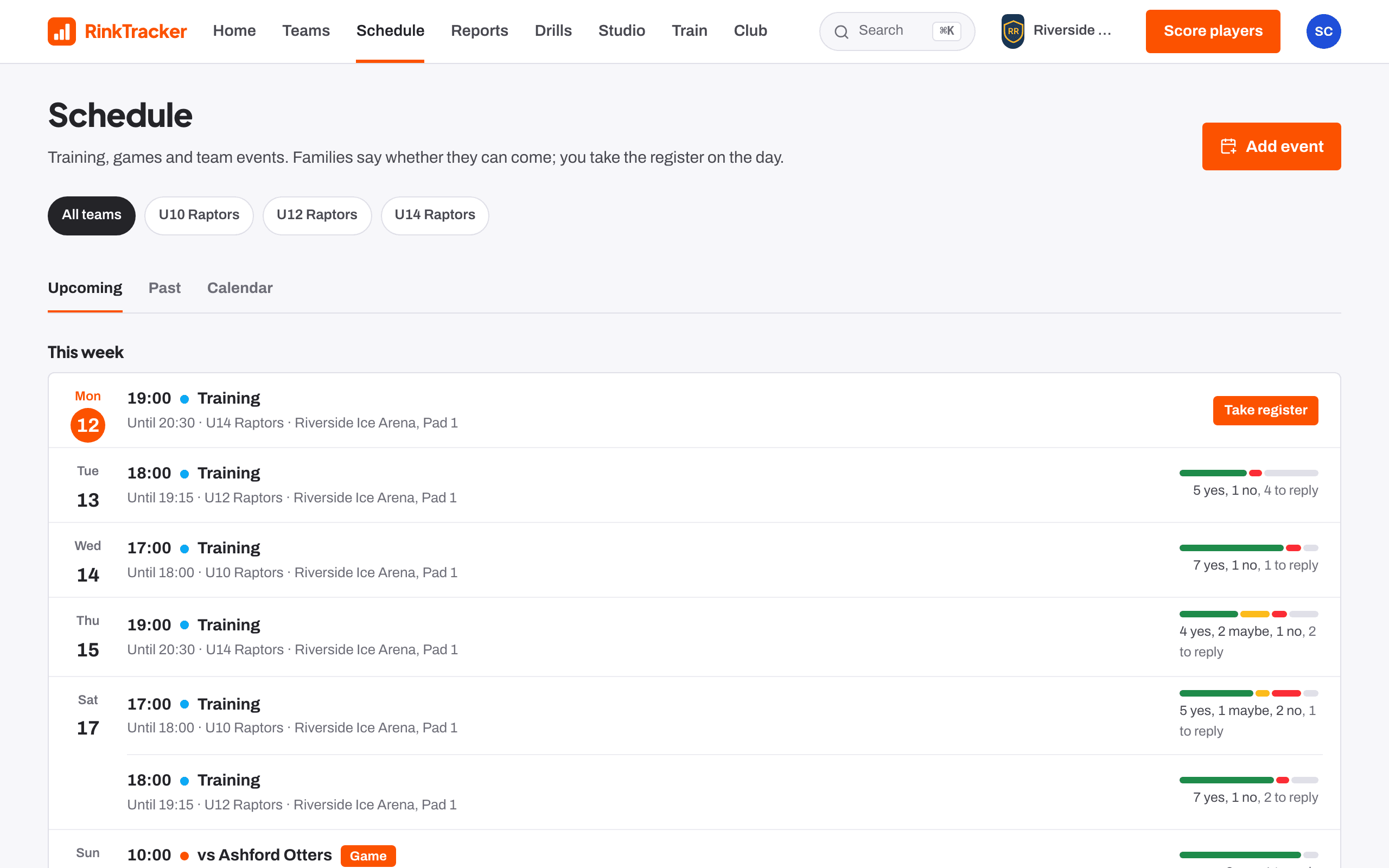
Club admins, head coaches, coaches and team managers can add and change events. Other staff can view them.
Adding an event
- Press Add event, or Add an event on this day in the calendar.
- Choose the team.
- Set the Type (Training, Game or Event), Title, Date, Starts, Finishes, when to Arrive, Where and Notes for families.
- To repeat it, tick Repeat every week, choose the weekdays and a Last date.
- Under Who is invited, choose The whole team (players who join later are added too) or Only the players I tick. Add players from other teams brings in guests.
- Press Add to the schedule.
Changing or cancelling
Open the event and press Change event. For a repeating event, choose Only this one or this one and the ones after it. You can cancel an event and restore it later. Families see a cancellation straight away and get an email. An event can be deleted only if no register has been taken.
Emails
Families get an email for new events, changes, cancellations and restores, and a reminder two days before if they have not answered. Coaches get a summary the day before of who is coming. Nothing is sent twice.
- Who's coming: availability replies Help article
- Taking the register Help article
- Lines and the game-day sheet Help article
- Take the register and pick lines Step-by-step guide
Still stuck? Email hello@rinktracker.com and we'll help.