Finding your way round the app
What is in the top bar on a computer, the bottom menu on a phone, and the More sheet.
For coaches, families, players, club admins
RinkTracker shows the same sections on every device. On a computer they sit along the top bar. On a phone the main ones sit in a menu along the bottom and the rest are in More.
On a phone
The bottom menu has five places, with an orange button in the middle for the thing you do most.
- Coaches: Home, Teams, Score, Schedule and More. More holds Drills, Reports, Studio, Train and Club.
- Parents: Home, Schedule, Train, Progress and More. More holds medical details and contacts, privacy and consent, notices from the club, your account and Report a concern.
- Players with their own login: Home, Schedule, Train, Progress and More.
Score opens the scoring sheet. If you coach one team and an assessment window is open, it goes straight to that team's sheet. Otherwise it opens Teams so you can pick one. Train opens the workout to do next, with Log practice under it for practice done away from the app. Clubs that don't use off-ice training have Log there instead, which opens the form to record practice.
Team managers and safeguarding leads do not score, so they have no orange button.
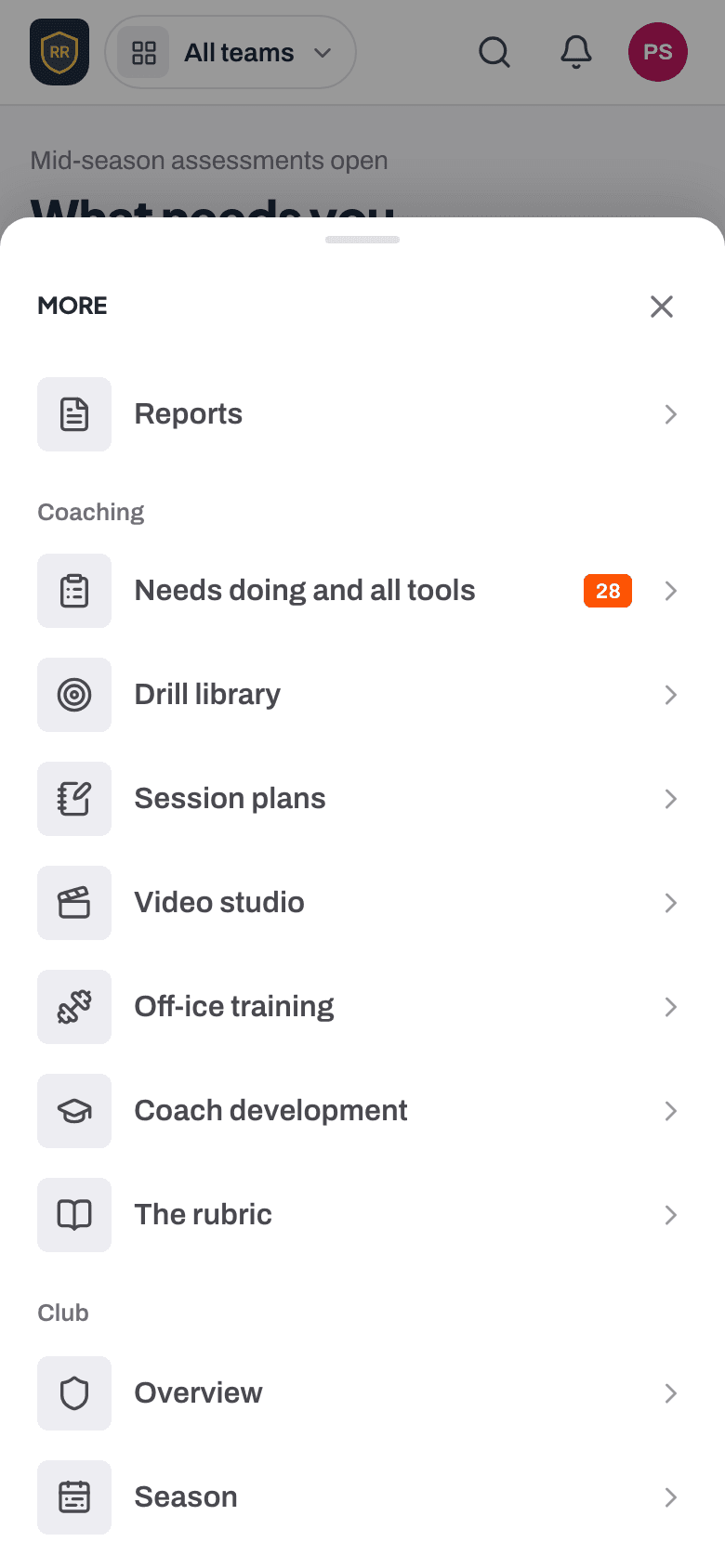
On a computer
Coaches see Home, Teams, Schedule, Reports, Drills, Studio, Train and Club across the top, with an orange Score players button on the right. Parents see Home, Schedule, Progress and More across the top, with an orange Train button on the right.
The header
Your club's crest sits next to RinkTracker at the top left. Staff have a team switcher beside it: pick a team, or All teams, and you stay on the same page for that team. Coaches, assistant coaches and team managers see their own teams; whole-club roles see every team this season. Parents have a child switcher instead, and every page follows the child they choose.
Your account menu
Tap your photo or initials at the top right for Your profile (staff) or Your account (parents and players), Help and guides, and Sign out.
- Searching the club Help article
- Roles: who sees what Help article
- Putting RinkTracker on your phone's home screen Help article
Still stuck? Email hello@rinktracker.com and we'll help.